Support
Support tracks your support tickets. Use Create ticket in a deposit, position, swap or chain action pane to describe a problem; a failed simulation isn’t required. The form includes the relevant context and lets you add a message and screenshots. Failed simulations also offer a report action with the error attached.
Tickets are tied to the wallet that opened them, so you need to connect that wallet to view them.
Creating or updating a ticket requires a wallet signature. If the connection needs to be restored, use Connect wallet in the form and reconnect the same account. The ticket form returns after you connect or close the wallet window, keeping your title, message and screenshots so you can retry.
On mobile, the ticket form opens in a bottom drawer. Swipe inside the drawer to reach the message, screenshots, ticket context and bottom buttons, including while the keyboard is open. Position tickets require a message describing the issue before Create ticket becomes available.
Failed transactions
A mined transaction that reverted is reported as Transaction reverted, even if its failure reason cannot be retrieved. When available, a receipt-block replay suggests a possible reason. Replay uses the state at the end of that block and may differ from the original failure; it is not an exact execution trace. Keep the transaction hash when reporting a problem.
Tickets list
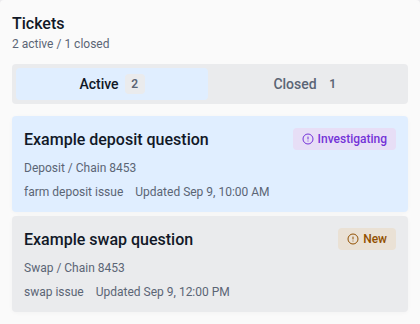
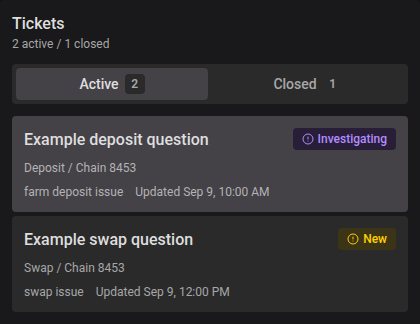
Tickets are split into Active and Closed tabs, each with a count. Every ticket shows its title, a status badge, the ticket type, and when it was last updated (plus when it’ll be purged, once closed).
A ticket’s thread
Selecting a ticket shows:
- Ticket context: the stored metadata and captured error for that failure, so support can see what happened without you having to re-describe it
- Messages: a thread between you, Support and the System, each with a timestamp and optional screenshot attachments
- Reply box: up to 4,000 characters; paste a screenshot directly into it to attach one
Web links in messages are clickable and open in a new tab. Long URLs wrap within the message, and line breaks are preserved.
Managing a ticket
- Close ticket / Reopen ticket: you can close a ticket yourself once it’s resolved, or reopen a closed one if the issue comes back
- Refresh: re-fetches your ticket list and the open thread
- Closed tickets are purged after a retention period (30 days by default), shown at the top of the page
Spam tokens
Support staff can blacklist a spam token on a specific chain. Its token listing and pools are then hidden from VFAT, including searches that include non-whitelisted tokens. The block remains in place until staff explicitly unblock it.
Leaving feedback or reporting a bug
For general feedback or issues outside a deposit, position, swap or chain context, use Leave feedback or Report a bug in the footer. Both open vfat’s feedback board.