Yield
Compare yield farms across DeFi, whether they earn swap fees alone or offer extra incentives. Enter and exit positions, and compound earnings in one click, all from a single interface.
Unavailable APR and earnings appear as —. A measured zero remains 0. When swap-fee data is unavailable, known additional rewards can still appear; these figures exclude the unavailable fee contribution. Missing token prices leave the affected fee amounts without a dollar estimate.
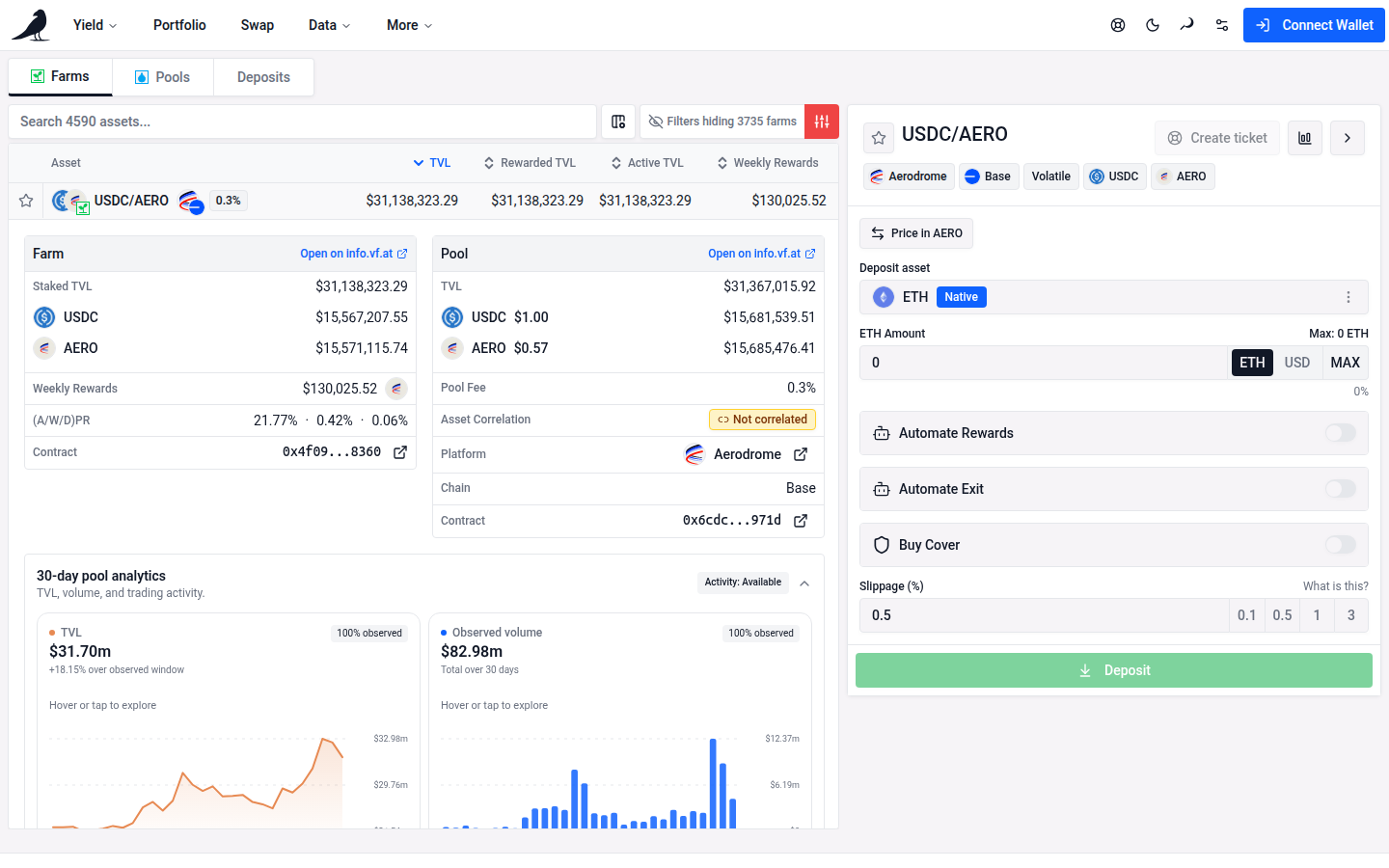
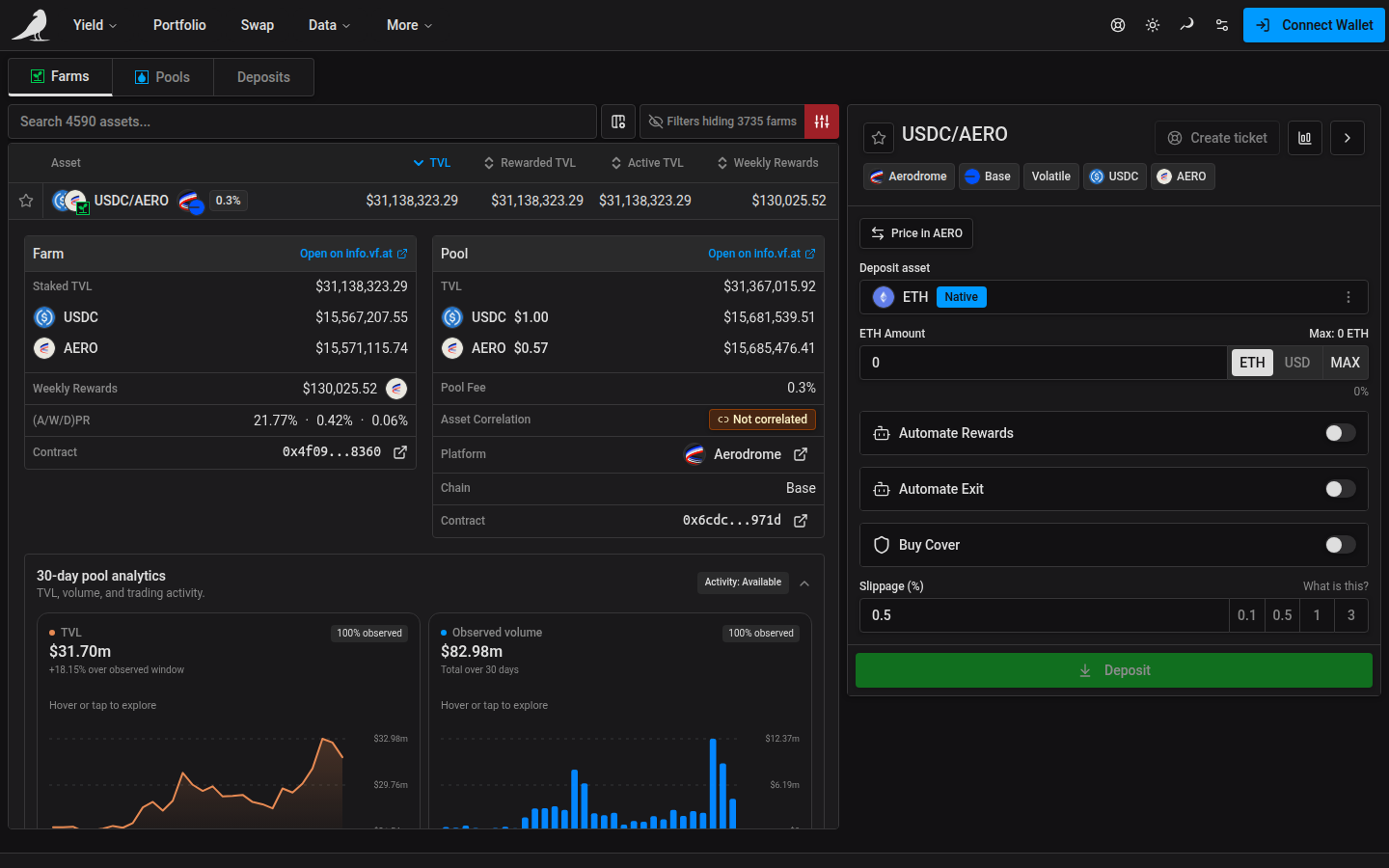
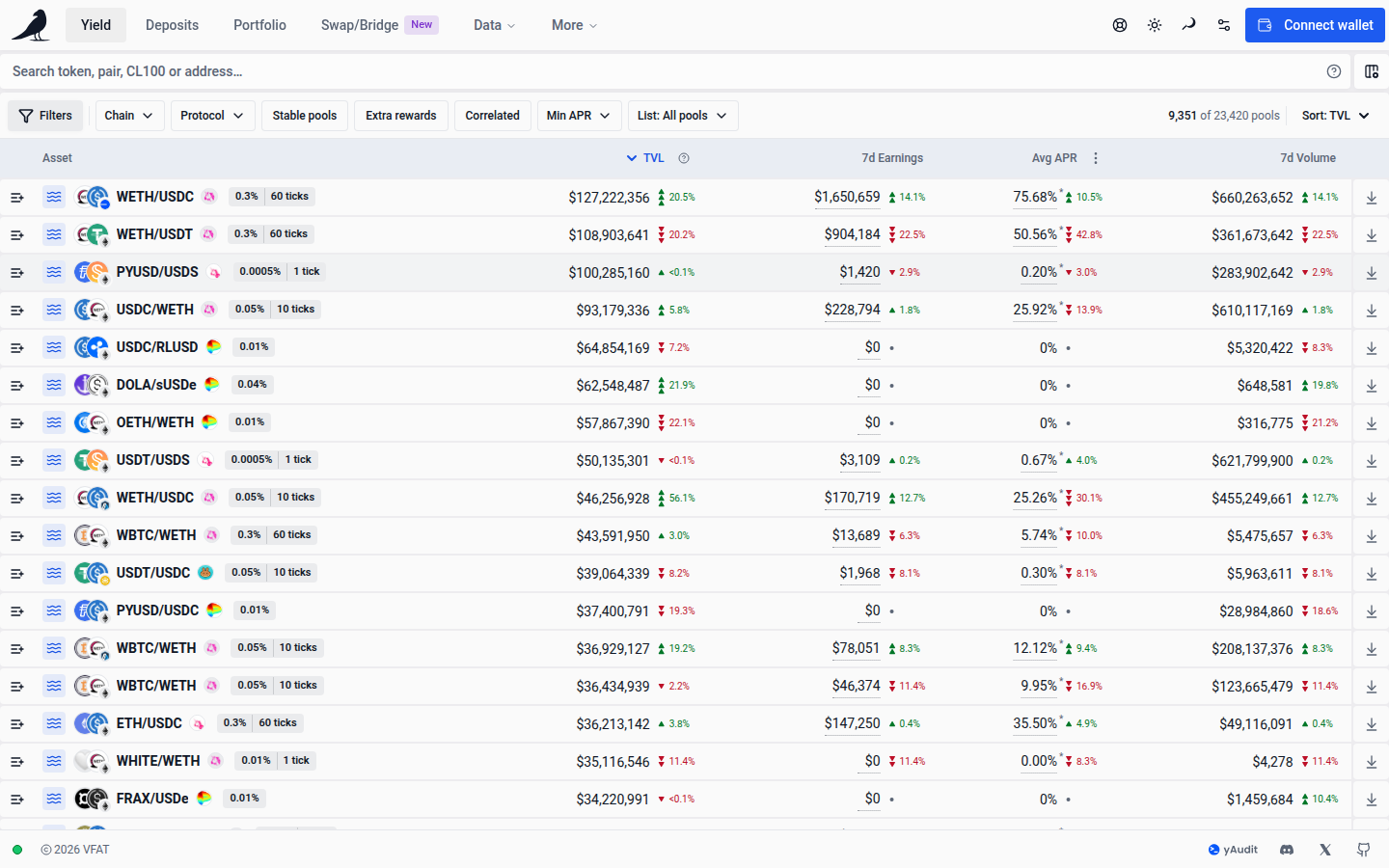
vfat.io indexes farms across a growing list of protocols and chains. See the live list on the Protocols page. Each pool appears once, showing the available option with the highest Avg APR that matches your filters. The default updates when new browse data arrives. Sorting uses that option’s values. The icon beside the pair shows its deposit option: a green sprout means Farm (Staked), and blue waves mean Pool (Unstaked). TVL covers the whole pool. Rewarded TVL, Active TVL, APR and income describe the displayed option. When that option changes, its badge and metrics change together. The liquidity figures cover all users. Pool volume and fee tier describe the shared pool.
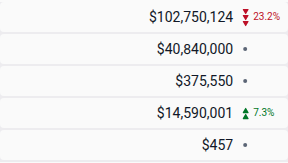
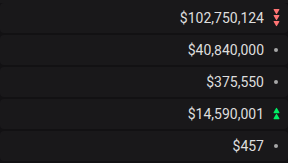
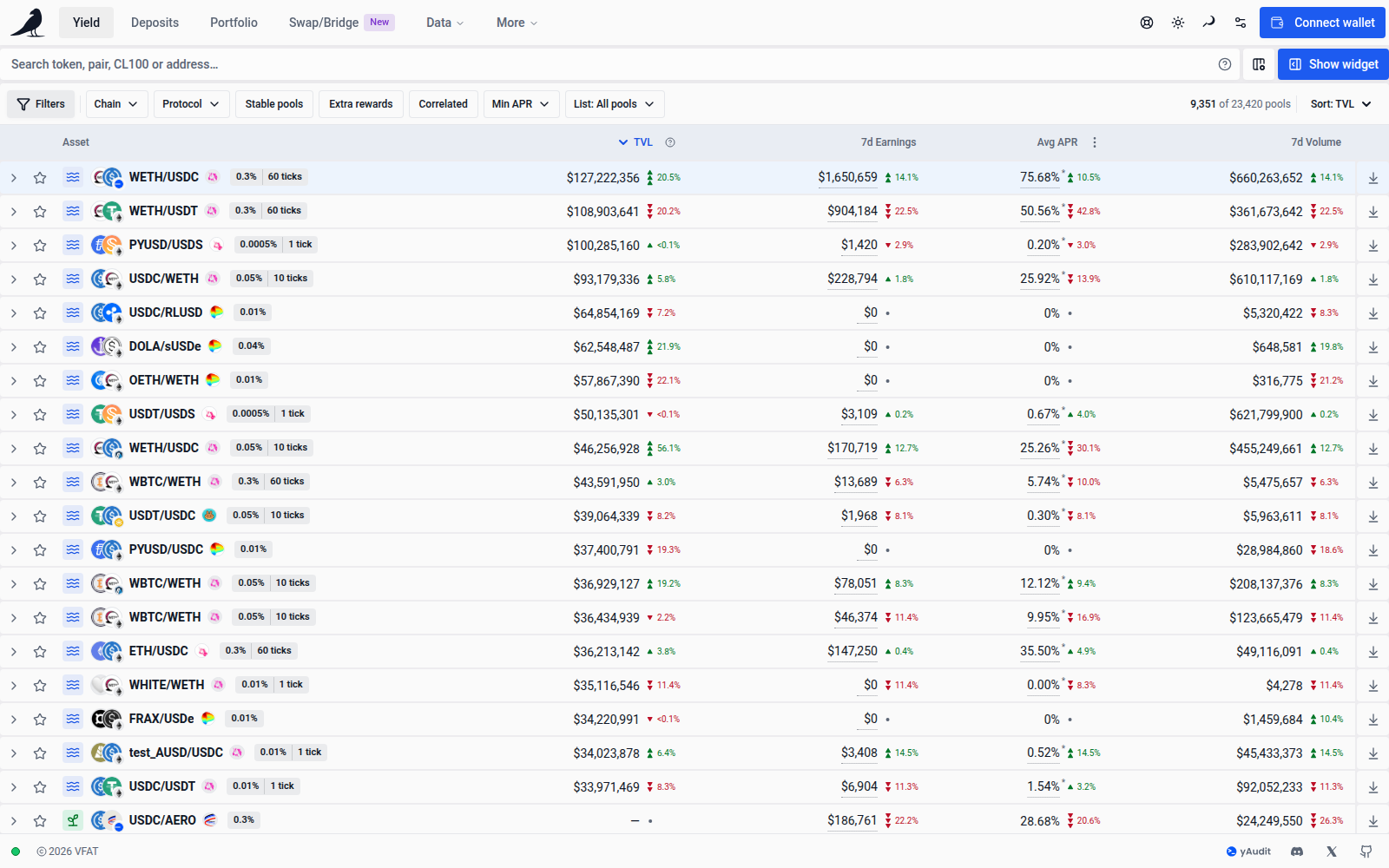
Rows use a compact layout, with the pool name in bold so it stands out. On desktop, token logos sit to the left of the pair name, with a small network logo at their bottom-right and the project logo beside the name. The Pool/Farm icon and one combined fee/spacing tag share the same line. The tag shows the swap fee first, then spacing with units, such as 1% | 200 ticks or Variable | 5 bps step. Tick spacing is the minimum number of ticks between valid range boundaries; bin step is the price change between neighbouring bins. Hover or tap it for an explanation of each value. The fee affects swap costs and potential fee earnings; smaller tick spacing allows finer range placement. Bin step describes the price step between neighbouring bins in basis points (100 = 1%). Variable-fee pools retain their directional rates in the explanation when available. On phones, the network logo is a small badge on the project logo, and the Pool/Farm marker is a smaller unfilled icon. The mobile table uses slightly smaller pair names to leave room for spacing and full TVL and APR values. On very narrow phones, scroll the table horizontally to reach all columns. Longer pair names shorten first on narrow screens; opening the row shows the full name. On phones and compact layouts, a small spacing badge stays beside the pair name: CL-60 means concentrated liquidity with 60-tick spacing, while 5bp means a bin step of 5 basis points. The CL- label distinguishes tick spacing from position counts. Tap the badge for its full label and explanation without opening the pool. The badge stays on the same line as the pair; longer names shorten as needed to leave room for spacing and the numeric columns. Fee details stay in pool details, and extra listing badges appear in desktop rows. Hover or tap the logos or Pool/Farm icon to see their names and explanations. Points, new-listing and held-position badges remain in desktop rows; whitelist and unavailable-position warnings stay visible on phones. Asset correlation is shown in pool details. Monetary columns show full amounts rounded to the nearest whole unit of the selected currency, with thousands separators, such as $375,550 and $102,750,000. Figures and their trend indicators stay aligned. Hover or tap a TVL or volume value for its amount including decimals. Rounding changes the display; sorting and trends use the original values. APRs and token quantities retain their precision. The selected sorting column keeps its arrow, and your column choices and order are preserved.
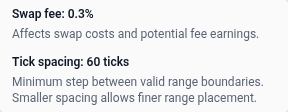
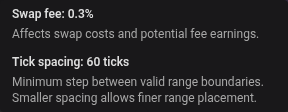
The pool tag and Fee Tier column show fees with up to four significant digits, so a rate such as 0.44034599999999996% appears as 0.4403%. Hover, focus or tap the fee to see its full value. Small nonzero fees retain their precision, and sorting uses the original rate.


The indicators to the right of TVL, Rewarded TVL, Active TVL, Earnings, APR and Volume show their relative change versus the same deposit option’s snapshot approximately 1, 7 or 30 days ago, following the selected Time period. Green upward triangles show an increase; red downward triangles show a decrease. One triangle means a change smaller than 5%, two mean 5% to less than 20%, and three mean 20% or more, in either direction. When there is enough space, a percentage in the same colour appears beside the triangles. The figures and indicators align vertically within each column. Percentages show or hide together across all columns in the table and return as soon as they fit, including on phones. Columns without comparison data do not hide the other percentages. An unchanged value shows a neutral dash and 0.0% when there is room; a missing comparison shows a grey dot in the same indicator slot. Screen readers retain the full signal even when the percentage is hidden. There is no trend popup or colour key. APR changes are relative percentages, rather than percentage-point differences; switching APR/APY compares the same measure. Sorting still uses the main value. Comparisons are unavailable when the historical value is missing or zero, or the selected measure has no recorded comparison. Projected income compares the same rate over the selected duration; grouped rows with observed fees currently have income comparisons for 7d only. Custom range APR comparisons are unavailable. Volume compares the selected rolling total with that same rolling total in the historical snapshot.
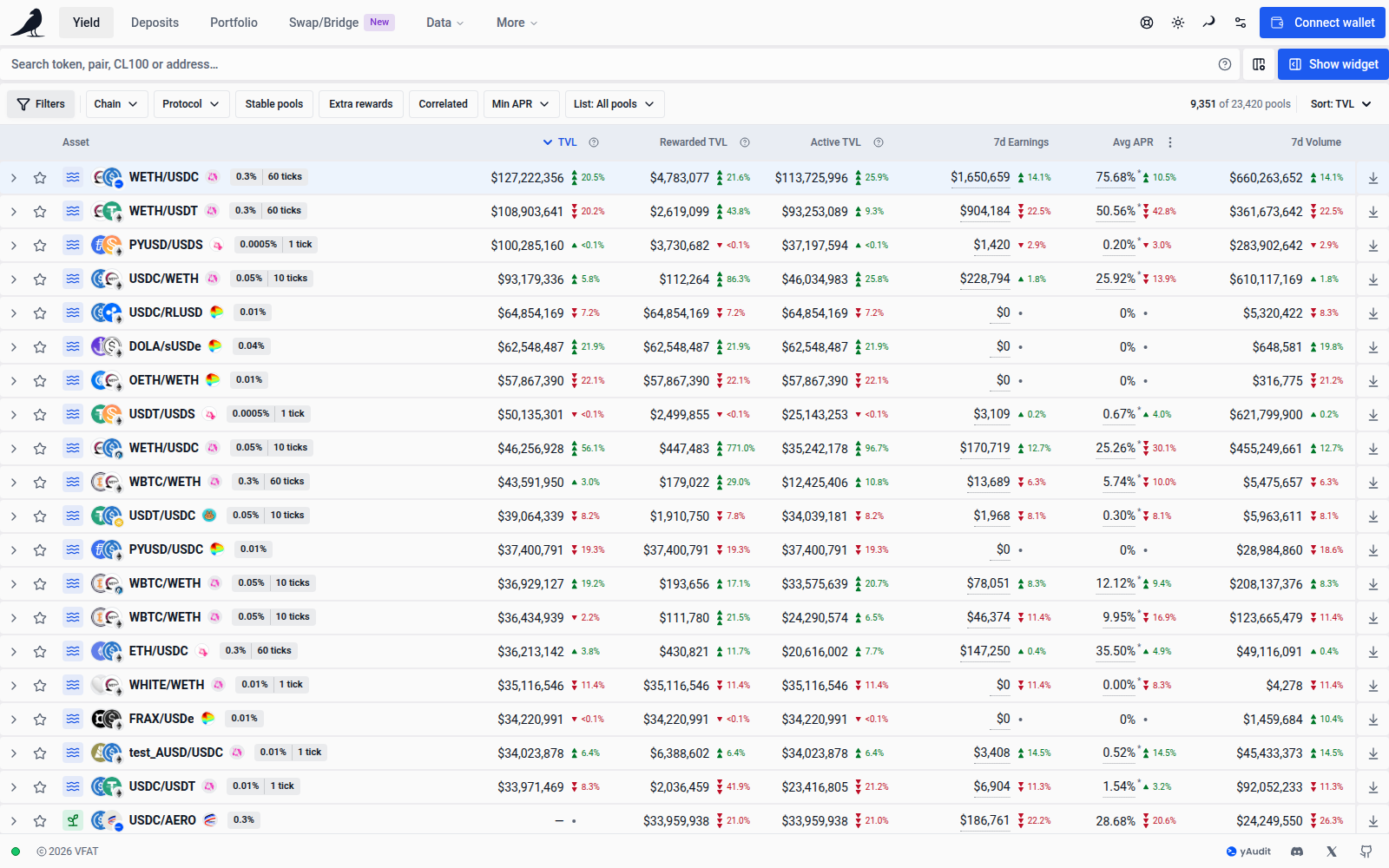
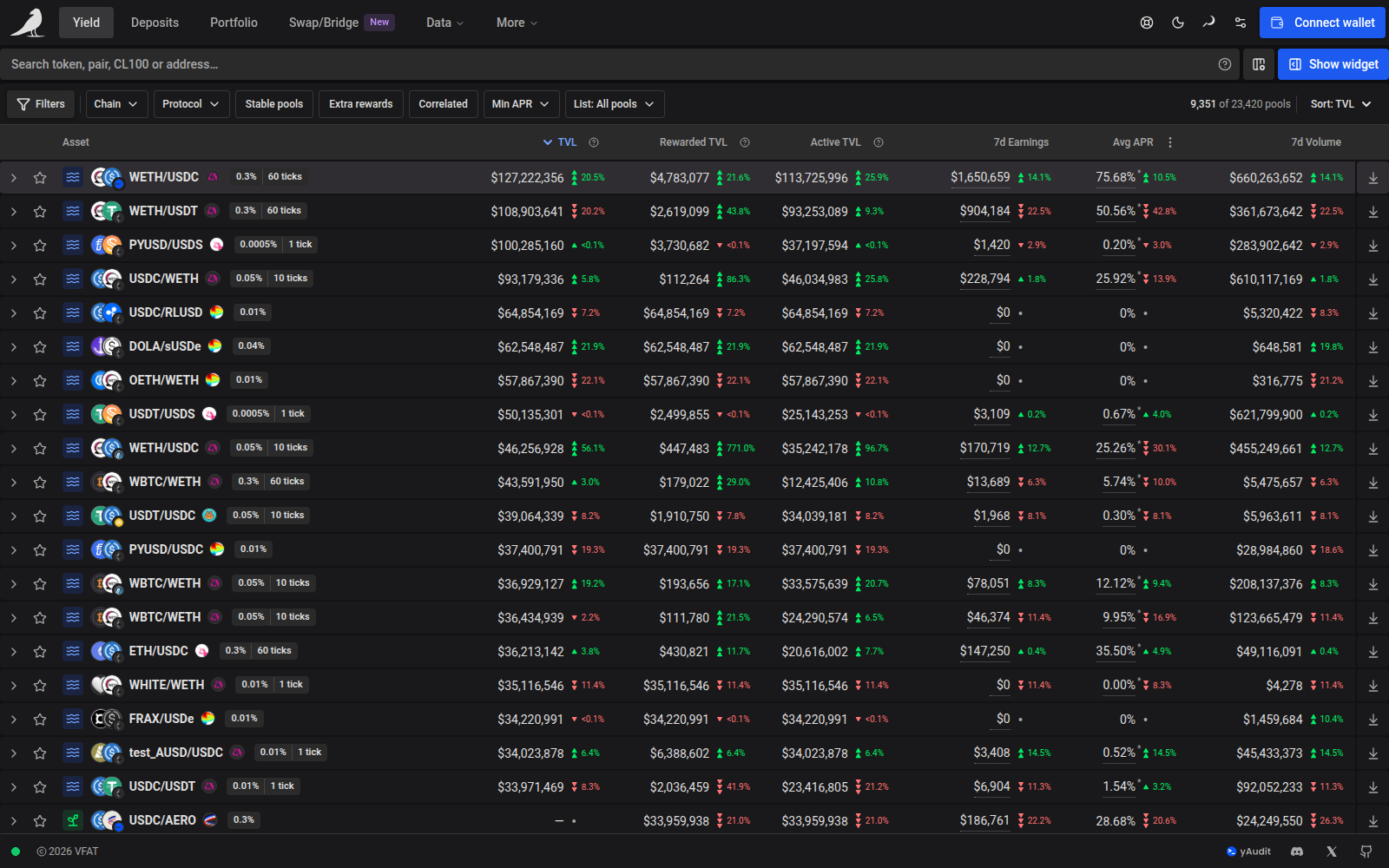


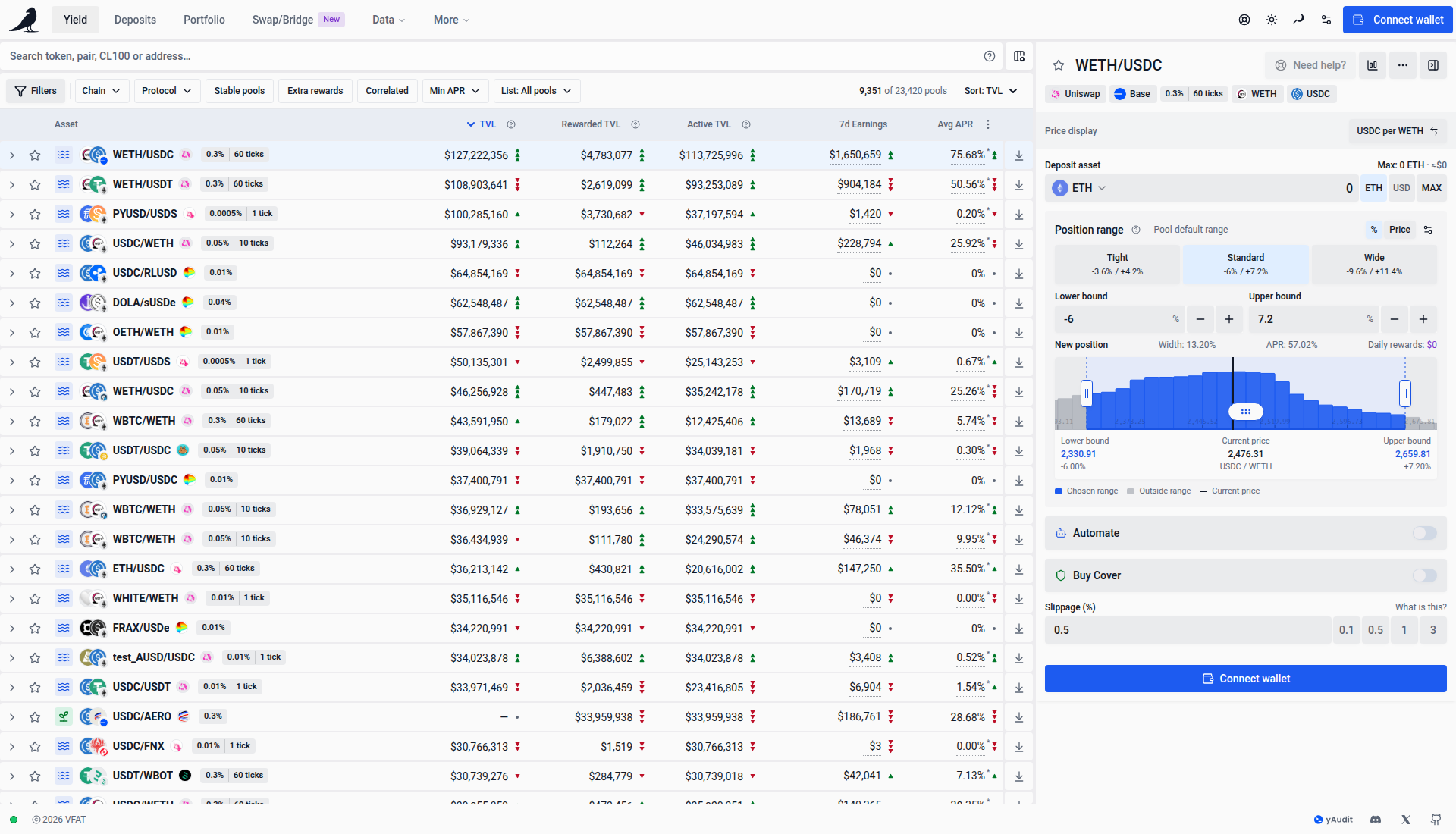
On desktops with enough room for your chosen columns and the action widget, the first farm is selected automatically and its action pane opens while the row stays collapsed. A chevron before the favorite star indicates that a row has inline details. Click the row to expand them; the chevron rotates down when open and back to the right when closed. When the widget would squeeze the table, the table uses the available width until you open a row. Its action pane then opens as a sheet; the close button in its header or Escape returns to the table. This also applies to saved column layouts and browser or display scaling. Resizing between a sidebar and sheet preserves your selected deposit mode and entered amounts. You can also focus a row with Tab and press Enter or Space to open it.
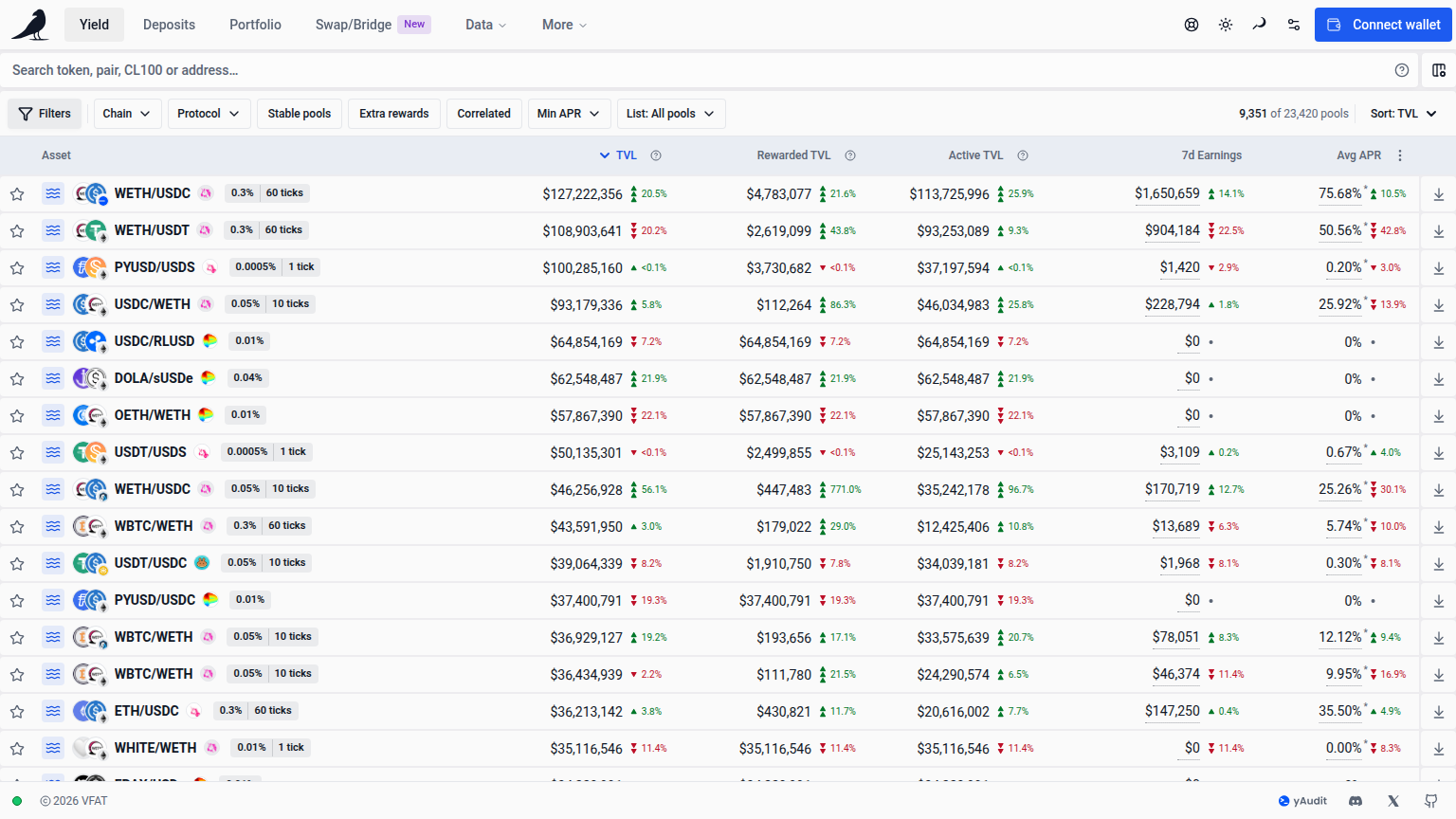
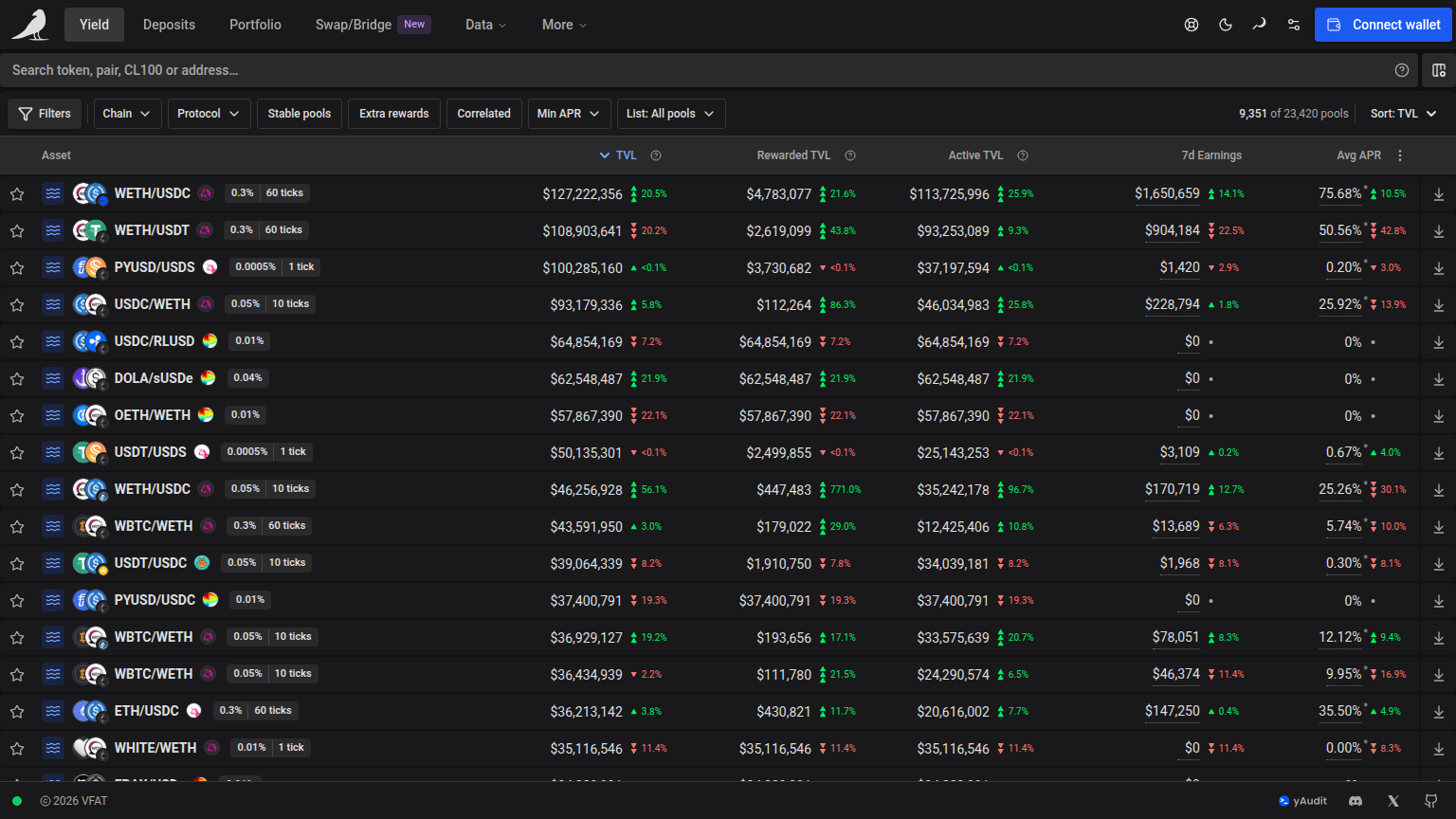
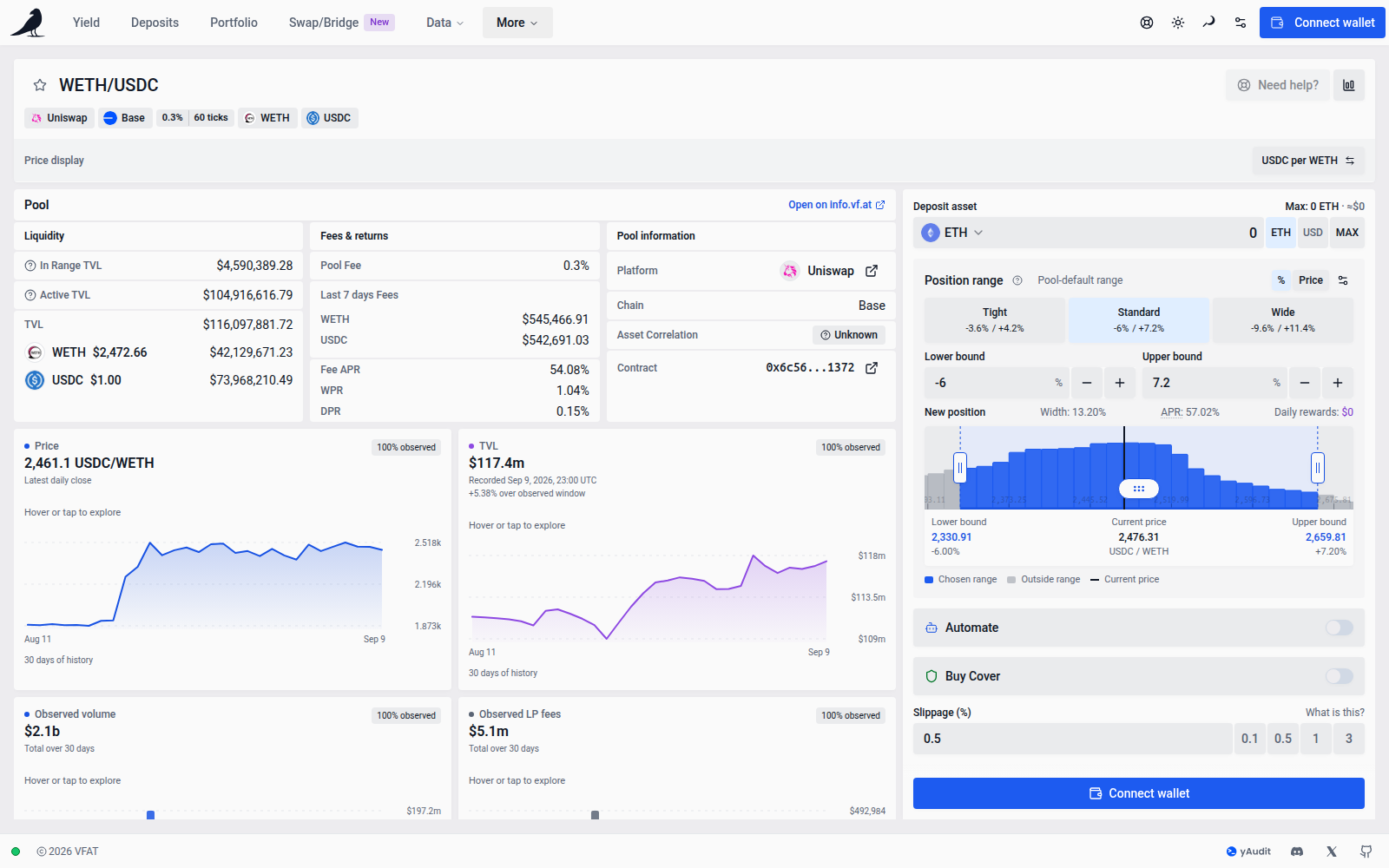
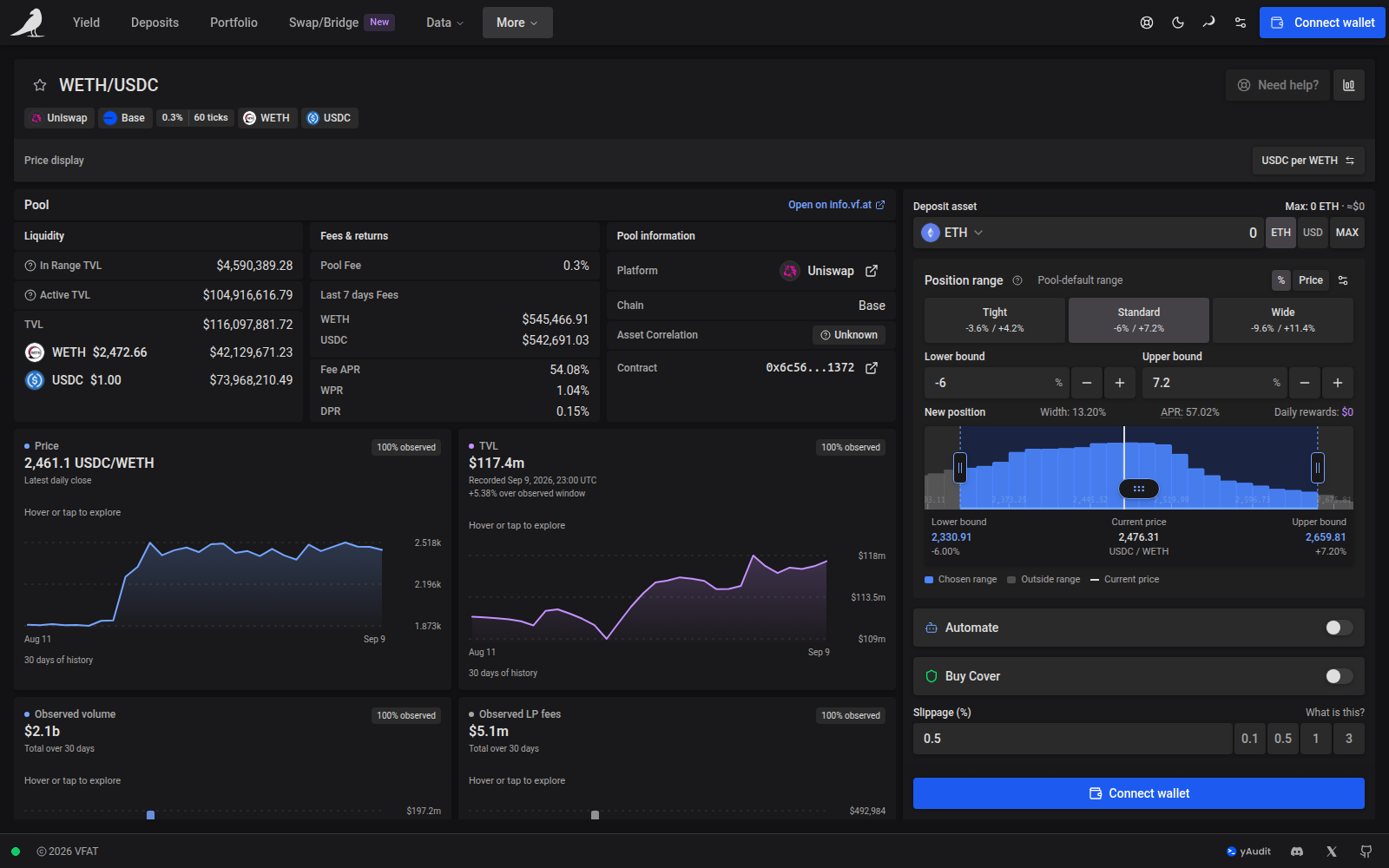
Expanded Farm and Pool details use the same card surface as table rows, with the page background showing through compact gaps instead of divider lines. Cards are white in light mode and follow the card color in dark mode. Detail rows align with their headers. The 8px gaps between panels and analytics cards also match the spacing above and below the expanded area. Pool details group Liquidity, Fees & returns and Pool information into compact columns when space allows, keeping labels close to their values and bringing charts higher up the page. Each token’s seven-day fees appear on a separate line, and Fee APR, WPR and DPR each have their own labeled line. Fee APR covers swap fees only, without token rewards or a range adjustment. Columns share the same height, with extra space below the shorter groups. They stack at their natural height in narrow panels and on phones. Side-by-side Farm and Pool panels share the same height while their rows stay compact. Only the final row of a shorter panel expands to fill the remaining space, with its label and value aligned at the top. Panels stack at their natural height when the table is narrow. Analytics charts and summary cards appear directly below the details whenever they are open, without a separate container or collapse control. They use matching borderless surfaces.
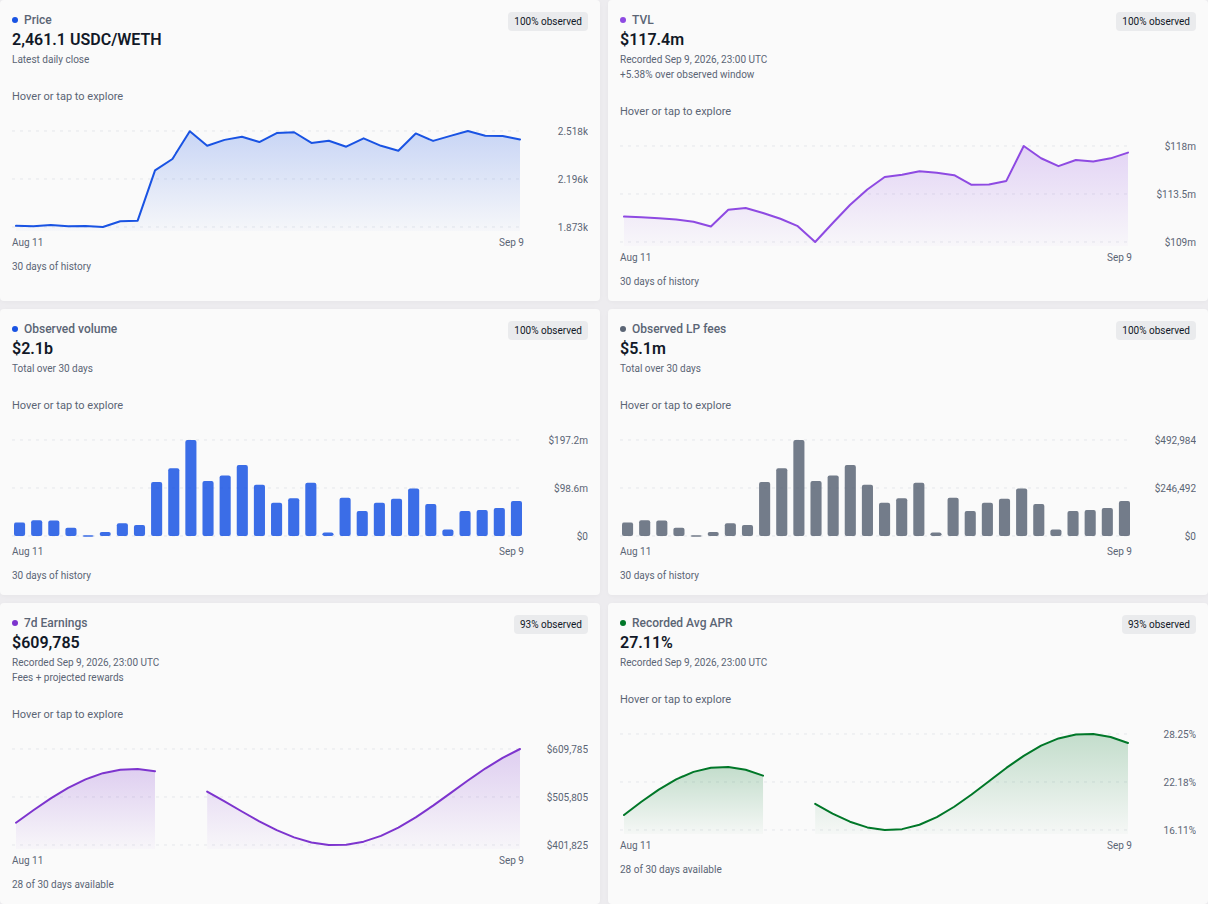
Daily analytics also chart 7d Earnings and Recorded Avg APR for the selected Pool/Farm option when recorded history is available. The income chart tracks seven-day fees plus projected rewards at each snapshot, rather than adding them into a period total. Both charts share the existing hover, tap and keyboard exploration, with missing observations shown as gaps. Selecting a point aligns its date across the other charts. The same charts appear in Deposits details and the standalone farm view, using the history response already loaded for price, TVL, volume and fees.
When the API supplies executed-swap history, the Price chart labels that basis. These prices include fees and price impact and can differ from the current marginal pool price. Quiet periods without trades leave price gaps; a verified period with no swaps can still have zero volume and fees. USD volume and fees use historical token prices from the same period when available. Missing historical valuations remain unavailable. Metric uses these same charts; its oracle-relative range-suggestion history remains separate.
TVL, Earnings and Recorded Avg APR chart headlines show the latest recorded historical value with its recording date. Recorded Avg APR is the historical version of the table’s current Avg APR, not an average over the chart’s time span. The table shows current figures, which can differ from the last completed snapshot. Hovering or tapping older points keeps that headline date in place and shows the selected point’s own time below it.
Curve StableSwap-NG pools also show Sampled LP performance in these analytics. Observed and adjusted LP return APRs describe per-LP virtual-price performance. Adjusted removes stored-rate and amplification revaluation against a frozen starting basket. These are not exact charged LP fees, spendable token/USD income or your position’s earnings; do not add them to the existing fee estimates. Farm Fee APR, recorded Avg APR and earnings keep their existing sources.
Shown history, 24h, 7d and 30d select server-calculated windows of intervals ending in closed UTC buckets. The actual measurement span and measured seconds can cross those bucket boundaries. A complete-window APR is shown only when the server reports it available. An explicitly labelled Measured subset APR can remain visible while the requested window is unavailable. Zero and negative returns are valid; absent or unresolved measurements appear as gaps. Bucket coverage describes source-completion proof, not the fraction of wall-clock time measured.
Preparation, source errors, stale history and backfilling remain visible alongside retained observations. Source and preparation details separates the latest diagnostic source endpoint from preparation timestamps. Hover, tap or use the chart’s arrow keys to inspect actual measurement spans, each bucket’s captured source frontier, interval counts and block range. A recent diagnostic endpoint or successful check alone does not prove complete history. Mature NG pools can select 24 hours as well as 30 days; N-coin pools show their full token list without enabling pair-only analytics. Hourly returns retain 24 closed hours, so longer hourly windows can remain unavailable.
Use the Hide widget icon in the widget header to give the table more room. The widget stays hidden when you click rows, switch tabs, or reload. Select the Show widget button in the table toolbar to restore it for the current row and resume following row selections. This preference is shared with Deposits. On smaller screens, row selections still open the action sheet and the close button returns to the table.
Expanded details show the Pool alongside its available Farm panels, including staked TVL, reward tokens, reward APR and the farm contract. Filters determine which pools appear; each pool’s details stay the same regardless of the filter or deposit mode selected. Viewing details does not change your deposit choice. On phones, the same details appear below the action form.
For Uniswap v4 pools, Contract shows the shared PoolManager address. Use Pool ID to distinguish individual pools: hover over the shortened ID to see the full value, or use its copy button to copy it.
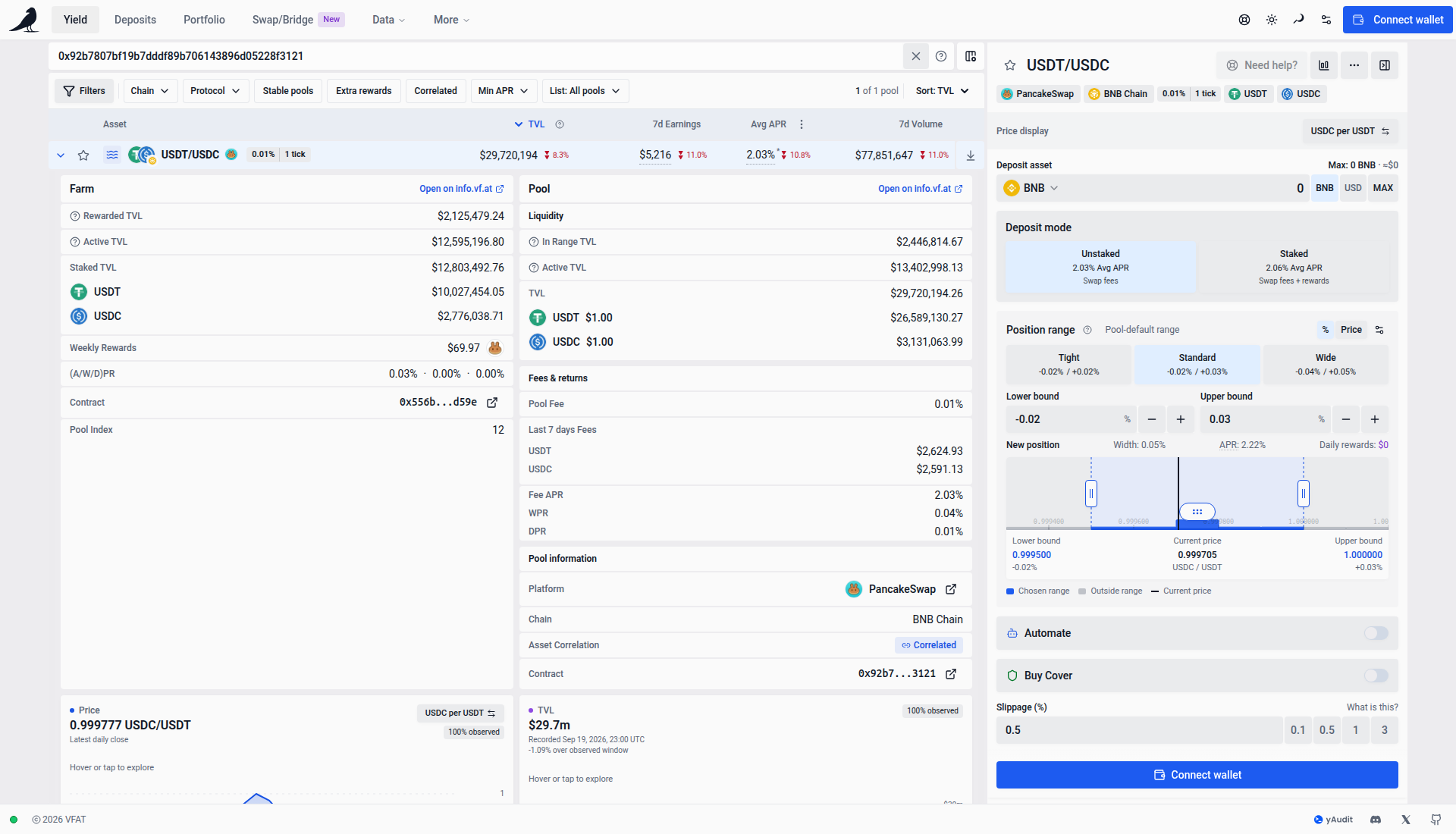
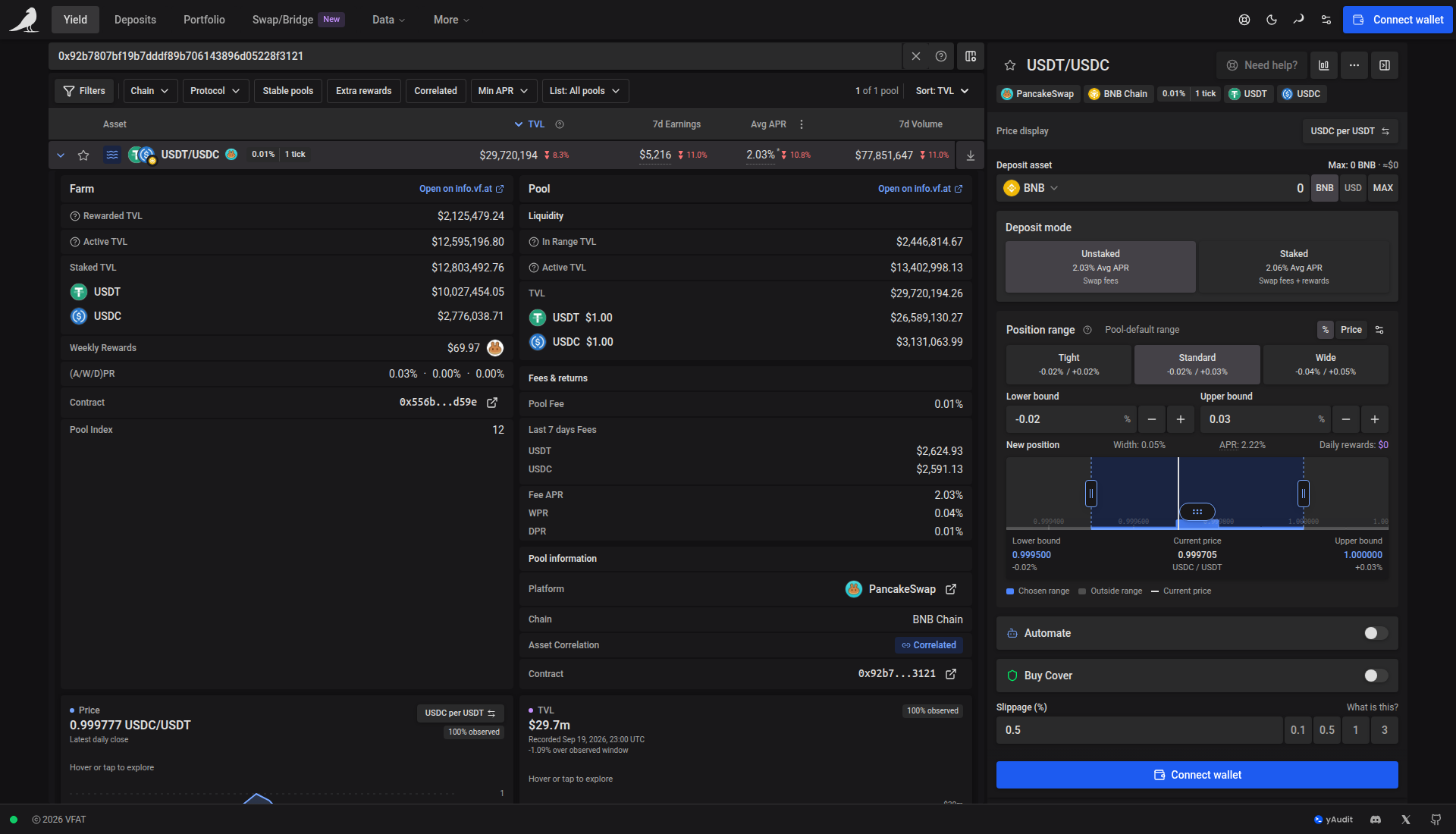
On desktop screens below 2240 pixels wide, the Yield view stays centered with a maximum width of 1,792 pixels at the default text size. Wider screens allow up to 3,008 pixels for the table and combined widget. Enable Use full width in App Settings to fill the screen instead; your choice is saved in your browser and also applies to the other data views listed there. Smaller screens continue to use the available width.
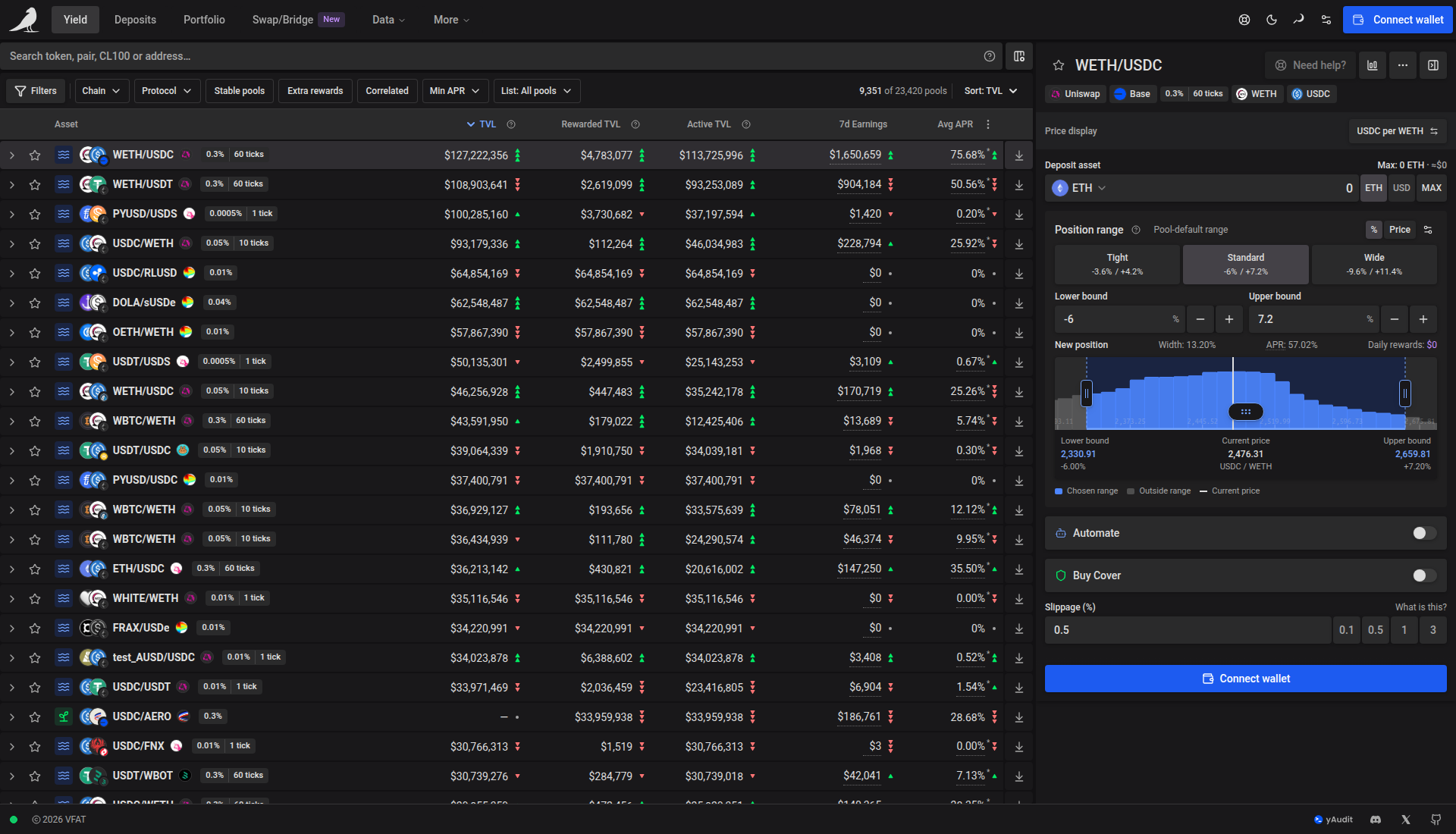
Use Yield and Deposits in the desktop navigation or the tabs above the table on phones. In the desktop header, the current page uses stronger text and a thin underline. Data or More carries the same underline when it contains the current page, including pages moved into More on narrower windows. Phones use compact filled tabs above the table. The table scrolls within the page; row actions, where shown, fill the row height and remain pinned when scrolling sideways. Phones and narrow tablets show the token pair with project and network logos, with TVL and APR alongside. The sprout or waves badge remains visible beside the pair so you can distinguish a staked farm from an unstaked pool. Tap the badge for an explanation, or tap the row to reach the deposit form and additional pool information. Customize columns lets you add other columns. Active filters use a soft light blue highlight in light mode and a brighter neutral grey highlight in dark mode; sorting is announced to screen readers. When the sorted column is hidden, such as Earnings on phones and narrower windows, the Asset heading shows the active sort. Tap it to sort by another column or reverse the order. With keyboard navigation, choosing a visible column moves focus to its heading.
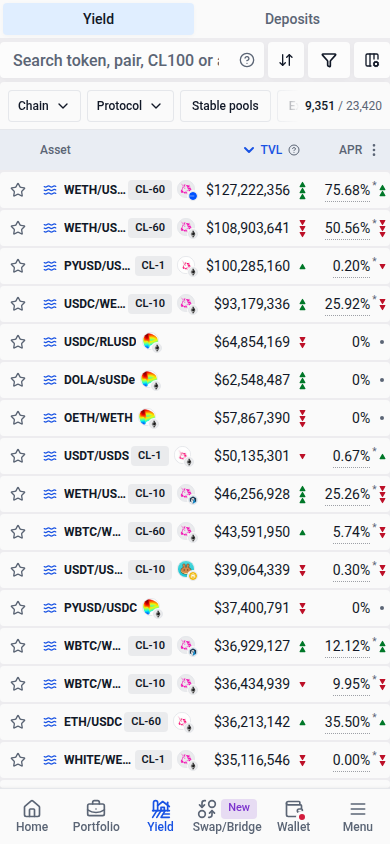
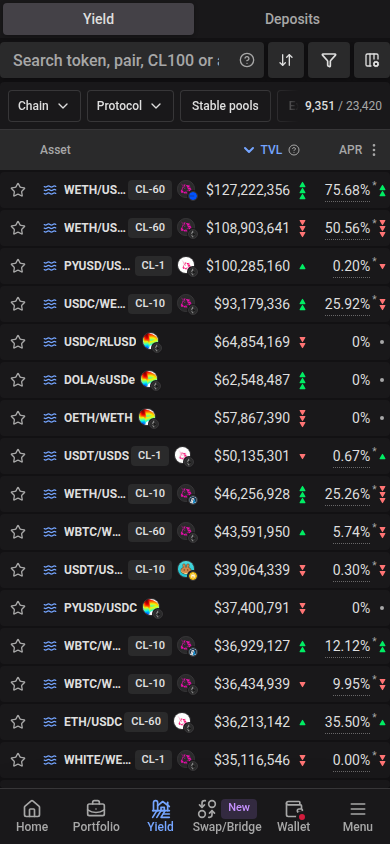
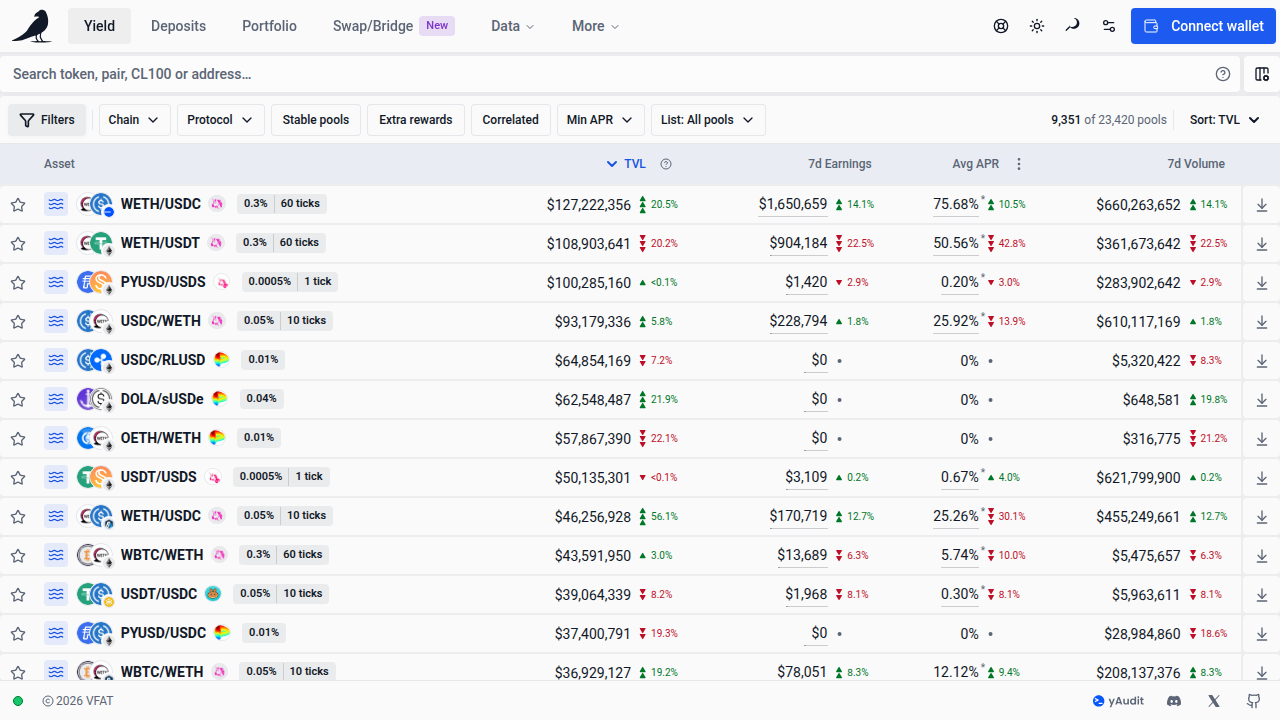
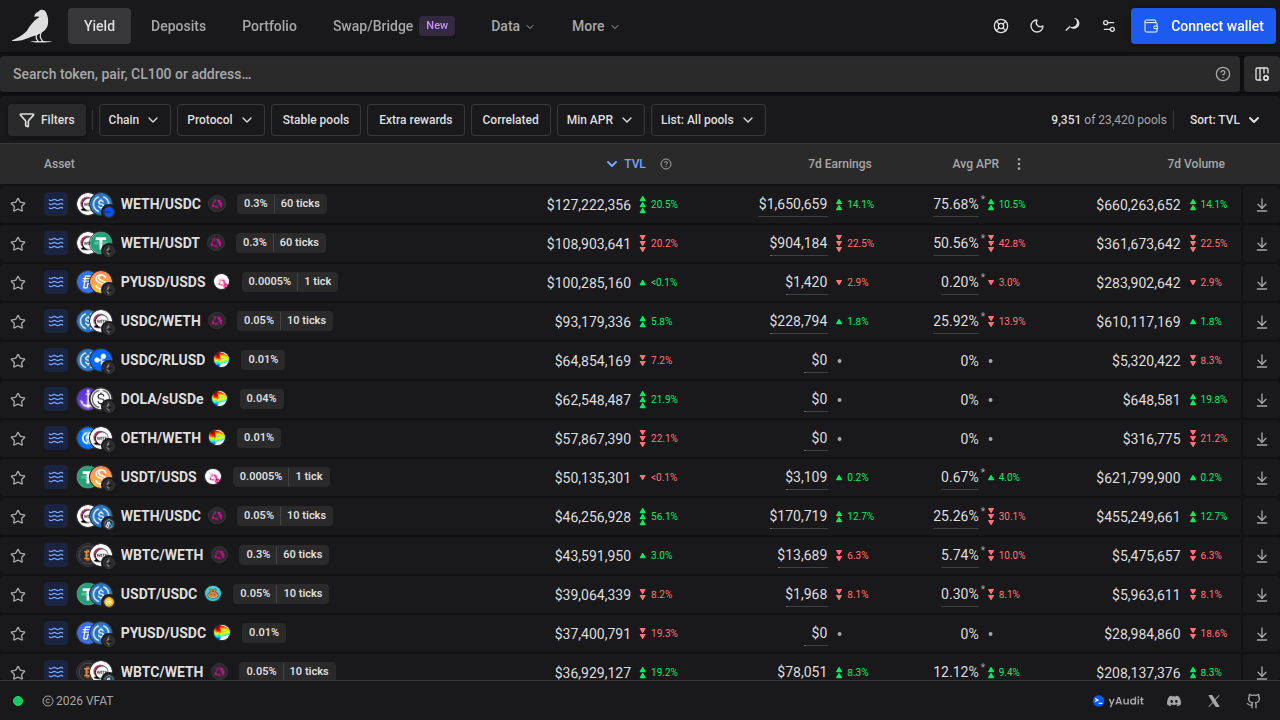
The desktop asset column leaves room for normal pair names alongside fee, spacing and listing badges. Unusually long names still shorten; hover the name or open the row to see the full pair. Numeric columns share the remaining space with enough room for their headings and trend indicators. The action widget opens separately when your chosen columns need more space, including layouts saved from the former Detailed view. Column choices and text size stay unchanged. Very narrow screens or unusually large column selections can still scroll; on phones, swipe across the table to reach the additional columns you selected in Customize columns.
Desktop defaults include 7d Volume; Avg Range is available in Customize columns. The volume heading and trend follow your selected 1d, 7d or 30d period. Phones keep the compact TVL and APR layout by default. Saved column choices take precedence; Reset to Default restores the current defaults.
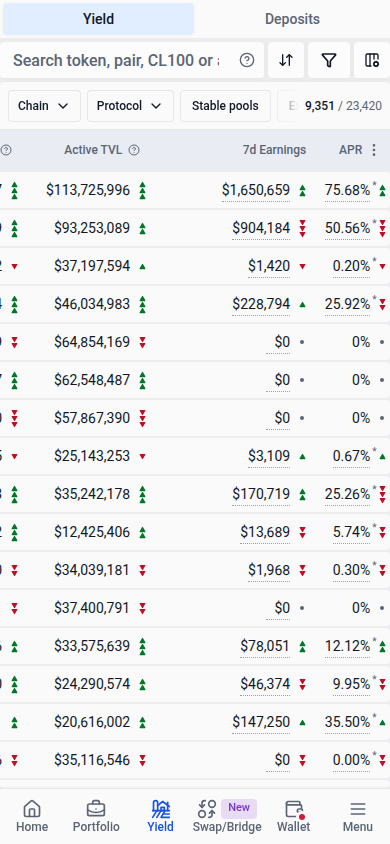
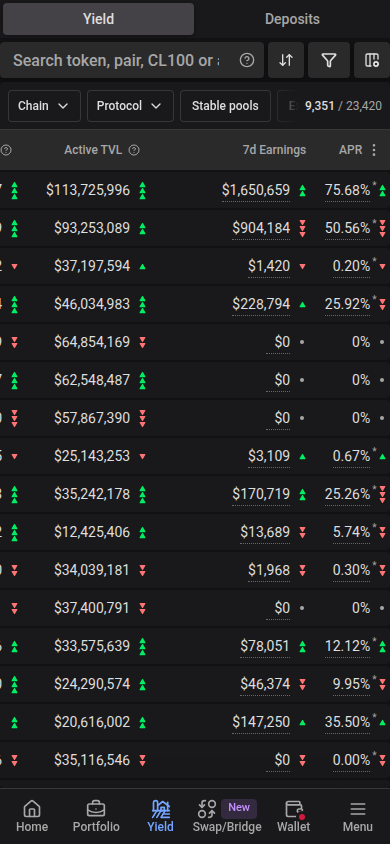
Yield is the only browse view. Existing /pools links redirect to /yield with their query filters and fragment preserved.
Shared Yield links preview the top pools by TVL, including pools earning swap fees without extra incentives. Each pool appears once with the average APR of its displayed deposit mode. Chain and protocol selections are reflected in the preview; other table filters and browser preferences are not.
On screens at least 2240 pixels wide, selecting a row opens one widget with details and pool analytics on the left and actions on the right when your chosen table columns leave enough room. Otherwise, actions open in a sheet while the details remain beside the table. The existing pool header spans both widget columns, including protocol, chain, tokens, fee, support and price display controls. The shared header supplies the price display selector, so the chart omits its duplicate button. The table rows stay compact, and the two widget columns scroll independently under the shared header. Changing the selected row returns the details to the top. Hiding the action widget keeps the details panel available. Smaller desktop screens keep inline row details, and phones keep the existing details sheet.
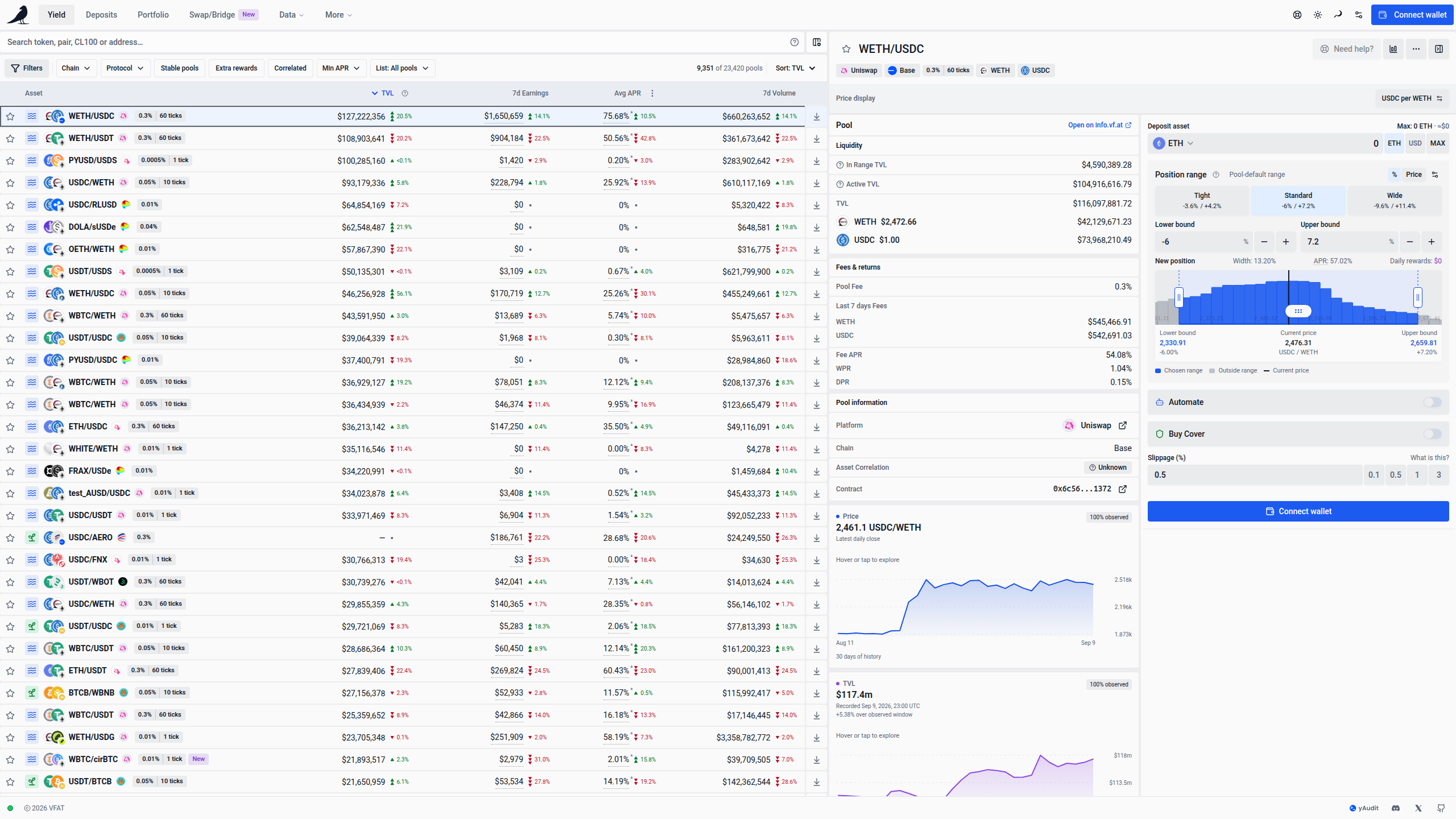
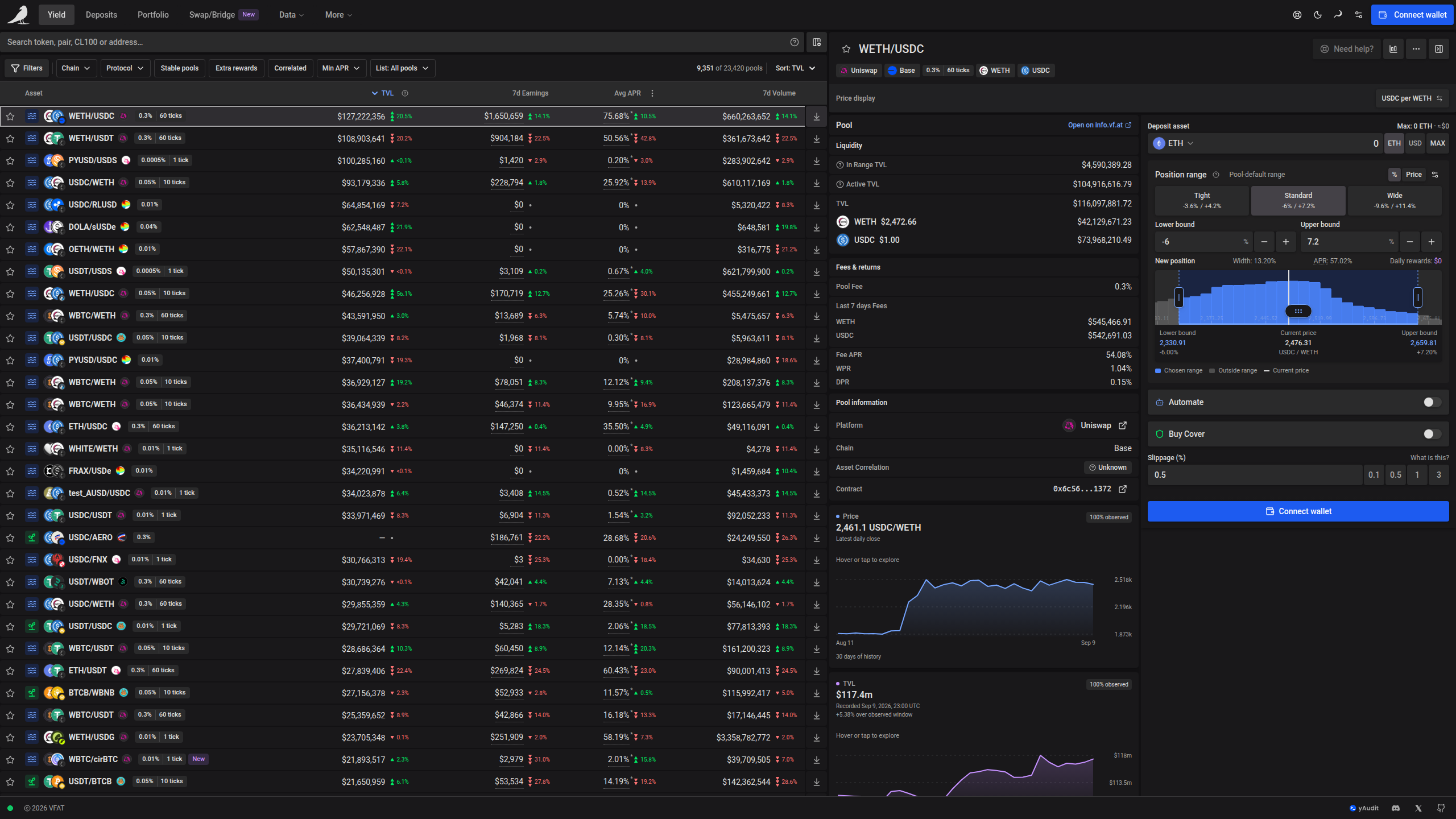
Farm overview
Use More details in the action pane to open a farm’s own page. On desktop, one shared pool header sits above two columns: pool and farm details, price, TVL, volume, fees, rewards and APR charts on the left, and deposit or position controls on the right. The details follow the same layout as an expanded table row: the main info cards sit at the top, with charts below using the full details width. Each column scrolls independently, so you can inspect the data while keeping the controls available. When you hold a selected position, its balances, rewards and PnL appear in the details column too. The header’s Price display selector updates the chart and position controls together.
On phones and smaller tablets, the controls appear first, followed by the details and charts in one scrolling page. The shared header stays visible. Resizing the page preserves the amount, range and automation settings you are editing.
For fungible farms, the page opens your Sickle position when you also have a stake outside Sickle. If only the external stake is available, you can make a fresh Deposit or Migrate that stake into Sickle. History is available only for Sickle positions. A History link to an external stake opens its available actions instead.
Increase, Withdraw, Harvest, Compound, Rebalance and History act through your Sickle, so they appear only for Sickle positions. When a position held or staked by your wallet can’t be migrated, for example because the farm is deprecated, the page explains that it’s held by your wallet and links to the protocol. For a gauge stake it offers Exit, which claims any rewards, unstakes the position and removes its liquidity to your wallet. Unstake to wallet only returns the LP tokens or position NFT, and Claim collects pending rewards. A position held but not staked offers Remove instead. Exit and Remove appear only for pools whose removal VFAT can price, such as concentrated-liquidity NFT positions and Solidly or Uniswap V2 style LP; other pools link to the protocol. Removals use minimums 1% below a simulation at the current pool price, so a price move beyond that during the transaction makes it revert instead of filling at a worse mix of tokens.
If a claim or unstake stops because you switched wallets, reconnect the wallet that holds the position and retry.
For Shadow and Ramses NFT positions that earn incentives while staying in your wallet, Claim is available when rewards are pending, and Remove claims those rewards before removing liquidity. The empty NFT stays in your wallet so you can claim rewards that become available in later periods. Empty V3 NFTs can collect any remaining tokens without trying to decrease zero liquidity.
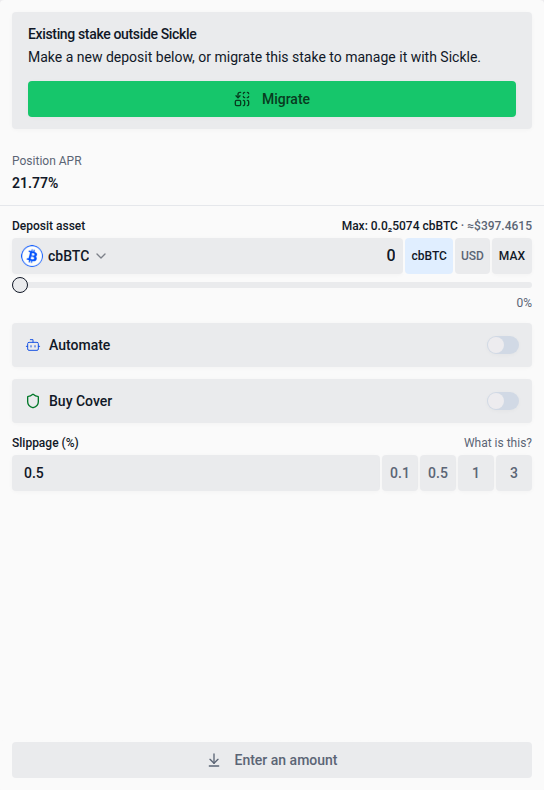
Filtering
Use Filters → Pool → Token categories to find pools containing Stablecoins, Stocks, or Blue chips. A pool matches if at least one of its underlying tokens belongs to any selected category. For example, a tagged WETH/USDC pool matches both Blue chips and Stablecoins. Selecting all categories still excludes untagged pools; Any token removes this restriction. The selection applies across all pages and favorites and is preserved in shared links and saved presets. Clearing or resetting filters returns to Any token.
Categories come from VFAT’s reviewed token list. They describe the tokens rather than the pool’s pricing curve, rewards, or asset correlation. Blue chips describes VFAT’s curated established crypto assets; category membership is not a safety rating.
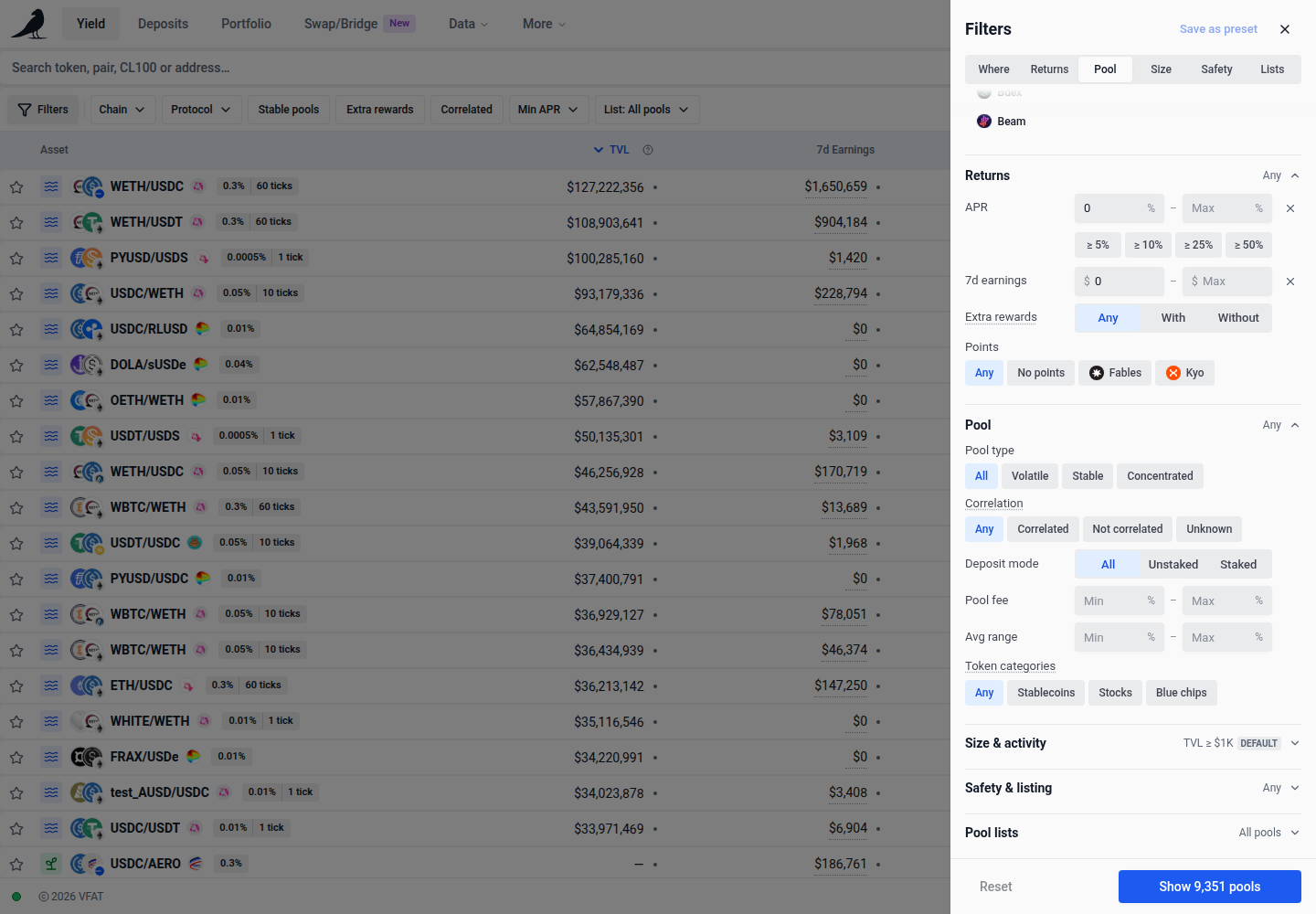
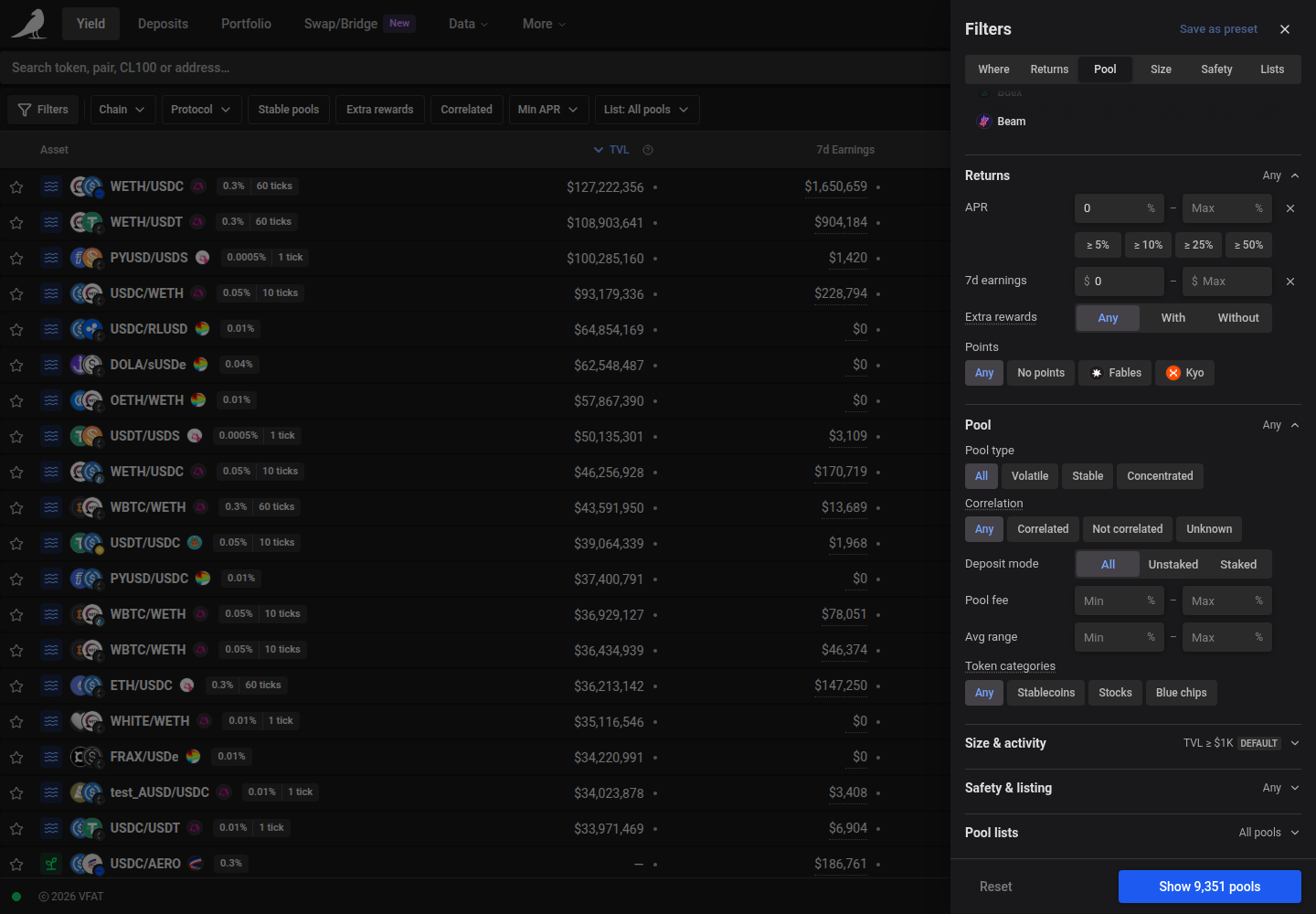
The row above the table holds search, Customize columns and the widget button. Everything that narrows or orders the rows sits in one bar along the top edge of the table: Filters, the quick filters, the result count and Sort.
Filters shows how many filters you changed and uses the soft selection highlight while any are active. The quick filters are Chain, Protocol, Stable pools, Extra rewards, Correlated, Min APR and List. Chain, Protocol, Min APR and List open a small picker; the others switch on and off. Unset chips are outlined; an active chip turns soft blue and shows its value, such as Chain: Base or APR ≥ 10%, with a × that removes only that filter. Stable pools and Correlated appear when the results include such pools. When your search contains a chain or protocol name, such as usdc base, a + Base chip offers to filter by it and keeps the rest of your search.
At the end of the bar, the result count reads, for example, 1,240 of 15,309 pools: the pools that match your filters out of those that match your search. When any filter differs from its default, Reset beside the count returns them all to the defaults while keeping your search. Sort names the current sort and changes the column or direction; table headings still sort as before. When the table is narrow, the chips scroll sideways under a fade while the count (shortened to 1,240 / 15,309) and Sort stay in place. On phones, Sort and Filters move beside search as icon buttons.
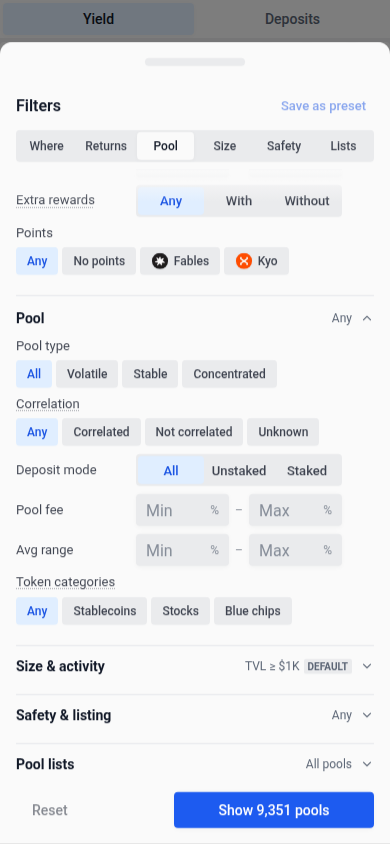
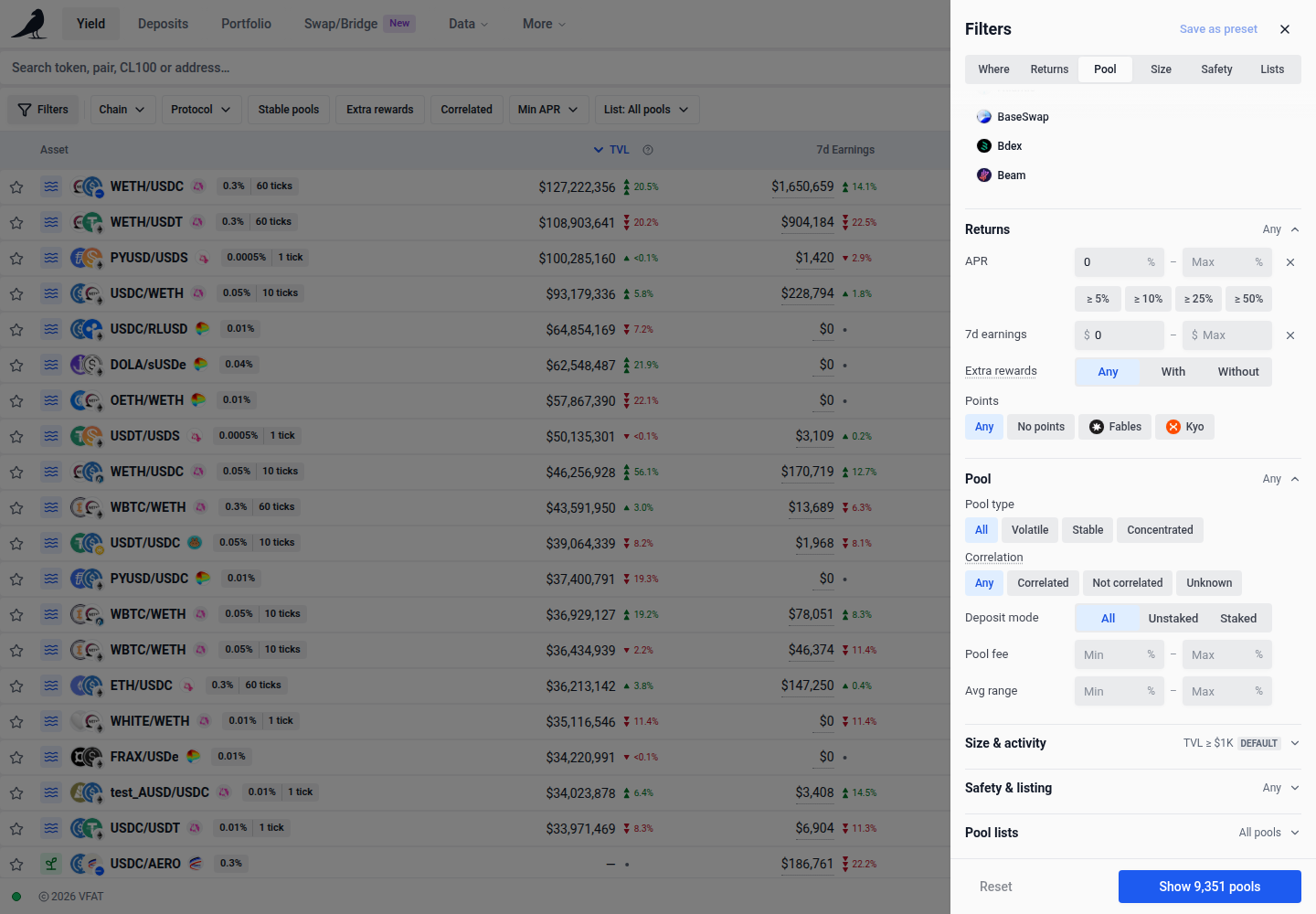
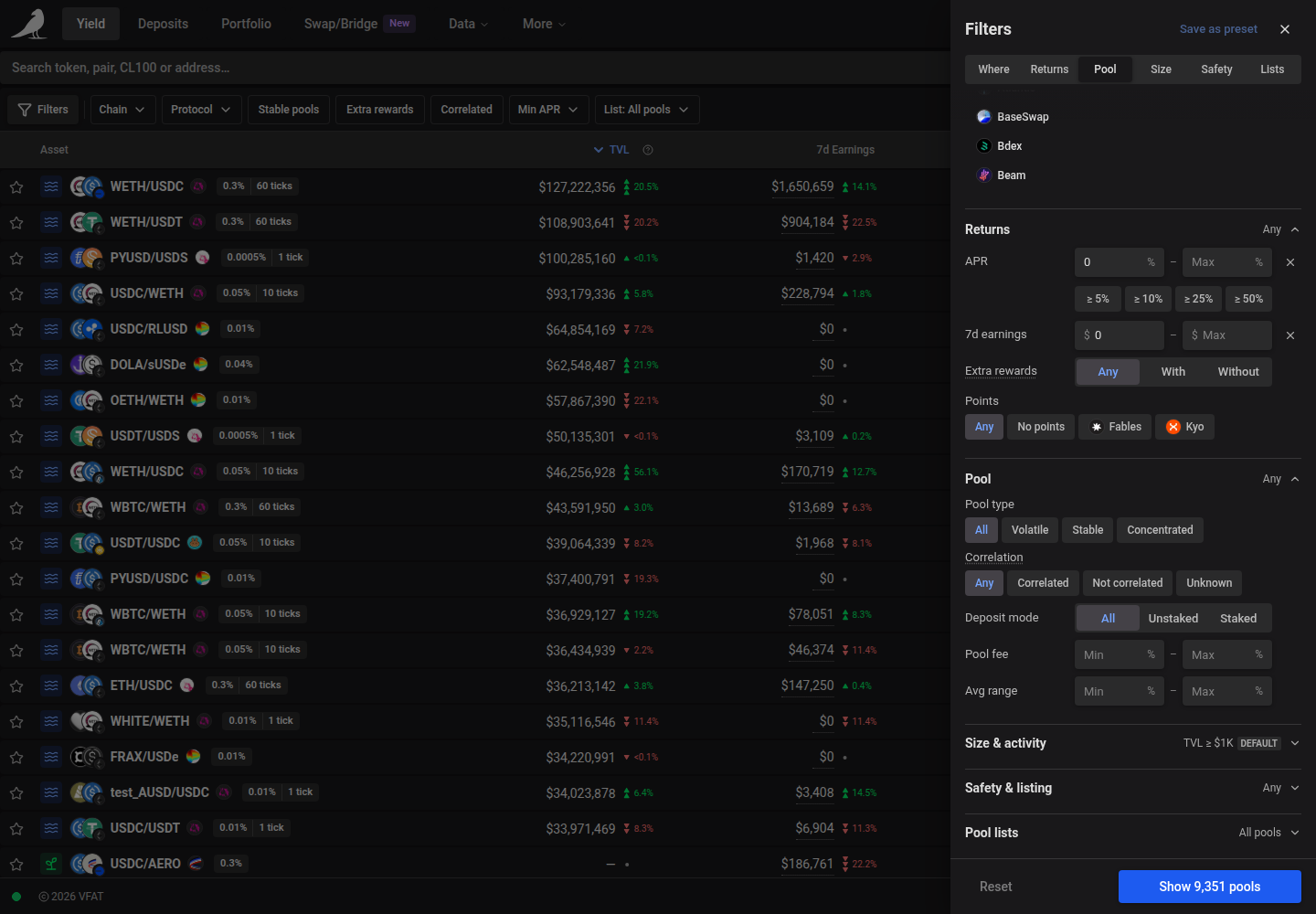
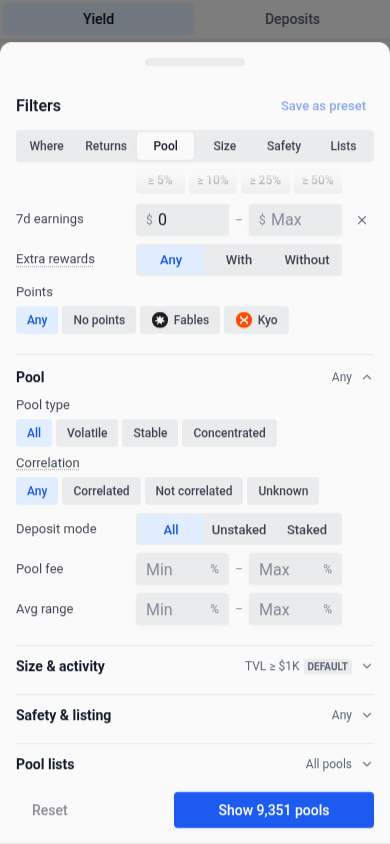
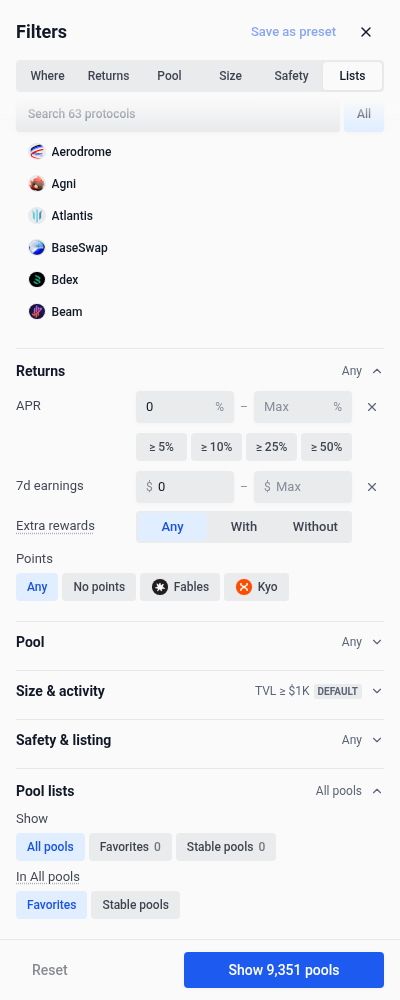
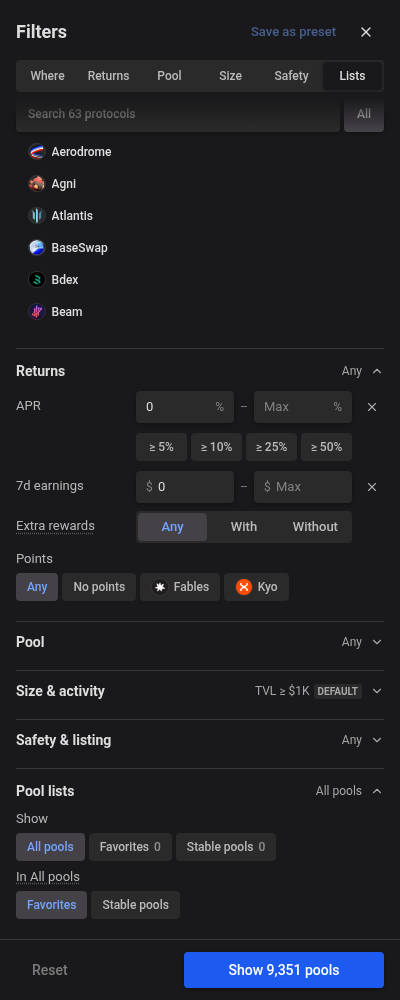
Filters groups the full set of filters by question: Where (chains and protocols), Returns (APR, income, extra rewards and points programs), Pool (pool type, tick spacing, asset correlation, deposit mode, fee, average range and token categories), Size & activity (TVL and volume), Safety & listing (whitelisted, coverable and pool age) and Pool lists. Where and Returns open first, along with any group that has an active filter; the others show a one-line summary, such as TVL ≥ $1K (default). The bar at the top jumps to a group and opens it, and each group shows how many of its filters are active. Every row has the same shape: a label, one control, and room for a ×. Choices with two to four options are text-only segments, longer lists are chips with All or Any first, and ranges are a minimum and maximum field with the unit inside. A label with a dotted underline explains itself when you hover over or tap it. A changed row has a blue edge and label; the × at its end clears that row, including a default such as the TVL floor, and rows you haven’t touched show no ×. Chains appear as chips with the most widely supported first, and More chains shows the rest; tapping the only selected chain or list item returns to all. Protocols use a searchable list with selected protocols first. ≥ 5%, ≥ 10%, ≥ 25% and ≥ 50% set a minimum APR in one tap. Dollar amounts accept shorthand such as 1K or 2.5M, and TVL is entered in dollars. Editable fields keep the exact amount, including small fractions; arrow keys change that amount without rounding it to an abbreviation. Entries outside a field’s range, such as a negative amount, are marked and not applied. Show N pools at the bottom closes the panel; Reset returns every filter to its default.
On wide screens with room beside the table, Filters opens as a panel next to the table so rows update as you choose. Otherwise it opens as a sheet on the right, or as a bottom sheet on phones. Opening the docked panel moves keyboard focus into it; Escape or Close returns focus to Filters.
Under Filters → Pool, use Avg range to set a minimum, maximum, or both for the average range width shown in the table. Enter percentages directly, such as 0.05 for 0.05%. Bounds are inclusive, and blank inputs leave that side unrestricted. An active bound excludes pools without a reported average range. The filter applies across all results and favorites in Yield, and is preserved in shared URLs and saved presets. Clear an input to remove that bound; clearing or resetting all filters removes both.
The row’s sprout or waves icon follows the displayed Staked or Unstaked option, including when both options offer rewards or a farm has no current emissions. Hover over or tap the icon to see which option its APR, Active TVL and Rewarded TVL describe; TVL always covers the whole pool, plus the pool’s extra-rewards availability. Opening this explanation keeps the row’s selection and details in place. Screen readers announce the displayed option.
Filters → Pool → Deposit mode offers All, Unstaked, and Staked. Pool type describes the pool’s structure, such as concentrated, stable, or volatile; it does not change when you switch deposit modes.
Extra rewards → With requires a positive reported reward rate or reward APR beyond swap fees. Without requires known absence of extra rewards. An available staking mode with zero emissions does not count as extra rewards. Points, swap fees, and previously earned rewards do not qualify. Unknown reward data is included only in Any.
All option filters must match the same deposit mode. A pool with fees-only unstaked LP and rewarded staking can appear under Unstaked + Without or Staked + With, but not Unstaked + With. Filtering happens before totals, sorting, and pagination. Each row starts with the highest average APR among its matching modes; APR and earnings follow that mode, while TVL remains the whole pool’s liquidity.
The deposit-mode selector shows matching choices. If other modes are hidden, Clear filters to show all modes restores them while keeping your search. If refreshed data means your chosen mode no longer matches, the table displays a matching mode while your open form keeps its destination and explains the mismatch. Choose a matching mode or clear the filters to bring them back together. Unavailable modes remain unavailable. Shared links and saved presets include both choices. Older Farms/Pools selections are read as Staked/Unstaked, and older extra-incentives choices use the new current-rewards definition. Clearing or resetting filters returns deposit mode to All and extra rewards to Any.
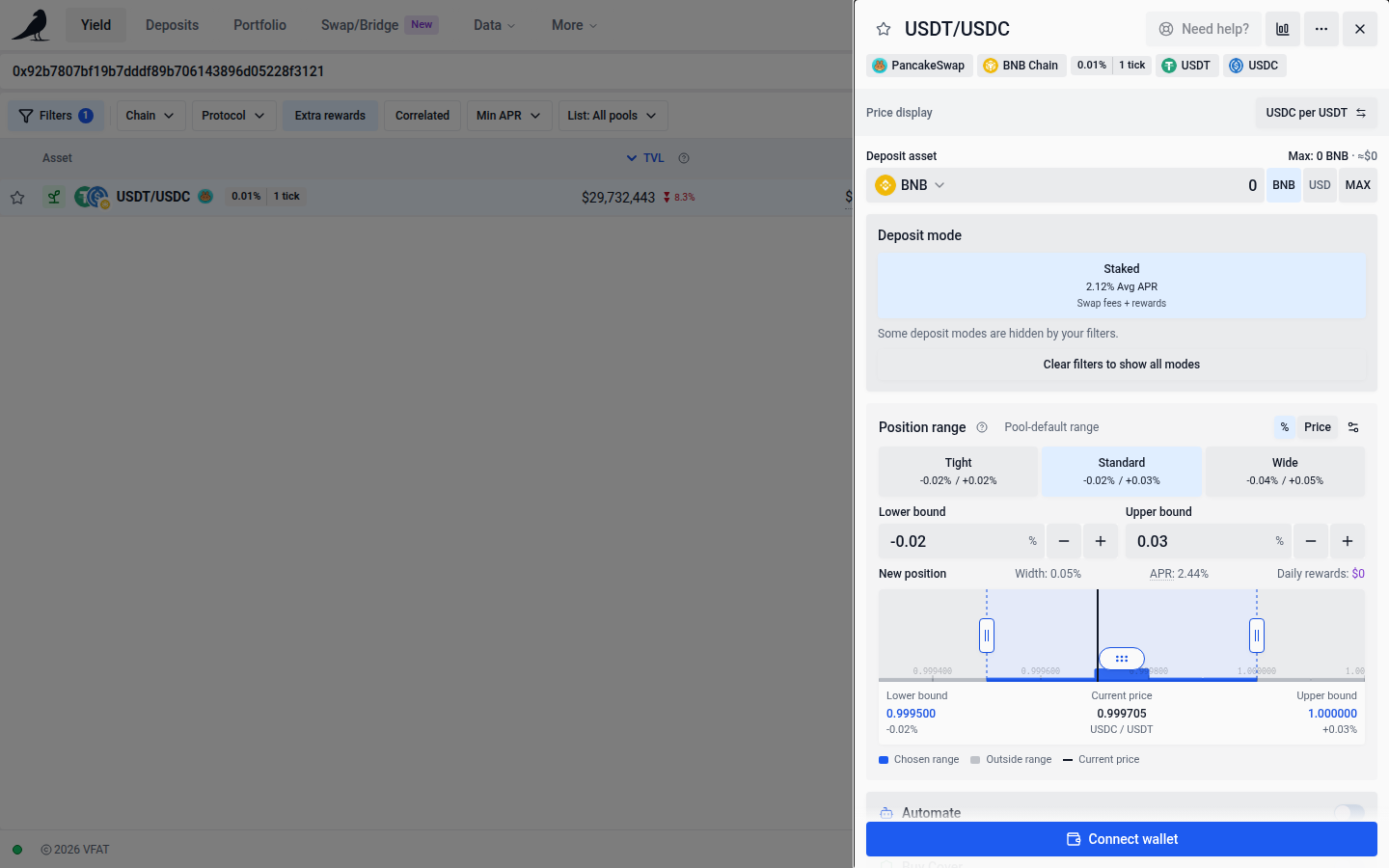
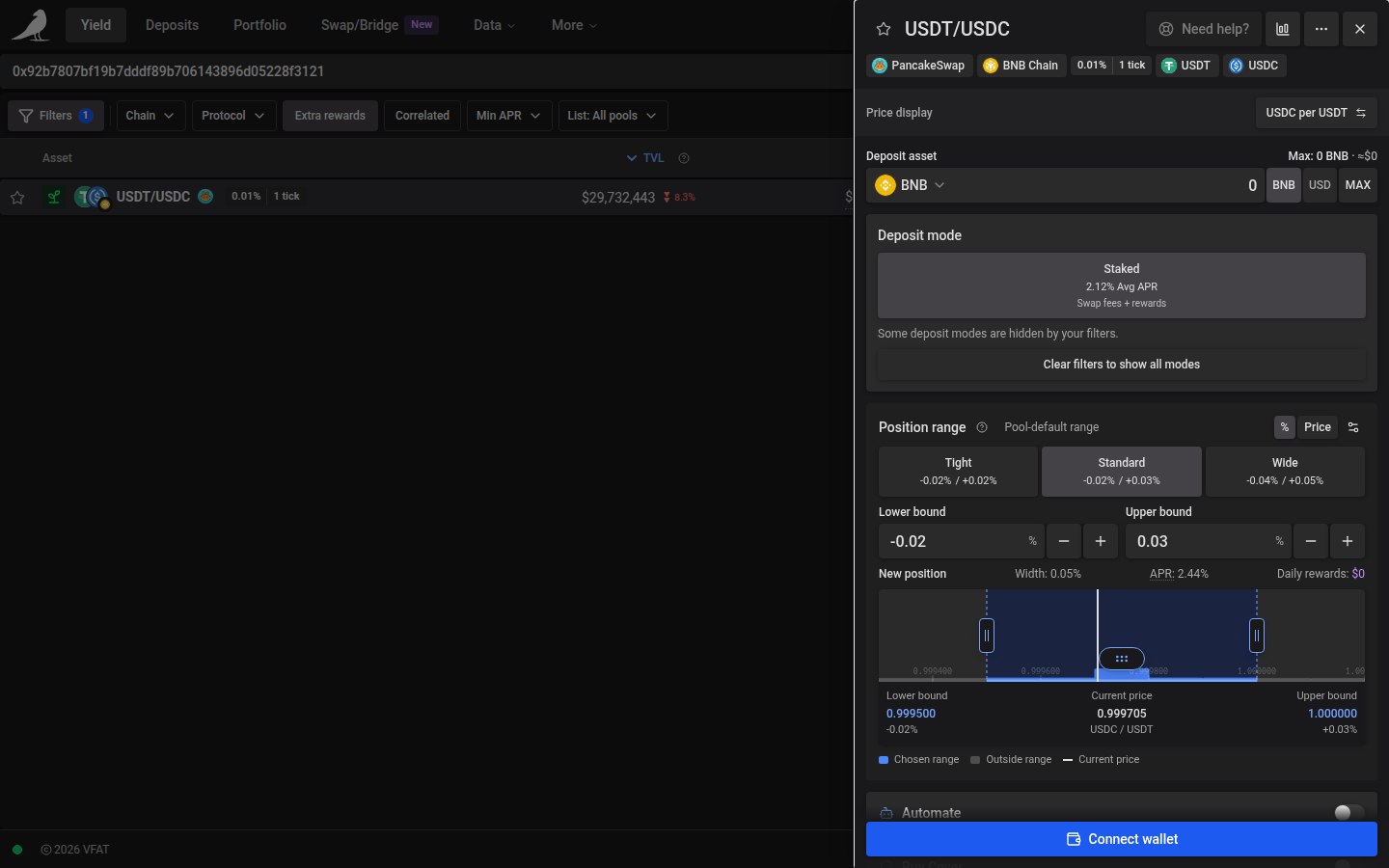
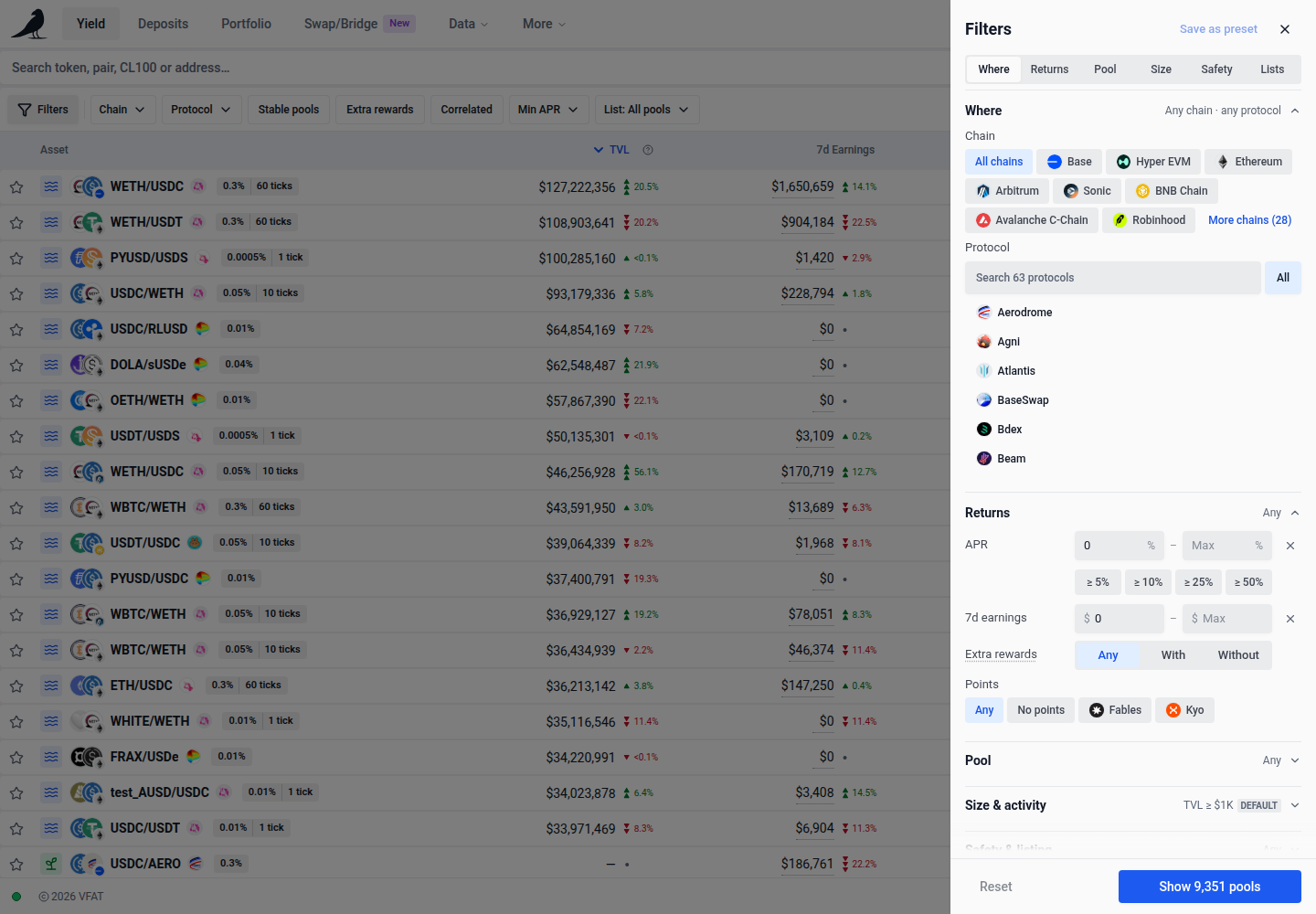
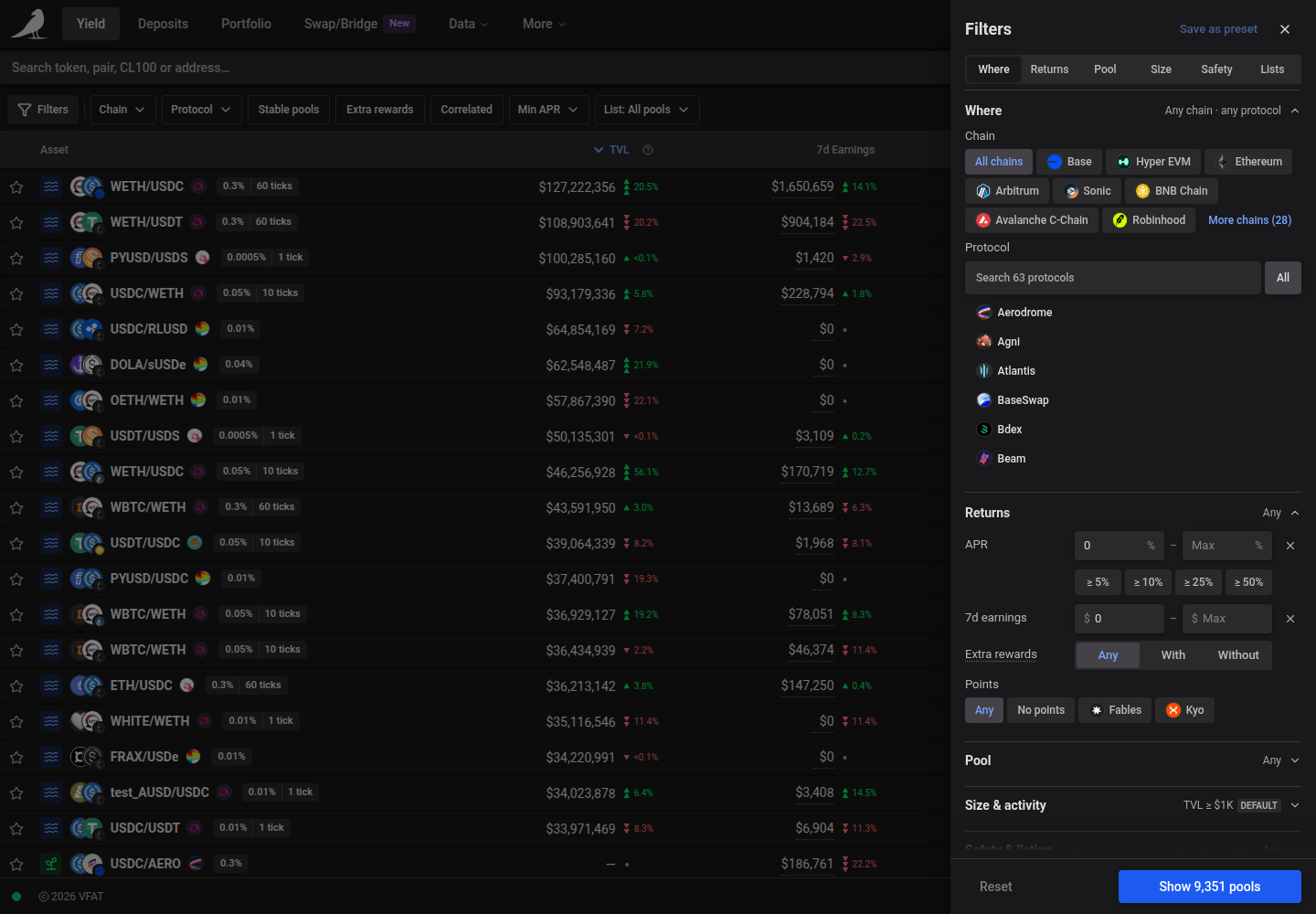
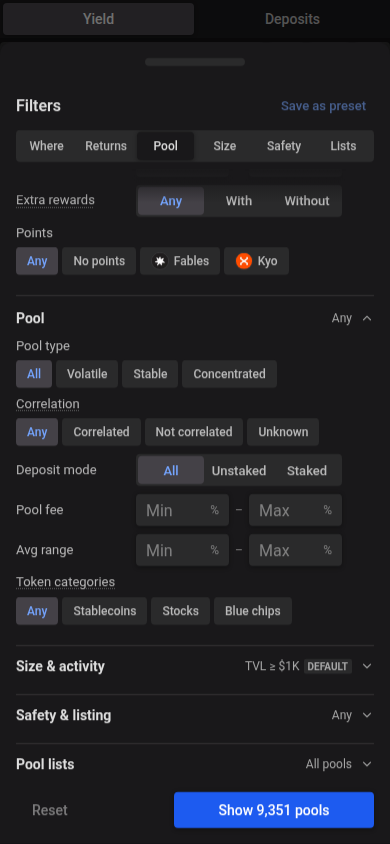
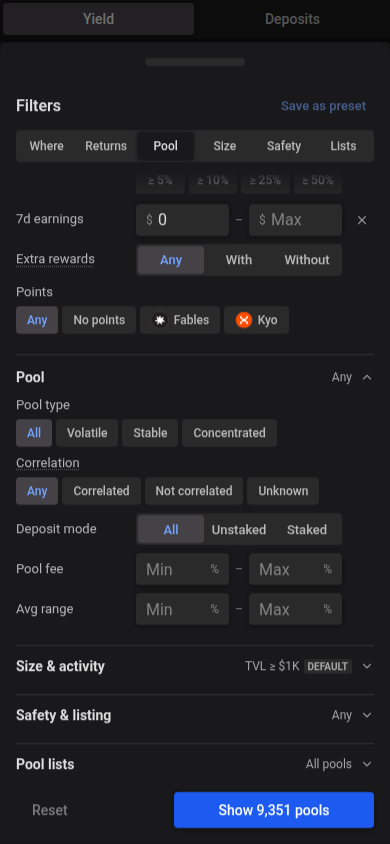
The same choices appear in the mobile Filters sheet.
Selected filter options use a soft light blue fill in light mode and a brighter neutral grey fill in dark mode, with readable neutral text. The same selection style applies to deposit mode, extra rewards, pool age, asset correlation, chains, protocols, points, pool types and pool lists. Choices carry no icons; chain, protocol and points logos identify the item they name. Pool type, asset correlation, points programs and token categories show every choice as a chip, so there’s no separate picker to open.
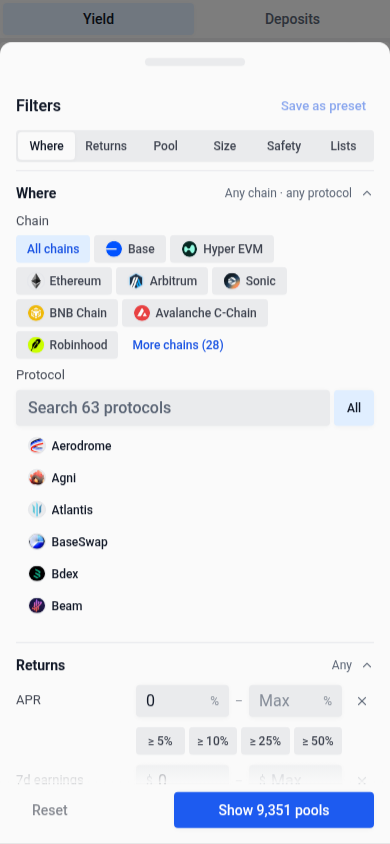
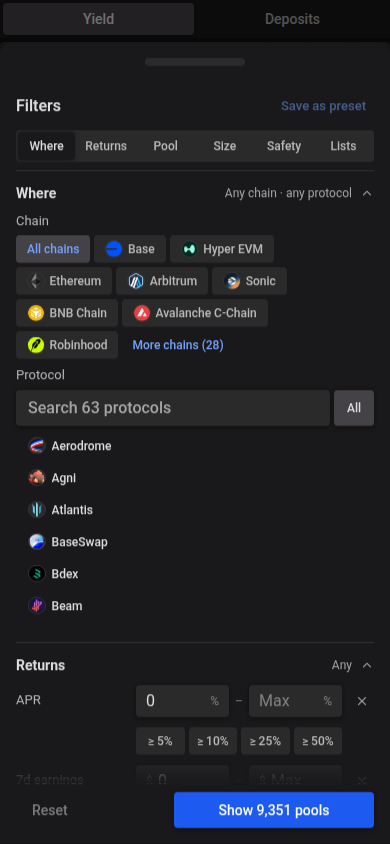
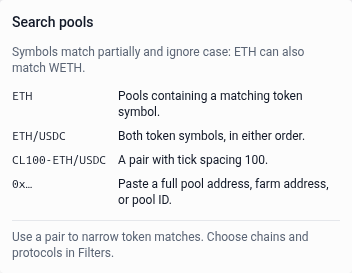
Search by token symbol, a pair such as WETH/USDC in either order, or a concentrated-liquidity label such as CL200-WETH/USDC. CL100 or CL-100 on its own lists concentrated pools with a tick spacing of 100, matching the CL-100 label on compact rows. To combine tick spacing with other searches, use Filters → Pool → Tick spacing: enter a minimum and maximum in ticks, or pick Tight ≤ 10, Mid 50–100 or Wide ≥ 200. Set both fields to 100 for exactly 100. Pools without a tick spacing are left out while either bound is set. You can also search by a farm or pool address, or a pool ID. The field shows what you can search for instead of an asset count. Open the Search help question-mark button for examples. Symbol matches are partial and ignore case, so ETH can also return WETH; use a pair to narrow the results, or select chains and protocols under Filters.
To reuse a search, open Filters, choose Save as preset, and give it a name. New presets save your search text together with the other filters, even if you only changed the search. Selecting a preset restores both; a preset saved with an empty search clears the search field. Older presets keep the current search text. An unfinished preset name stays in place when resizing changes the panel layout. Closing the panel discards that draft. Presets are saved in this browser, separately for Yield and Deposits.
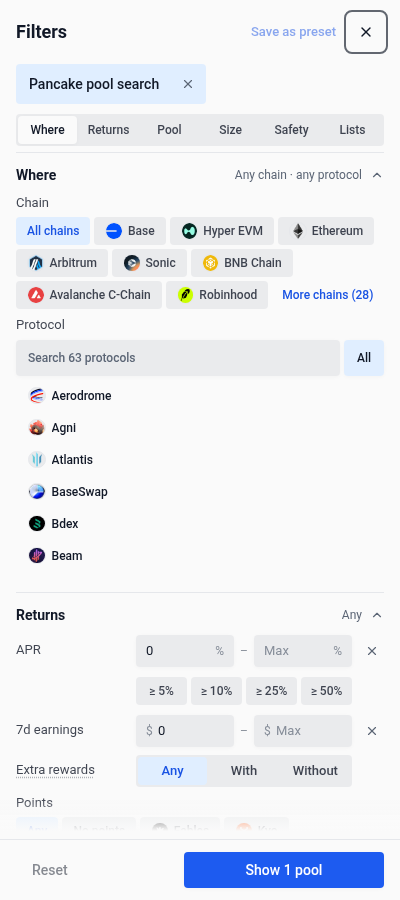
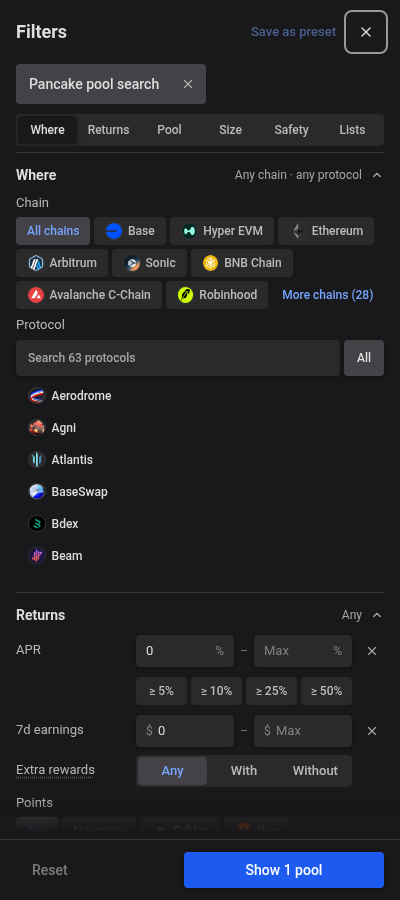
Very long token symbols and names are shortened in the interface. Results that match only the hidden portion of oversized metadata are excluded from search. If matching farms are hidden by your active filters, use Reset beside the result count to reveal them.
Reset restores the $1,000 minimum TVL and zero minimum APR and income; a zero minimum still excludes an unavailable metric. To let pools with unavailable metrics appear, use the × on the APR, earnings or TVL row, which removes that row’s limits. The search text and your global asset-visibility preference are kept. The result count covers available pools that match your filters; pools with no available deposit mode are outside that count.
The table can be filtered and sorted by protocol, chain, pool type (concentrated liquidity, stable or volatile), asset correlation (correlated or uncorrelated pairs), points programs, pool lists, whether cover is available, and by numeric thresholds for APR, TVL, combined fees and rewards, fee tier, pool volume and pool age. This is useful once you’re comparing hundreds of pools at once.
Choose Filters → Safety & listing → Listing → Whitelisted only to hide non-whitelisted farms on this page. The selection is included in shared links and saved filter presets. Turning the filter off follows Show non-whitelisted assets in App Settings; it does not change that global preference. Reset removes the page’s whitelist restriction.
Pools first listed within the last seven days show a New tag. Hover over or tap it to see the date added; opening this explanation keeps the row’s selection in place.
Under Safety & listing, Added within finds pools added in the last 7d, 30d or 90d, and Added over excludes pools added in the last 1d, 3d or 7d. You can combine one choice from each row. Any or the row’s × removes that limit. If a selection makes the minimum age equal to or greater than the maximum, the other age limit becomes unrestricted. These filters are included in shared links and saved presets.
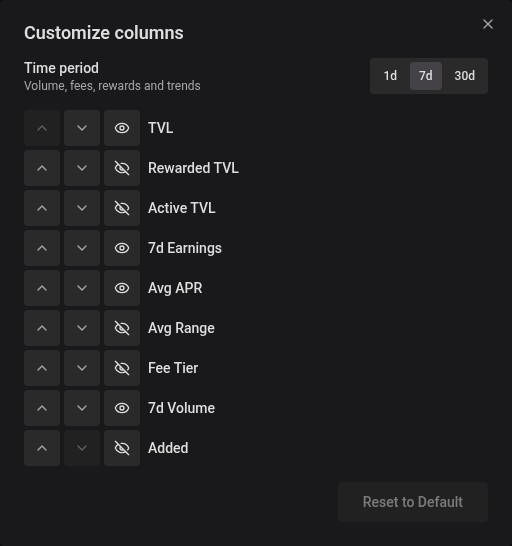
Open Customize columns beside the search bar and use Time period to select 1d / 7d / 30d. This updates the existing Earnings column; choose 1d for daily income. The selection defaults to 7d, is remembered in your browser, and is included in the URL when changed. Avg APR and its range/compounding options stay unchanged.
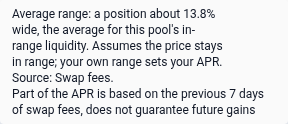
A small superscript * after an APR marks historical swap fees, estimated fees, unavailable fee data, or a concentrated liquidity range basis. Hover over or focus the value, or tap it on a phone, to read its explanation. On concentrated liquidity pools, it names the range the APR assumes (for example, a position about as wide as the average for the pool’s in-range liquidity) and whether the APR comes from swap fees, rewards or both. See APRs for how this differs from the Fee APR in pool details and the APR in deposit forms. Historical fees do not guarantee future returns.
Rewarded TVL and Active TVL are hidden by default. Enable them individually in Customize columns to show them alongside TVL, APR, and the selected period’s Earnings. TVL covers the whole pool; the optional liquidity columns follow the displayed deposit option:
- TVL is total pool liquidity, including staked and unstaked positions. Its value, trend, sorting and filters use the pool regardless of the row’s Pool or Farm label.
- Active TVL is the total value of positions currently in range for the displayed Pool or Farm option.
- Rewarded TVL is the portion of that option’s active liquidity in the current price range that earns fees or rewards.
Hover over or tap each liquidity heading’s help icon for its definition. Filters and deposit choices can change which option is displayed; Active TVL, Rewarded TVL and APR follow that option together, while TVL remains pool-wide. These preferences are saved, including on phones; Reset to Default restores responsive defaults.
Volume is shown by default on desktop and follows the selected period. Use Customize columns to change its visibility. Click its header to sort, or set minimum and maximum dollar amounts under Filters → Size & activity. The volume row follows the selected period; bounds you set for another period stay listed until you clear them. Empty bounds apply no restriction. Column choices and volume filter presets are remembered.
Unavailable volume displays as an empty cell and sorts last in either direction. Applying a volume filter excludes pools whose volume for that window is unavailable; a reported zero remains a valid value.
Enable Fee Tier in Customize columns to compare pool swap-fee percentages. It is hidden by default. Click its header to sort across all matching farms; variable and unavailable fees sort last in either direction. Variable fees show as Variable, with directional rates on hover when available, and unavailable fees display as —.
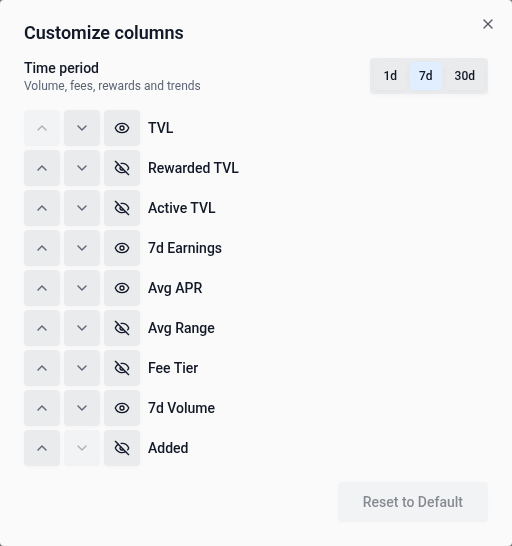
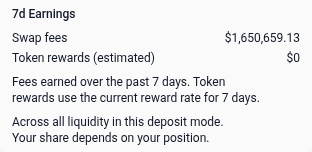
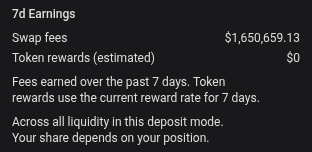
1d / 7d / 30d Earnings combines swap-fee income and token incentives in one column, including pool-only rows. Amounts and APR values with explanations use straight dotted underlines. Hover over the amount, or tap it on a phone, for the breakdown. Fees use the selected period’s history; when that history is unavailable, they use the weekly fee rate and are labeled estimated. Token rewards are estimated from the current rate for the selected duration. Both amounts belong to the displayed deposit mode across all its liquidity, not to your personal position. Sorting and the Earnings ($) filter use the same combined amount. The table is sorted by Earnings for the selected period by default, highest first, so pools that currently earn nothing appear last. Click TVL or another heading to change the order; a sort other than the default is kept in the URL. Saved Fees and Rewards columns are merged while preserving the visibility of either column.
When swap-fee history is unavailable but token rewards are known, the income column shows the rewards-only amount with *. APR likewise shows a known rewards-only rate with * instead of hiding it. The explanations identify the missing swap fees; these figures are partial estimates, not complete totals. Sorting and filters use the marked figures already in the browse response, without another request. Their trend indicators remain neutral when the historical data cannot distinguish rewards from swap fees. If no rewards or APR component is reported, the figure remains —.
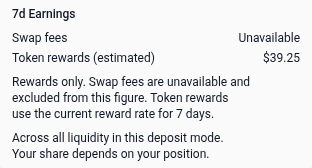
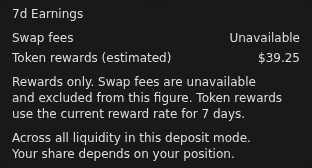
Curve plain-pool fees are temporarily estimated from input trading volume and the recorded base fee, after the protocol’s 50% share. Their fee amounts show ≈, and the APR explanation identifies the estimate. Pool details and deposit-mode cards use the same calculation. Dynamic fees, historical fee changes and yield from the underlying tokens are not included. Missing volume or token prices display as — or Unavailable, rather than zero; a recorded zero still displays as zero. Actual indexed LP fees take precedence when available.
Saved farm and pool favorites are combined automatically. Favorites saved for either UltraSolid deposit mode appear under the same pool. Saved Pools filter presets are carried over to Yield. A star now saves the pool, including all its deposit modes. Position badges count positions across those modes. New favorites are limited to 250 pools; larger existing lists remain available.
The favorite and pool-list buttons fill the row’s height, so their full area is clickable without expanding the row.
Pool lists
Start with Favorites, the only built-in pool list, and add your own named lists from List → Manage lists… in the filter bar. Favorites starts visible by default; choose the default visibility for each new custom list. Existing favorites keep their membership and saved visibility. All lists are saved in this browser and do not affect Deposits or your positions.
The All pools view starts with each list’s saved default visibility and shows every pool matching your search and filters, except members of lists currently hidden. Pools outside any list remain visible. A pool can belong to several lists; membership in any hidden list takes precedence in this view.
The List chip in the filter bar shows List: All pools until you pick a list. Choosing a list, such as Favorites, focuses it; the chip then names it, and its × returns to All pools. Filters → Pool lists offers the same choice under Show, with each list’s pool count. A focused list shows all its members, including normally hidden pools, subject to your other search and filters. Choose All pools, or tap the selected list again, to return to All pools with your current visibility settings.
In All pools has a chip for each list, highlighted while that list’s pools appear in All pools. Tapping a chip overrides its visibility for the current view, without changing the list’s saved default or membership. The row’s ×, clearing filters or resetting filters removes these overrides. Filter URLs and saved filter presets can carry overrides; the list definitions stay unchanged.
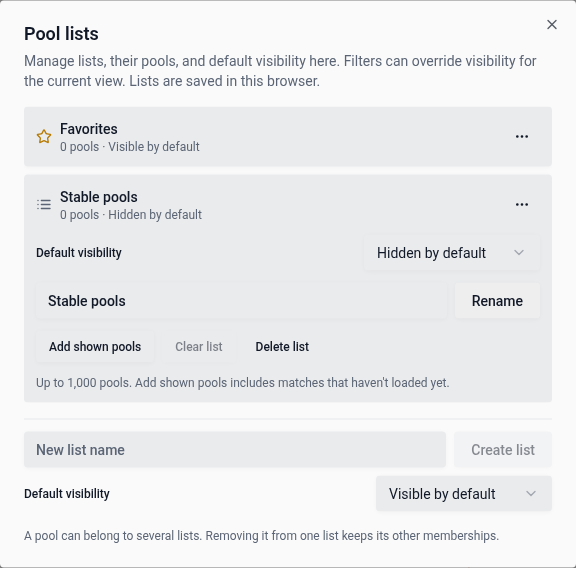
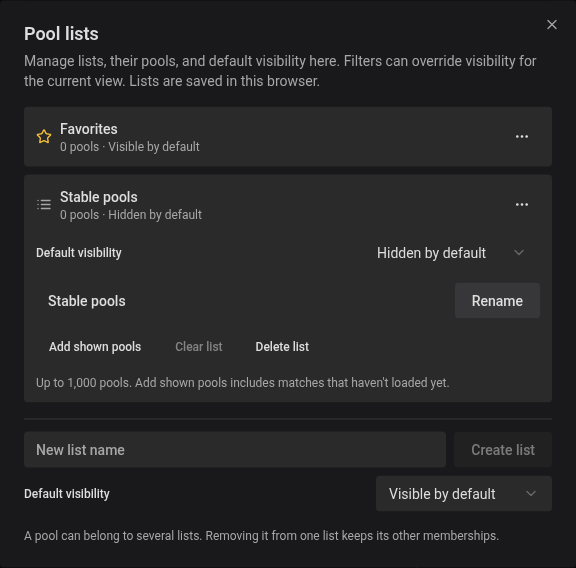
List → Manage lists… opens group management: create lists, rename or delete custom lists, and add or remove pools. Choose Visible by default or Hidden by default when creating a list. Each list shows its saved status beside its pool count. Open its three-dot menu to change Default visibility, including for Favorites. These defaults are saved in this browser; view-specific filtering controls remain in Filters.
When Favorites is your only list, the table shows the familiar star column. Creating your first custom list replaces that column with Edit pool lists, where you can choose Favorites and any custom lists. The action pane and mobile action sheet use the same control. Membership covers every deposit mode of that pool. Deleting your last custom list restores the star column without changing Favorites. Removing a pool from a list leaves its other memberships intact; Undo in the notification reverses a membership change.
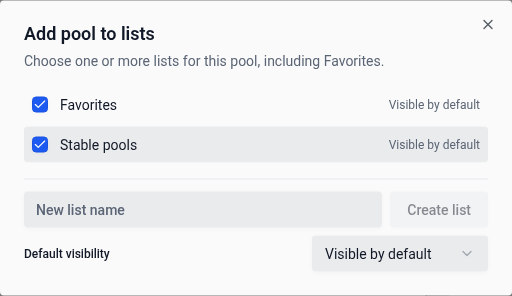
In the Lists manager, open a list’s … menu to:
- Add shown pools: add every pool matching the current view, search and filters, including rows not yet loaded. Existing members do not use additional capacity. If the matches exceed the remaining space, narrow the search or filters first. The list stays unchanged on failure.
- Clear list: remove every member. Notifications for adding or clearing pools include Undo.
- Rename or Delete list: available for custom lists. Deleting a list leaves its pools in any other lists.
You can create up to 20 custom lists. Each holds up to 1,000 pools. New favorites remain limited to 250 pools; larger existing Favorites lists are preserved.
The selected list is included in shared URLs and saved filter presets. Membership and visibility are local: links to Favorites use the recipient’s own favorites, and a custom-list link shows no pools when that list is unavailable in the browser. Reset returns to All pools without changing list membership or default visibility. The result count leaves out pools removed by hidden lists in All pools.
If all loaded rows are hidden, the table loads more results automatically. If loading fails, select Retry to continue.
Depositing
The Deposit asset field combines the token picker, amount, token/currency switch, and MAX on one line. It starts with the token worth the most in your wallet on the pool’s chain, since your Sickle can deposit from any token. Tokens whose market is too thin to swap your balance, such as lending receipts, are only used when you pick them. Without a connected wallet, or without such a token worth at least $1 there, it starts with the chain’s native token. If your wallet data is still loading or refreshing when the form opens, it switches once loading finishes unless you have already picked a token or started entering an amount, including an unfinished decimal. Increase follows the same rule. Narrow surface gaps separate the unit options and MAX, matching the range steppers and slippage presets. Selecting both underlying tokens keeps this same row: the picker stays active, while its shared amount, unit switch, and MAX are greyed out. Use Auto Max or the two token amount inputs below to set the pair’s amounts. Selecting a single token again re-enables the combined row and resets its amount.
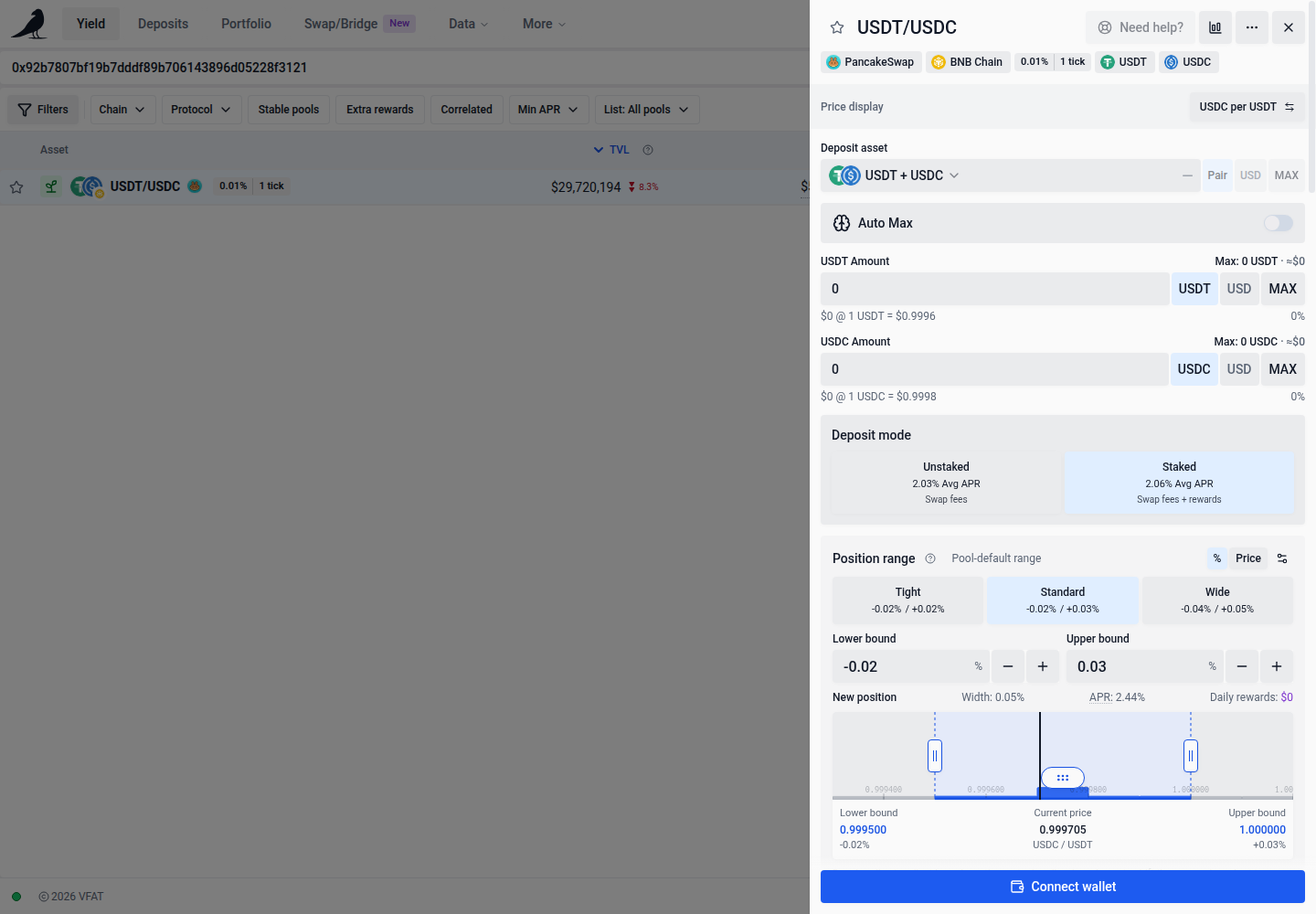
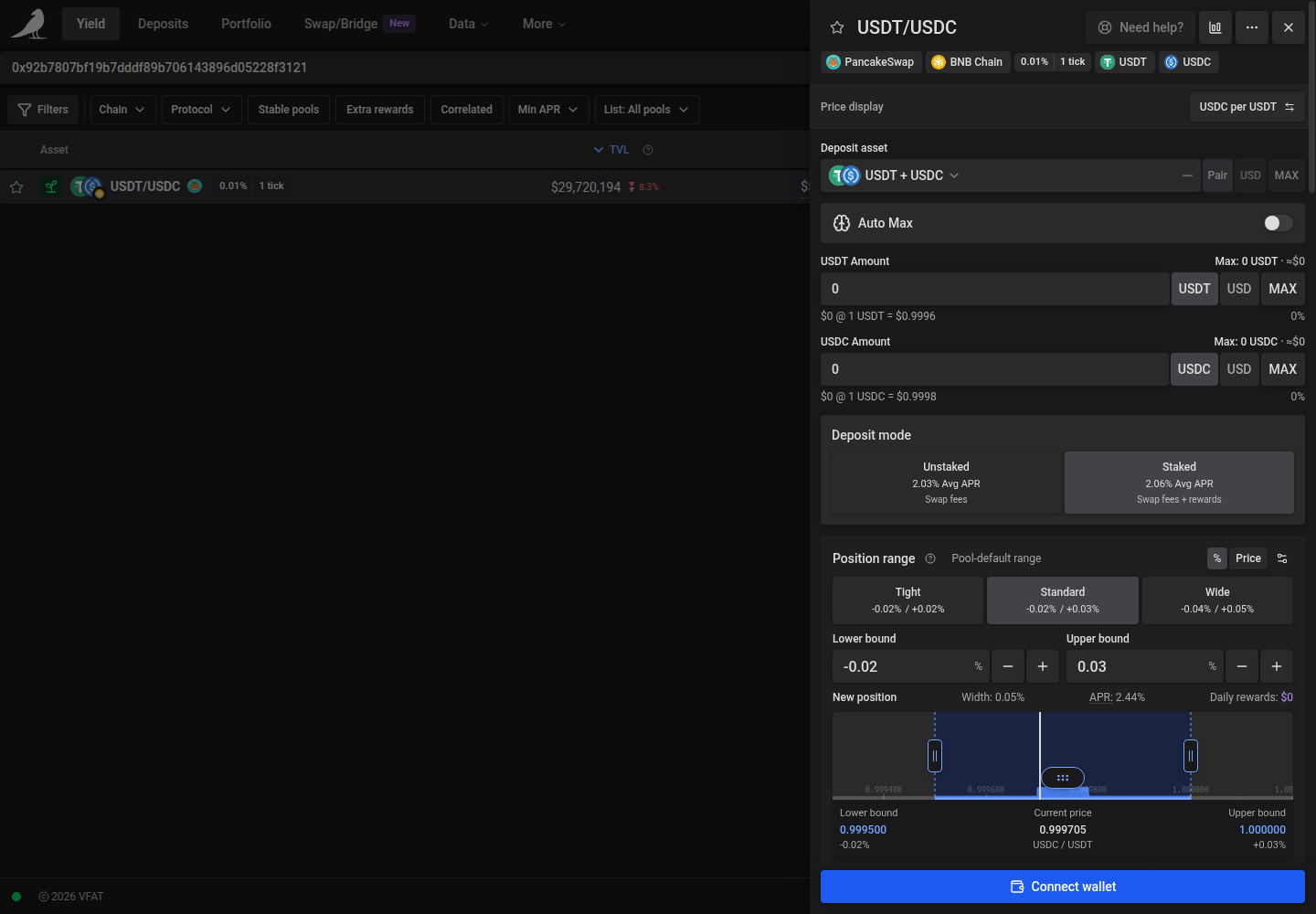
For concentrated-liquidity deposits and increases using both underlying tokens, including on Hemi, the entered amounts are maximum spend caps. The quote pairs them using current pool state. If a meaningful amount would remain unused, review the adjusted amounts before continuing; the quote is refreshed after you confirm. Unused tokens stay in your wallet.
The maximum balance shows token units and an approximate fiat equivalent when a price is available. The token/currency switch changes input units without hiding the balance conversion. Amount feedback and the percentage slider remain available; entering a currency amount also shows its token equivalent.
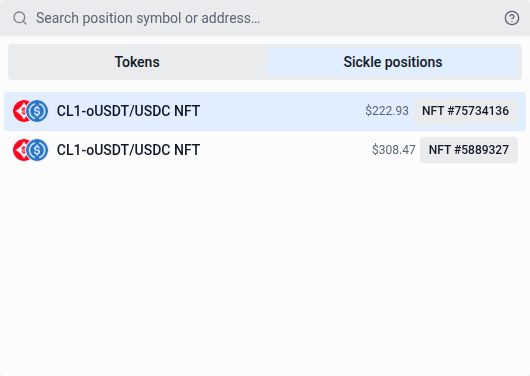
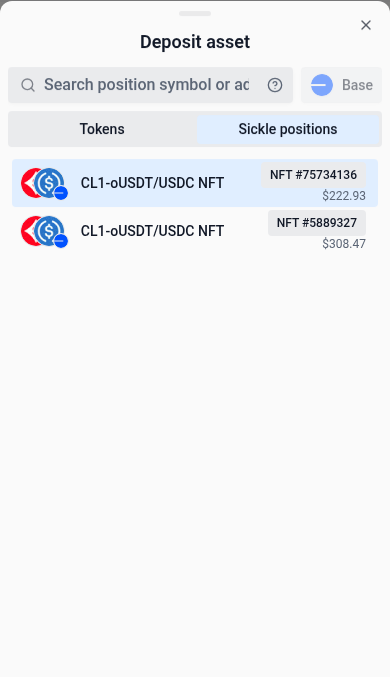
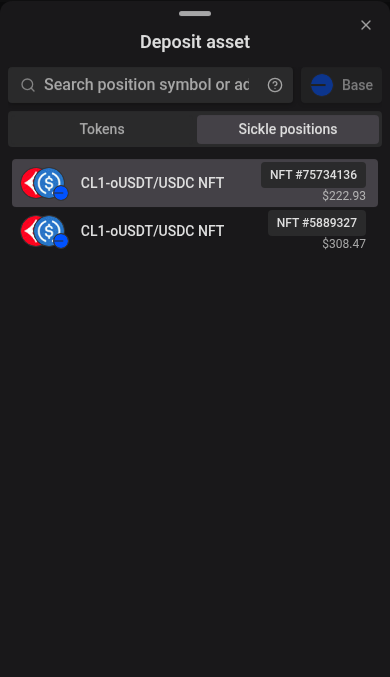
The token picker opens as a dropdown as wide as the full input row, or in a bottom drawer on phones. The dropdown adjusts its position and scrolls to fit the available screen space. Token rows separate fiat value, when available, from token balance. Faded list edges indicate more results above or below. Use the arrow keys to move through results; the active row stays readable. The Sickle positions tab identifies each position by its token logos, name and NFT or range ID, and shows its USD value when available. On touch devices, opening the token picker shows the token list without automatically focusing search or opening the keyboard. Tap the search field to type a symbol or paste a token address.
In the picker’s Sickle positions tab, search the start of the displayed position label or any token symbol in it, ignoring case. Symbols retain their punctuation: USDC.e finds positions containing USDC.e. You can also paste the full pool address. Only positions on the selected network are shown.
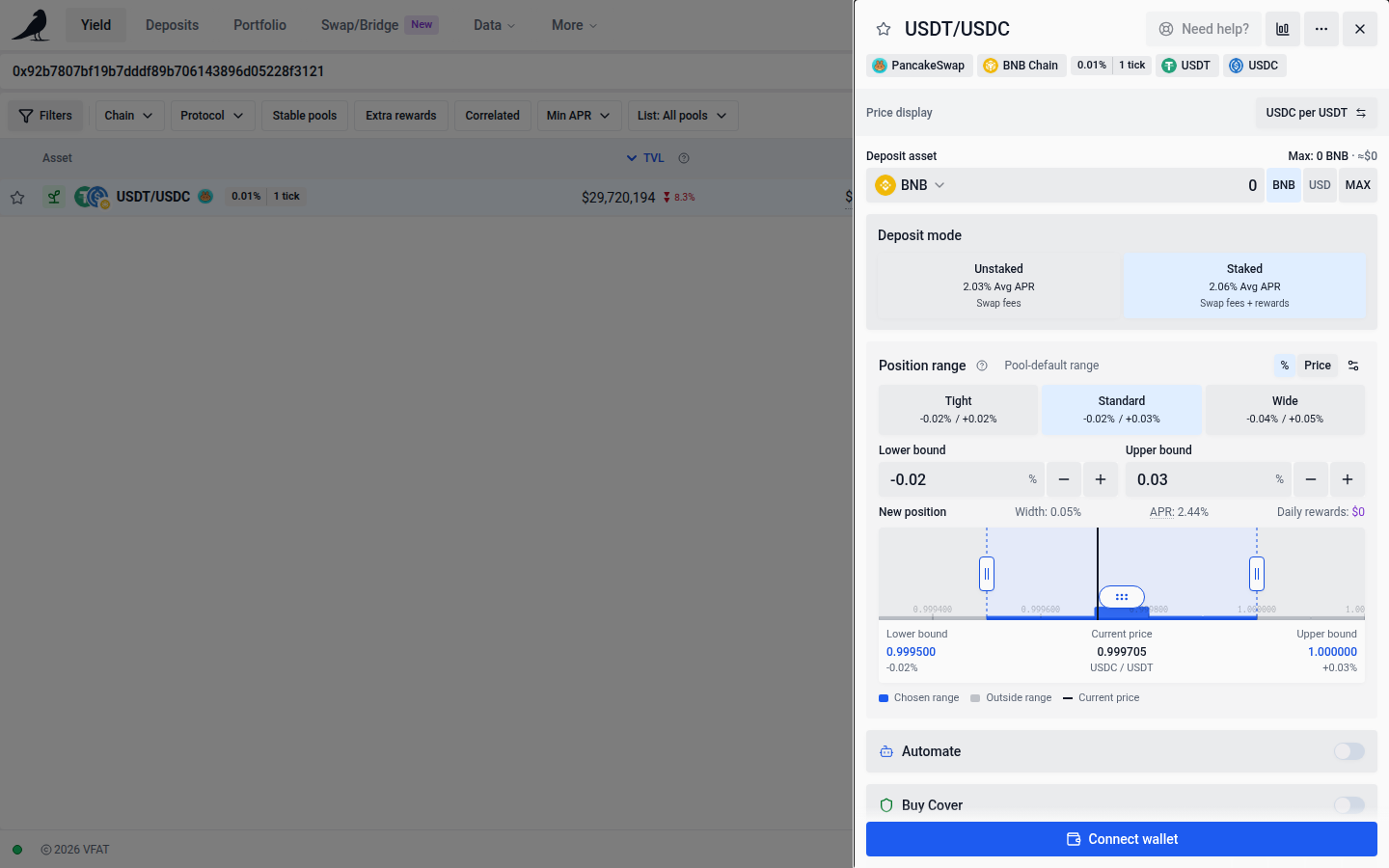
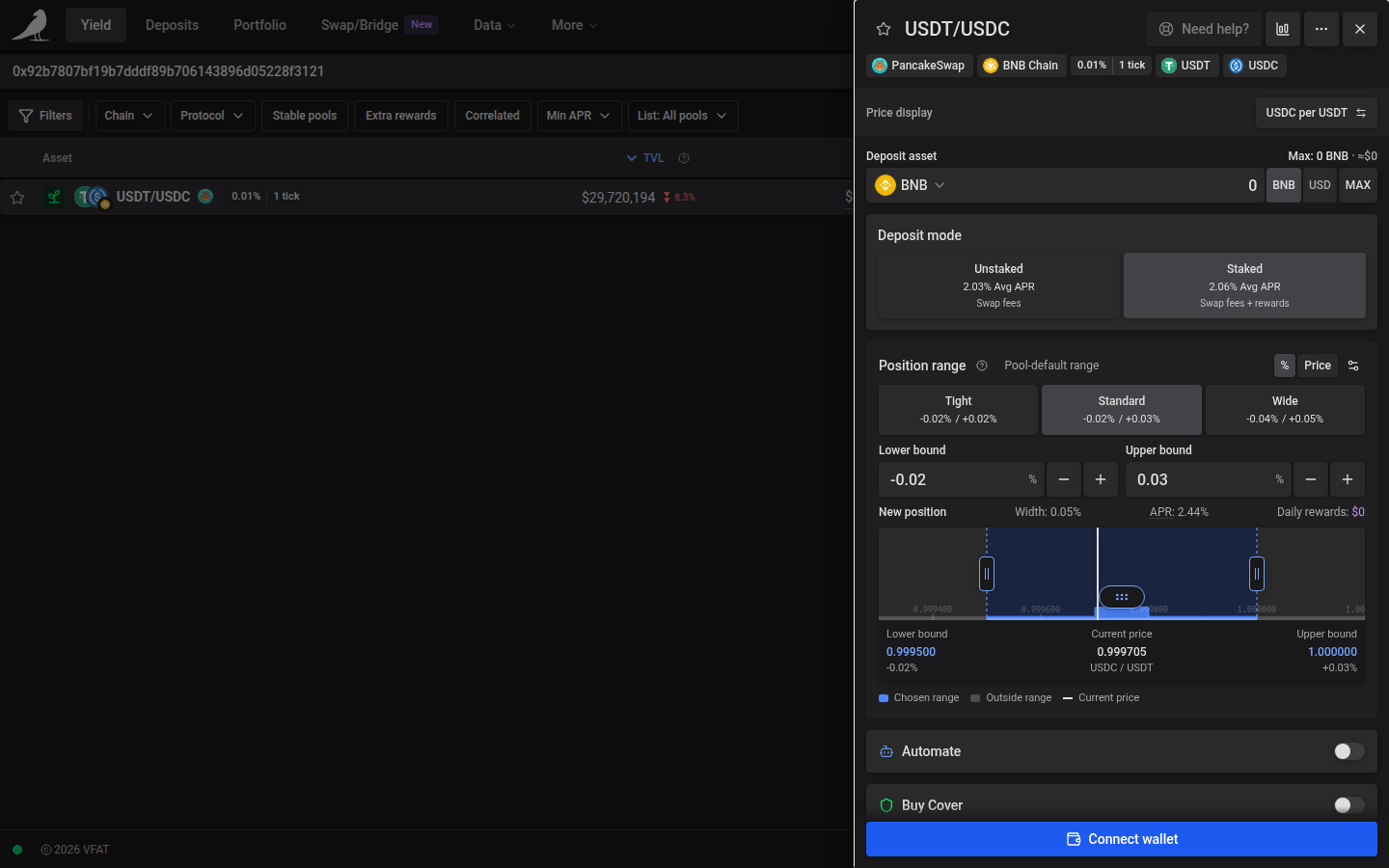
Choose a row as before. Only available deposit modes are shown. When there is more than one available way to deposit, Deposit mode cards appear below the deposit asset input, just above Position range. Each card shows that mode’s Avg APR, using the same average APR as the table, followed by its source: Swap fees, Token rewards, or Swap fees + rewards. The source reflects the current APR breakdown, so a farm with zero token rewards can show only swap fees. Zero APR shows No current APR, and missing source data shows Source unavailable. Quick Deposit uses the same labels. The selected card is highlighted like the position range presets:
- Unstaked provides liquidity without staking.
- Staked provides liquidity and stakes in the named farm. This does not imply that fees and token rewards are both earned: the source label beneath the APR shows the income available for that mode.
The action button says Deposit for Unstaked and Deposit & Stake for Staked, including when the farm currently pays zero rewards. Quick Deposit uses the same action labels.
Rows and Quick Deposit start with the available mode with the highest Avg APR that matches your filters. Opening a row or Quick Deposit keeps that mode, and automatic choices update when browse data refreshes. If you explicitly select Staked or Unstaked, your choice stays selected while its metrics refresh. Changing the extra-incentives filter restores the automatic highest-APR choice. Switching modes keeps the form, entered amount, range, and pool details in place. The quote refreshes for the new mode; Deposit stays disabled until that mode is ready. It does not move existing positions. If your selected mode becomes unavailable, it disappears from the choices and Deposit stays disabled until you choose an available mode. The Deposit mode section is hidden when no modes are available. The action pane explains that deposits are unavailable.
Pools with one or more non-whitelisted tokens show the red shield in the table and an Unlisted pool warning above the deposit form. These pools are listed because of recent trading activity; their prices, APR and automation may be unreliable. Verify the token contracts before depositing.
The action button offers Connect wallet when disconnected. Once connected, it explains missing inputs, such as Enter an amount, or issues such as Insufficient balance, before you can submit.
On wider screens, after connecting your wallet and choosing a pool and mode, use the Deposit button at the end of the row for a one-click quick deposit of a pre-selected ETH (or native token) amount, adjustable from the drop-down. Quick Deposit uses the same cards and average APR comparison. Alternatively, click anywhere on a row to open the full action pane, where you can:
- Deposit any token: it’s automatically routed/swapped into the position
- Deposit both underlying tokens directly, or an existing LP token or NFT position
- Move an existing Sickle position from one farm into another
- Choose a custom price range for concentrated liquidity farms
- Set your slippage tolerance and inspect the swap route taken
- Turn on cover or automation for the position at deposit time
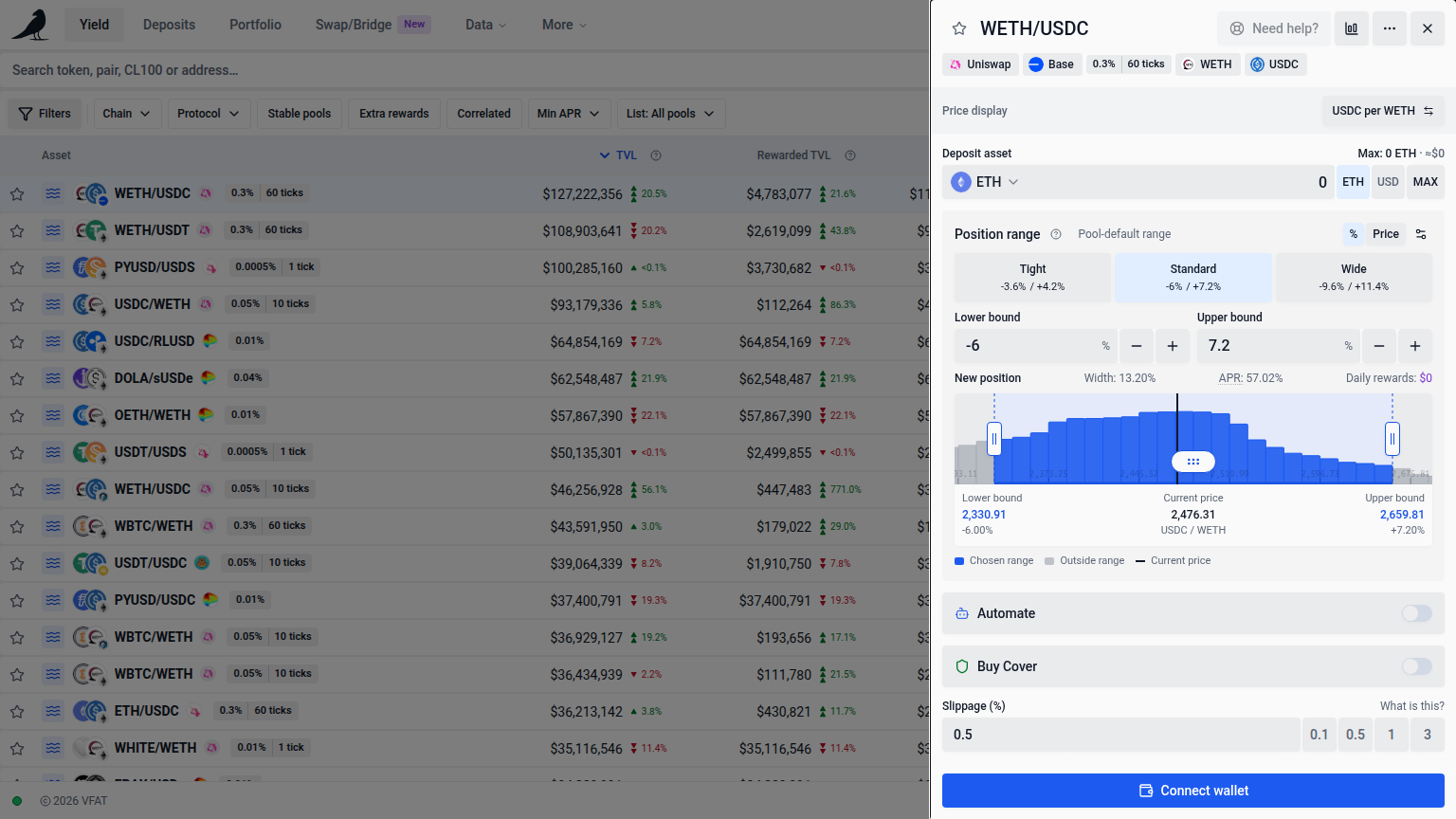
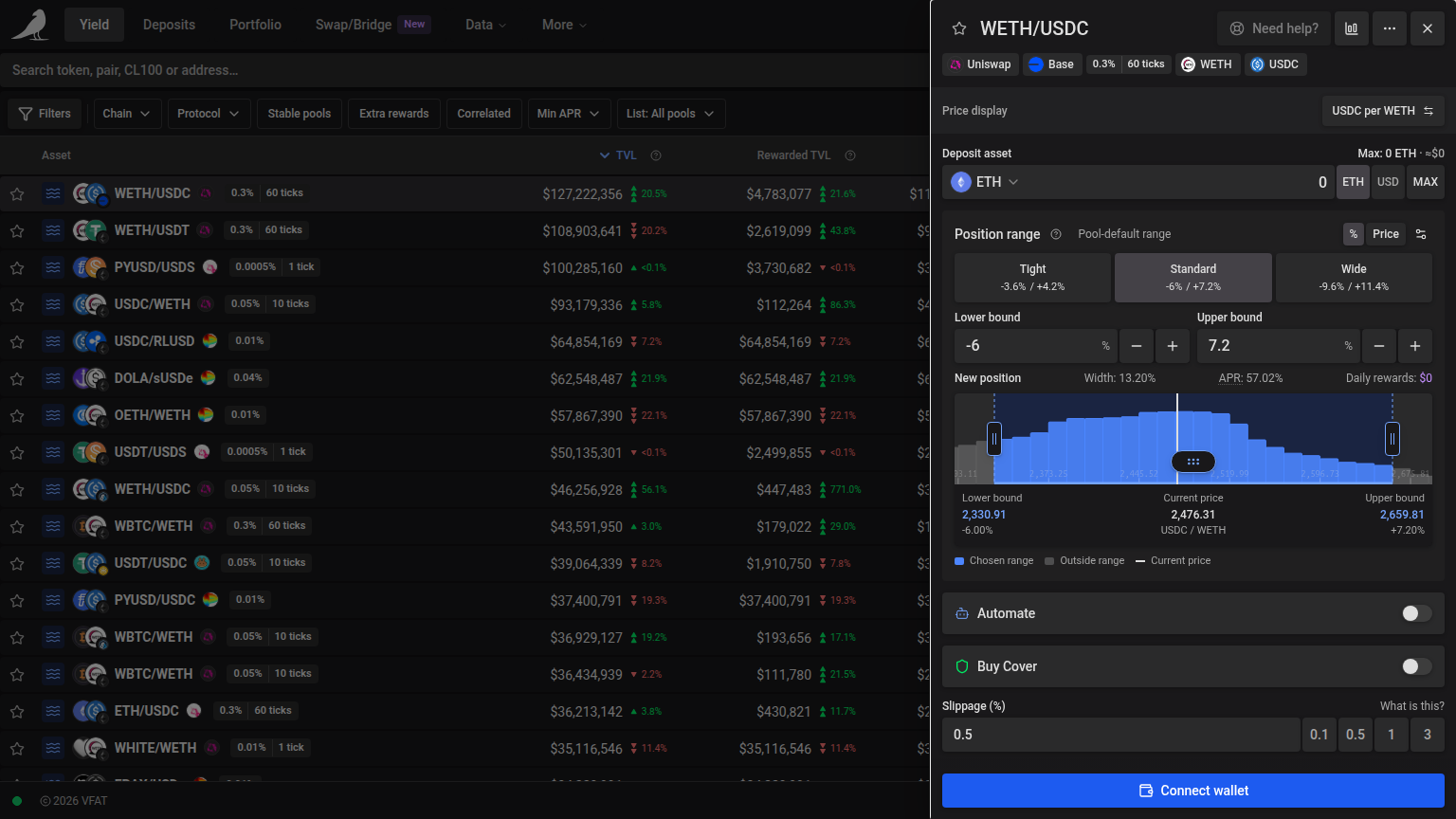
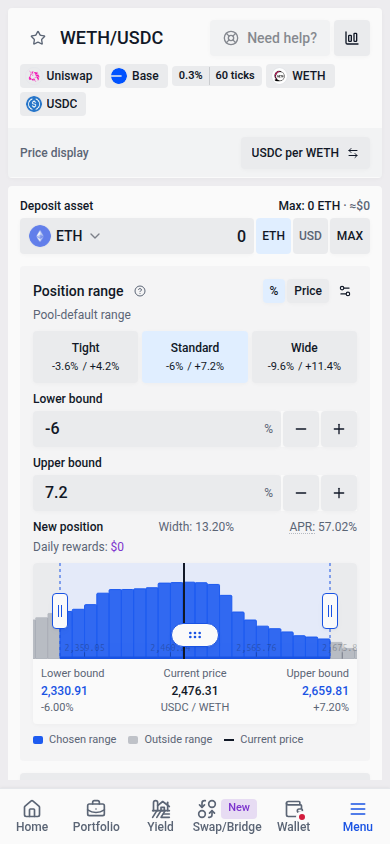
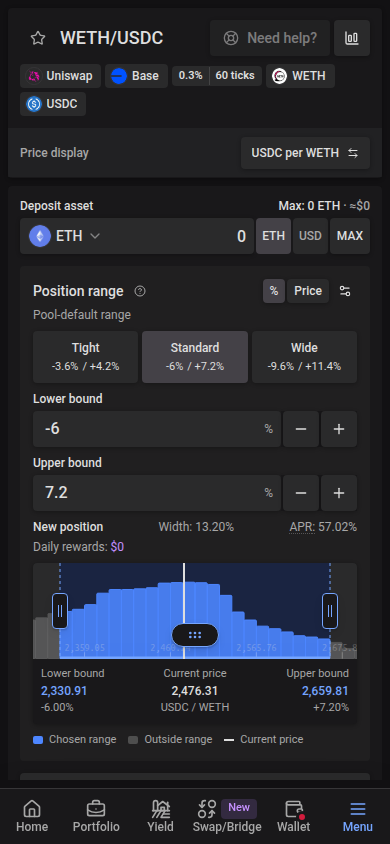
In the Position range header, choose % or Price in the displayed quote token to enter lower and upper boundaries directly. For example, enter 2000 and 2020 USDC per ETH when USDC is the quote token. Bounds round outward to the pool’s allowed prices. Price entry keeps the chosen pool boundaries fixed through market refreshes and transaction quoting. These boundaries are token-to-token prices, including when both tokens are volatile. Tight, Standard and Wide display their bounds in the selected unit, and choosing a preset keeps that unit. In Price mode, a preset fixes the displayed pool boundaries; switching back to % returns to relative bounds. These controls also apply to manual rebalances.
Range suggestions follow the same fallback order for tick-based, Liquidity Book and Metric pools: usable price history, an applicable pool default, then current liquidity distribution. If none is available, enter manual bounds. A sharp-movement warning and an oversized statistical goal keep their explanation instead of being replaced with a narrower fallback. Pool-default range uses the protocol’s existing default and relative width settings; it has no time estimate. Pool liquidity, or Liquidity shown for a partial snapshot, expands around the current trading price to cover at least 50%, 80% and 95% of the loaded liquidity for Tight, Standard and Wide. Whole bands may exceed these targets or make choices coincide. The range-help tooltip explains the source and selected coverage; these fallback ranges do not predict price movement, returns or time between rebalances. Partial liquidity describes its loaded window only, and indexed data can lag chain activity. New deposits start with Standard when available. Data refreshes and source changes preserve edited bounds and funding inputs.
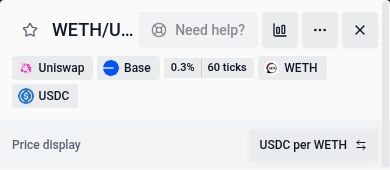
The Price display strip beneath the widget’s aligned metadata tags shows the current units, such as USDC per WETH. Click its button once to switch to the reverse direction. The same selector appears beside the expanded Price chart title; both control price displays and range inputs for the selected pool. Switching units preserves the position’s price boundaries.
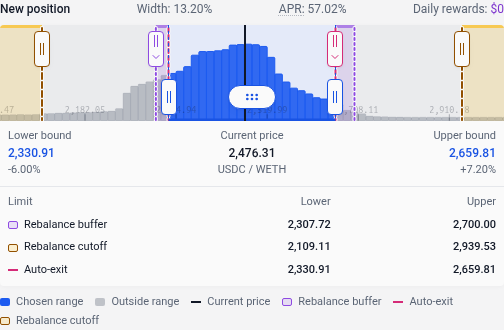
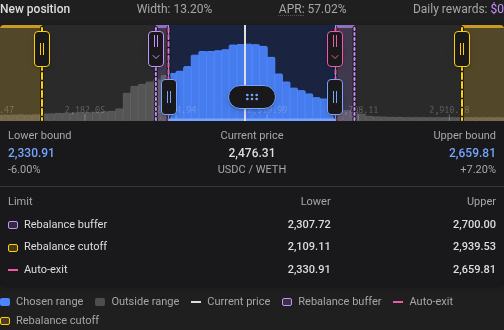
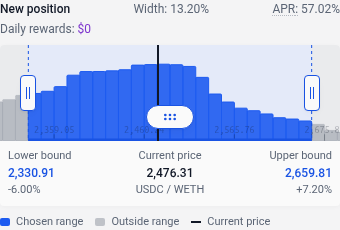
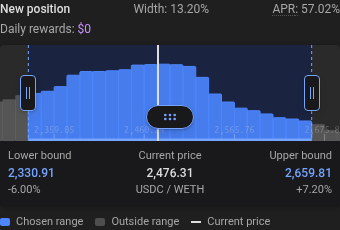
Drag either vertical boundary handle on the New position chart to adjust its bound, using a mouse or touch. Drag the Range center handle with a dotted drag grip to move both bounds together without changing Width. The center handle appears when there is enough room between the boundary handles; zoom in to make more room. The fields, width, APR and reward preview update together. Bounds snap to valid pool ticks and cannot cross or move beyond the pool’s allowed range.
On a focused boundary or center handle, arrow keys move one allowed tick increment, Page Up / Page Down move ten increments, and Home / End move to the allowed limits. Editing with a boundary or center handle clears the selected preset. These controls work in both % and Price modes and either price display direction; Price mode keeps the new bounds fixed through pool refreshes. Current-position charts stay read-only. Drag the chart away from the handles to pan, or zoom to make finer adjustments.
Percentage bounds and Width follow Percentage convention in App Settings. Tick-based (current) preserves the familiar 100-ticks-per-percentage-point convention and is the default. With Actual price change, a lower bound of −10% targets 90% of the displayed reference price and an upper bound of +10% targets 110%; the pool’s tick spacing rounds each bound outward. Width then measures the price increase from the lower bound to the upper bound. Switching conventions changes the displayed percentages while keeping the chosen boundaries.
The liquidity chart highlights your chosen range in blue, with liquidity outside it in grey. Lower bound, Current price and Upper bound are shown below the bars in the selected price units. The current-price line turns red when price is outside the range. Violet bands show rebalance buffers between the chosen range and its rebalance thresholds. Amber areas beyond the cutoff prices show where rebalancing is paused. Rose-pink dashed vertical lines indicate auto-exit triggers. The chart updates as you edit automation settings and initially fits all configured limits. Disabled sides stay hidden; a zero buffer has no band. Lower and upper prices for each configured automation limit appear beneath the chart. Drag the violet, amber, or pink handles on their price lines to adjust rebalance buffers, cutoffs, or auto-exit triggers. The fields update together. When handles overlap, tap the handle with an arrow to choose the limit to drag. Handles separate automatically as their lines move apart. Blue range handles remain below the automation handles. Arrow keys make precise adjustments; cutoffs stay outside the chosen range and exit triggers cannot cross. Scroll to zoom the chart and drag away from the handles to pan.
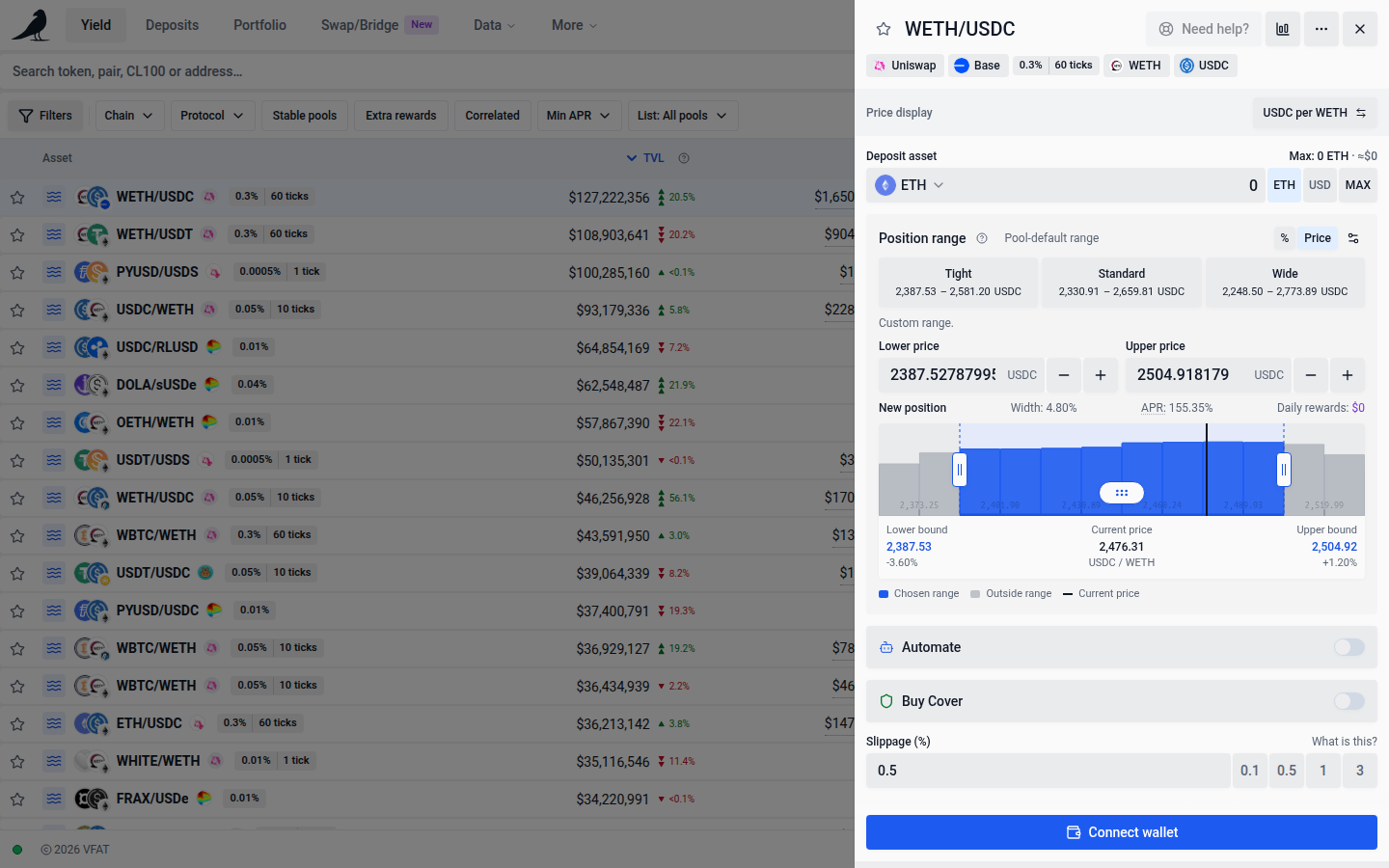
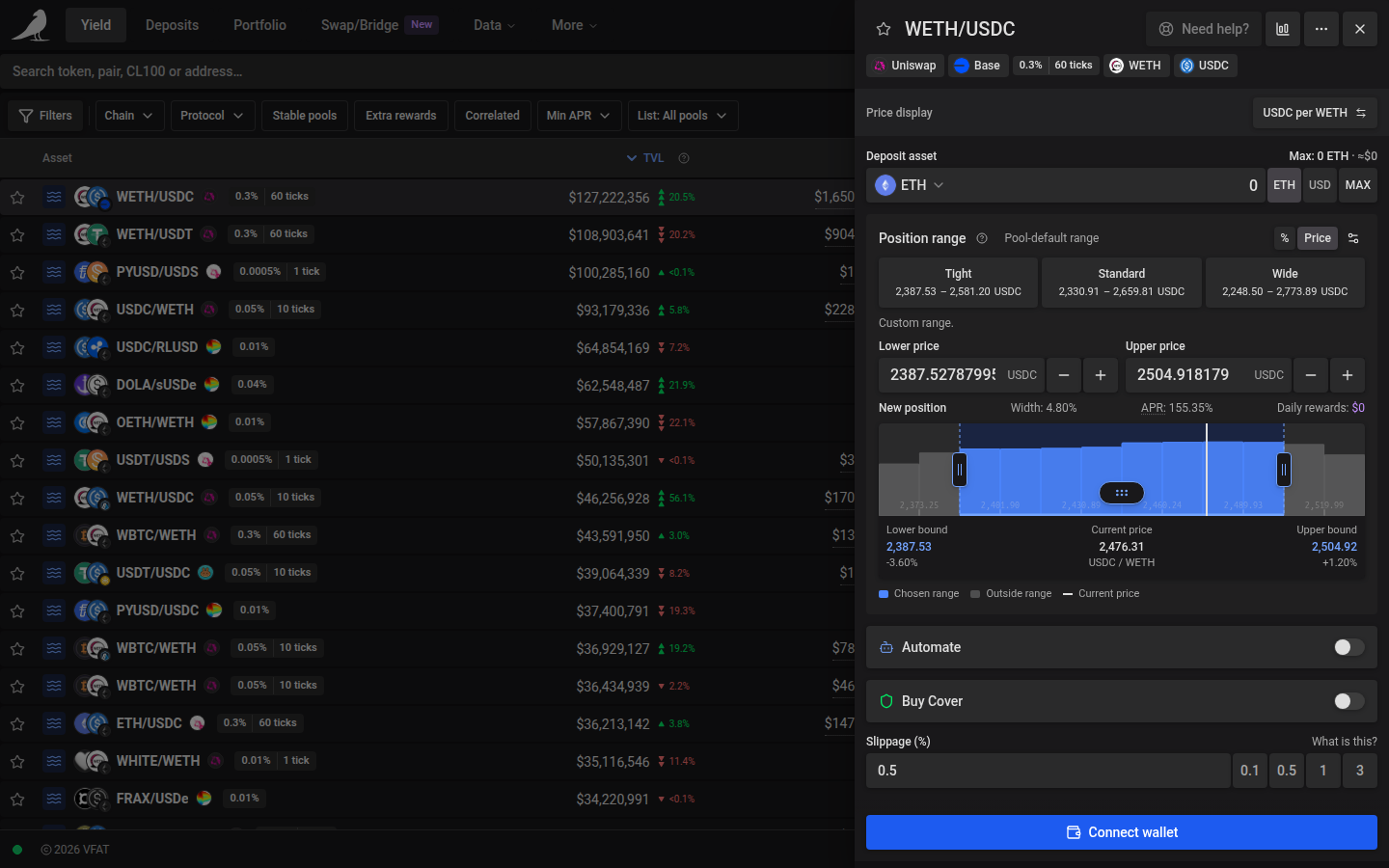
To adjust a Position range bound with the mouse wheel, click into its input and scroll up to increase or down to decrease it. Each adjustment uses the same pool tick increment and limits as the + / − buttons. Wheel adjustments also work in manual rebalances. Hovering over an unfocused input keeps normal page scrolling.
Liquidity Book farms, such as LFJ and Pharaoh pairs on Avalanche, hold liquidity in discrete price bins instead of a continuous range. The Position range picker offers the same Tight, Standard and Wide rebalance goals as other concentrated-liquidity forms when recent price history is available. New deposits start with Standard when it fits the pool; choosing another goal uses your saved range settings. Suggestions round outward to whole bins. When price history is missing, stale or shows too little movement, the picker tries the same pool-default and liquidity-distribution fallbacks described above. A sharp-movement warning or a suggestion requiring more than 256 bins remains unavailable with an explanation. You can always enter your own bounds.
The picker opens in % mode with Lower bound and Upper bound. Choose Price to enter fixed token-price boundaries. Percentage mode follows the active bin. Price mode keeps the displayed bin boundaries fixed as the active bin refreshes; the quote still places liquidity using offsets from its active bin. Switching display direction preserves the selected bins. A range spans at most 256 bins. Bin slippage (bins) sets how far the active bin may move before the deposit is refused. You can turn on Auto-rebalance and Auto-exit for the position at deposit time, and reward automation when the pair pays hook rewards.
On mobile, scroll inside the action panel to reach its range and automation controls; the action button stays below the form.
The range chart uses the same layout and controls as other concentrated-liquidity pools. Green shading marks the selected range; green and grey bars show indexed pool liquidity per bin in USD. Price labels mark the bounds and active price. Drag the handles to adjust the range in whole bins, including a single bin, up to the 256-bin limit. The fields follow the selected input units and price direction. Drag the chart away from the handles to pan, or scroll or pinch to zoom. Nearby liquidity is cached so navigation stays smooth; exploring beyond the loaded area fetches more bins in the background. Hover, tap or use arrow keys to inspect a bin’s price, token reserves and pool value. Missing liquidity data leaves the selected range visible with a retry option; missing token prices leave reserves inspectable without drawing USD bars. Indexed reserves can lag chain activity. The shaded range marks where the deposit will be placed and does not estimate its added value.
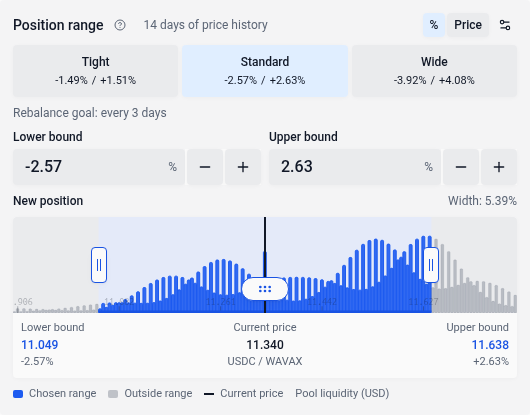
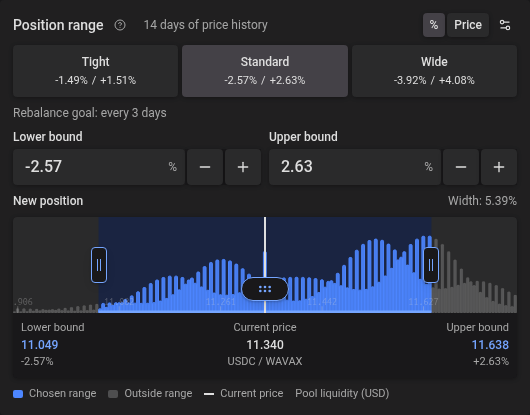
On phones, tap a row to open the action sheet. The same cards appear inside the deposit form.
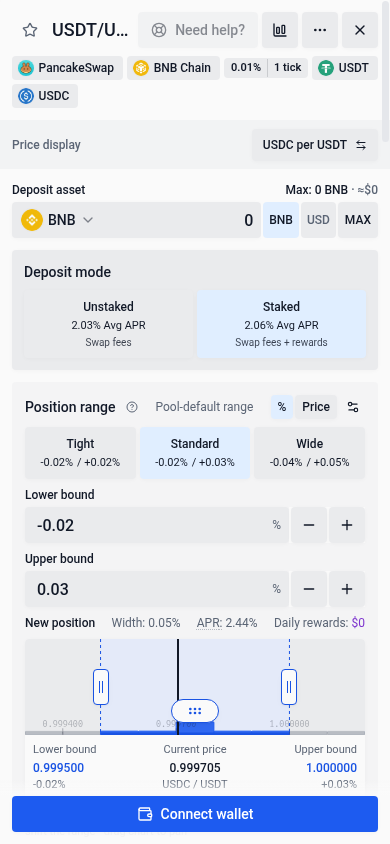
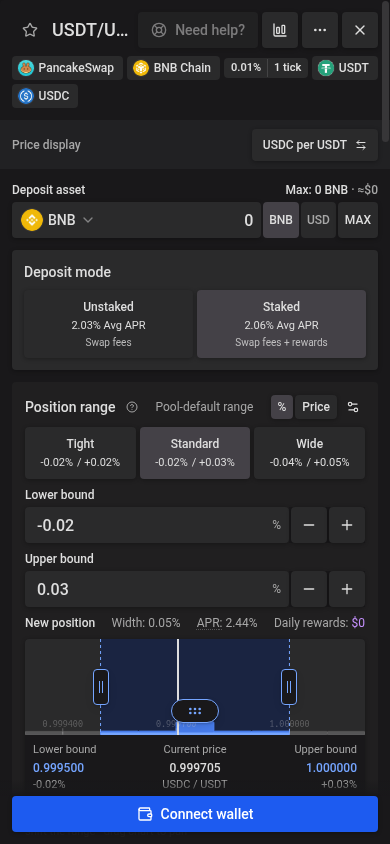
The simulation and route preview appear below the submit buttons for new deposits and batch actions, expanded by default when a quote is available. Position widgets show the preview in the scrolling content above the anchored submit controls. Use the toggle beside the submit button to collapse or reopen the preview. Loading or expanding it keeps the buttons in place. Long forms and previews scroll while the submit controls stay visible. You can switch farms without closing the preview first.
You can preview a deposit route before approving its input tokens. A missing token approval that the deposit will request does not appear as a token-transfer warning in the preview. Choose Deposit or Deposit & Stake to complete any required approvals; VFAT checks the final quote before asking you to confirm the deposit.
On chains where the native currency also has an ERC-20 interface, such as CELO on Celo and USDC on Arc, deposits and increases use native funding and skip that token’s approval transaction. MAX leaves enough native currency in your wallet for the network fee. Other input tokens and fee-token-only chains may still need approval.
After an approval transaction, deposits and increases wait for the approved amount to show on-chain before building the final quote. If it still has not appeared after about 15 seconds, the step stops and says the approval is not confirmed yet. Wait a few seconds, then choose Retry.
For an exact input amount, the final quote also checks your current token balance alongside the approval. If setup transactions used some of that token for gas, the step shows the available and required amounts. Return to the deposit form to update the amount, or add funds before choosing Retry. Your chosen amount is preserved, and Retry reads the balance again.
Turn on Automate, then select the supported Rebalance, Rewards or Exit actions in the chooser. Only selected actions appear as settings tabs. In Rewards, choose Compound, Keep tokens, or Convert tokens. Drafts stay in place when you change tabs or turn an action or Automate off and back on. The app fills the compound or harvest settings from your reward choice.
Managing open positions
Open positions show up in the Deposits tab, where quick actions let you compound earnings, harvest, or exit back to a token of your choice.
Contract infrastructure
vfat.io Yield is powered by Sickle, a self-custodied contract deployed on each chain the first time you deposit. Sickle executes complex, multi-step actions (swap, add liquidity, stake, and more) in a single transaction via audited Strategy contracts. See Audits for the full list of reports. Smart contracts carry risk regardless of audits, and there is always the underlying risk of the pool you enter.