Swap View
Open Swap/Bridge in the navigation to swap tokens or bridge them across supported networks. The swap interface uses a meta-aggregator: instead of routing through a single DEX, it requests quotes from multiple DEX aggregators at once and shows you the routes side by side.
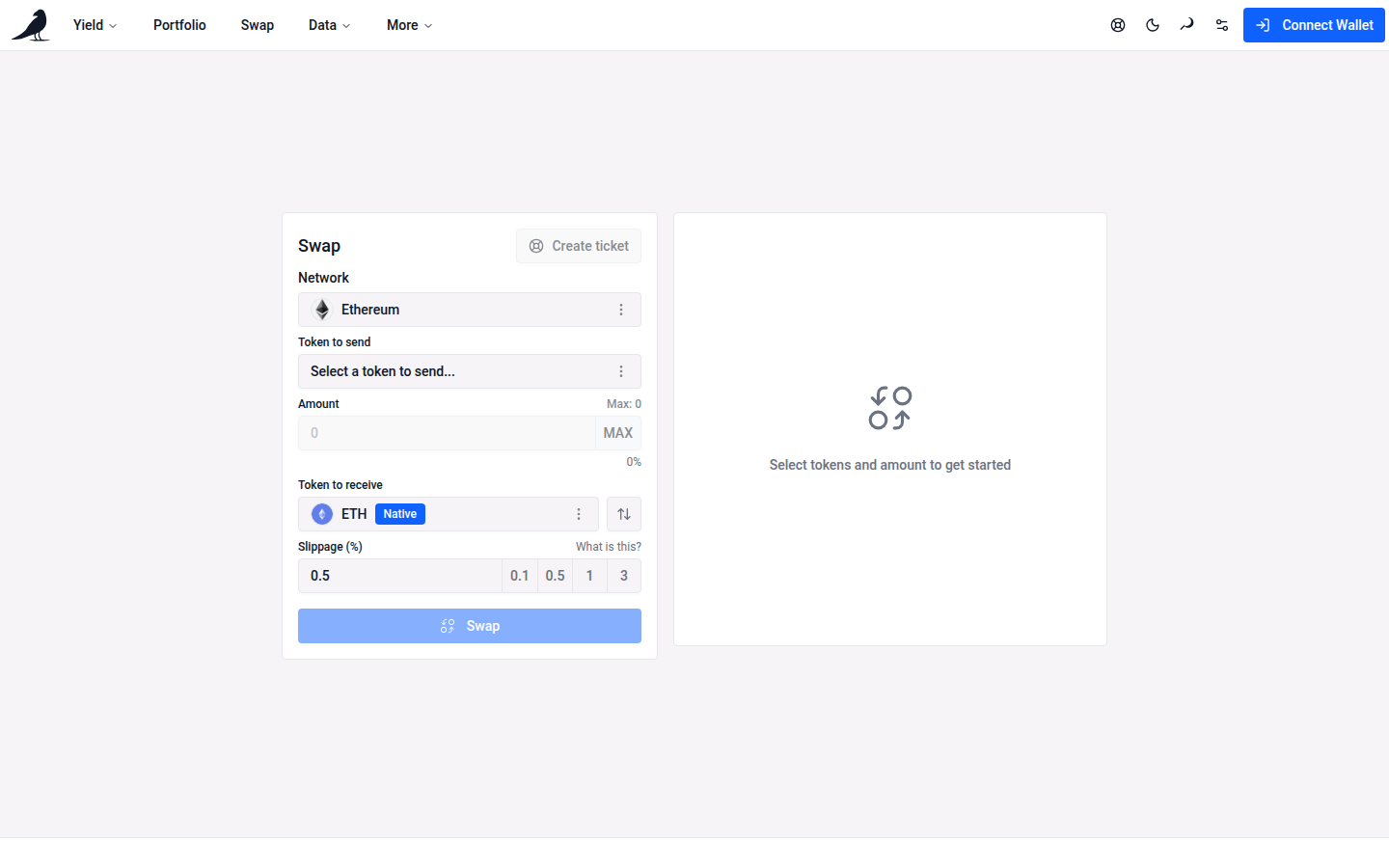
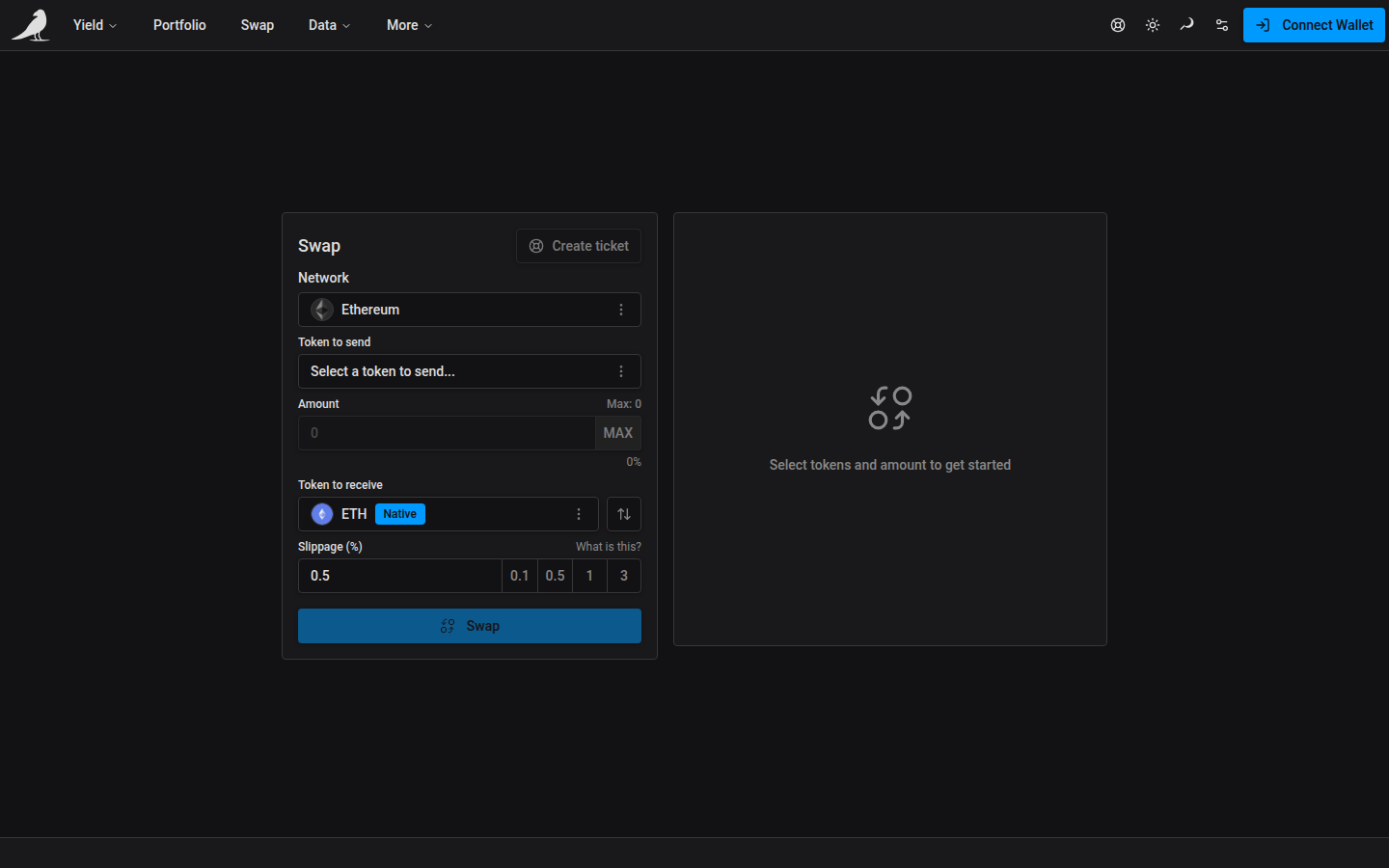
On desktop, the wider swap form and route comparison sit side by side near the top of the page. Their top edges stay in place as routes load, refresh or disappear. Short route lists fit their content; longer lists scroll while the panel header stays visible. Phones and smaller tablets use one wider panel with Back navigation between the form and routes. If a refresh returns no routes, the form reappears so you can adjust the swap. Resizing preserves your inputs and selected route.
Choosing a route
On first load, the page selects tokens and an amount so you can compare routes immediately. For a connected wallet, it prefers a supported network with valuable holdings and selects an available token using half its balance. If there are no suitable holdings, it uses a small example worth about $10. You can change every selection before confirming; opening the page never submits a transaction. Tokens, networks, and amounts supplied in a shared link take precedence over these defaults.
The form waits for the complete token list before applying defaults or a shared link. If token loading fails partway through, select Retry token loading to resume without losing the shared link’s selections.
Choose the token and enter the amount in the Token to send field. The token picker, amount, token/currency toggle, and MAX share one row, just as they do for deposits and withdrawals. Narrow surface gaps separate the attached options. Then choose the token to receive. On desktop, each token dropdown matches the full input’s width; on phones, token choices open in a bottom drawer. In the token picker, search the start of a symbol or paste a full contract address. Search help explains the supported matches for the selected network.
Choose Connect wallet on the action button to connect. After connecting, the button indicates the next step, such as Select a token or Enter an amount. It also shows when your balance is insufficient, routes are loading, or no route is available. The arrow between the inputs swaps the send and receive tokens.
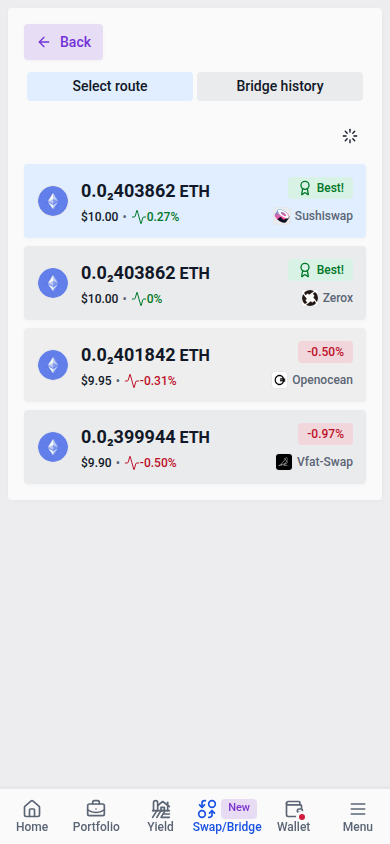
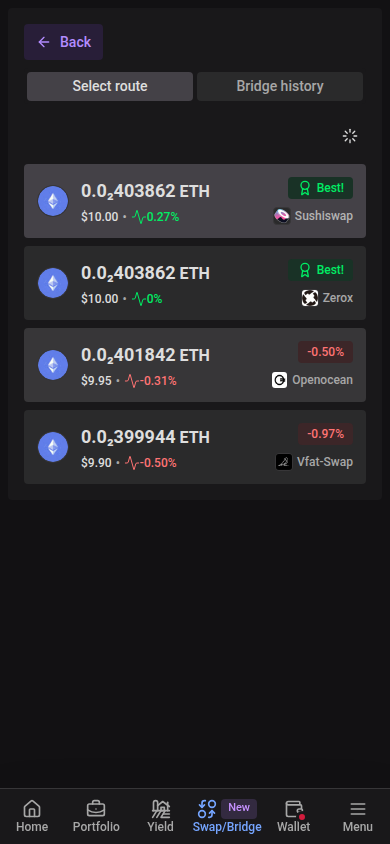
vfat.io fetches routes from several aggregators in parallel and opens a routes panel where you can compare and select among them before confirming. Routes appear from highest to lowest expected token output, using the exact token amounts rather than rounded dollar estimates. Each route shows its aggregator source so you can see where the quote came from.
The selected route has a soft light blue highlight in light mode and a brighter neutral grey highlight in dark mode. Soft green Best! badges mark routes with the highest output; multiple routes can tie for best. Red percentage badges show how much less another route returns. These badges describe route output, separately from the price-impact value below the amount. Price-impact badges in transaction details use matching soft colors.
Tokens with transfer taxes
Some tokens take a fee on every transfer; see Fees. When the token to send or receive has a recorded transfer tax, the token picker and the selected token show a badge such as 1% tax, and a warning above Swap names the rate. Each route shows its estimated Transfer tax beside price impact.
The swap review lists the taxed transfers apart from the price-impact check: one when the token goes into the swap and one when it is delivered to your wallet. The estimate uses the token’s recorded rate on the quoted amounts. A route through more hops can pay more, and slippage applies on top.
Confirming a Curve swap
Curve quotes have a short on-chain expiry. After approval, VFAT requests a fresh quote and checks its approval, minimum output, price impact and funding before opening your wallet. A new approval or price-impact decision can appear if those requirements change. If a delay uses up the quote’s lifetime, VFAT requotes or asks you to retry. A refreshed expected output can fall within your original slippage tolerance; the new quote applies the same slippage setting to its current output. If the expected output falls below the original minimum or your selected provider is unavailable, start a new swap to get an updated quote. If your connected wallet changes while the quote is being checked, VFAT blocks submission. Select a new quote with the wallet you want to use. Confirm the wallet prompt promptly; a transaction signed or included after the deadline can still revert.
Quotes with transaction fee limits
Some quotes require a particular wallet, network or maximum priority fee. VFAT carries these conditions through fee preparation and checks the connected wallet and network again before requesting a signature. A zero priority fee is a valid limit. If the conditions no longer fit, VFAT refreshes the quote or asks you to retry; refreshed swaps retain the approval, minimum-output and price-impact checks described above. The same checks apply to quoted swaps within Sickle actions.
Keep the supplied fee settings when confirming. Raising the priority fee in your wallet, speeding up a transaction, or submitting a replacement can change a pool’s fee and invalidate the quote. VFAT controls the request it sends to your wallet; your wallet controls signing and later edits. A quote is not a guarantee of inclusion or unchanged pool state.
For a Safe or another smart-contract account, the connected account can differ from the transaction origin: an owner, relayer or bundler submits the transaction and sets its fees. Checking the connected account does not verify those submission conditions. Origin-dependent quotes cannot promise the same pool fee through those wallets; the transaction’s minimum output still applies.
Cross-chain swaps
Select a different network for the token to receive to swap across chains. Cross-chain swaps currently use Across; the destination picker shows networks supported for the selected source token. A route can include a swap before bridging, after bridging, or both. Review the minimum received and route before confirming.
Before submitting, VFAT checks the estimated dollar value lost in the swap legs against your price impact threshold. This estimate uses quoted amounts and token prices and excludes bridge fees; it differs from a router’s pool price impact. Losses across legs are combined, and gains do not offset losses. Above the threshold, you must explicitly accept the risk to proceed. If a swap leg’s token prices are unavailable, submission is blocked. Transfers without swap legs do not need this check.
The transaction flow tracks the source transaction and destination delivery. If the destination swap fails, the bridged token is delivered instead of the requested output token, and the flow reports that fallback.
Finding and completing a bridge
Open the Bridge history tab beside Select route on the Swap page. On smaller screens, the tabs sit below the swap form and remain available before selecting a route. This view shows bridge transfers, including cross-chain swaps. Same-chain swaps, Sickle deposits, withdrawals, and keeper actions are excluded.
Bridge history covers every transfer from your wallet, newest first. Select Load older transfers at the bottom of the list to page further back. Recent bridge transactions may take a moment to appear. History is loaded from the API for your connected wallet; it is not saved in this browser. The database indexes bridge events continuously, even when you are not using VFAT. The API reads those prepared records directly; opening history does not trigger indexing. Supported Across transfers made through other apps can also appear.
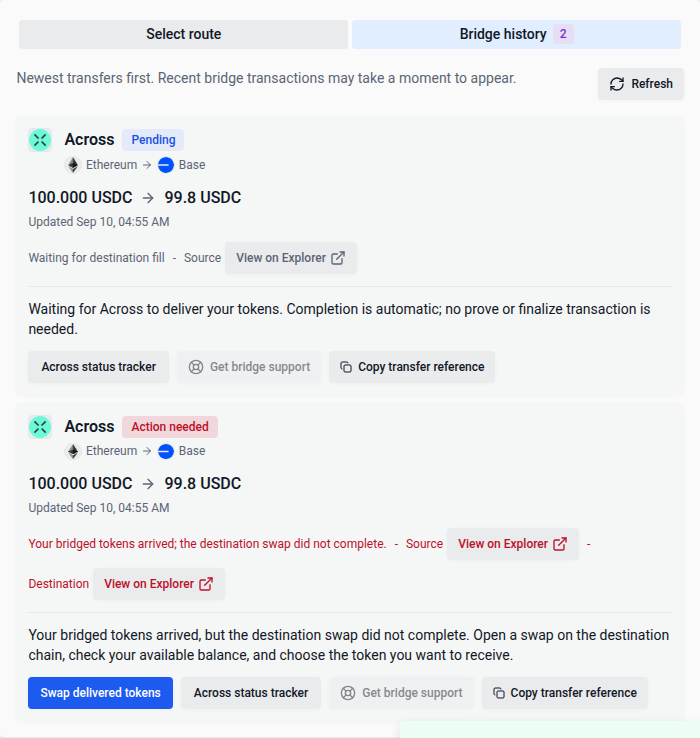
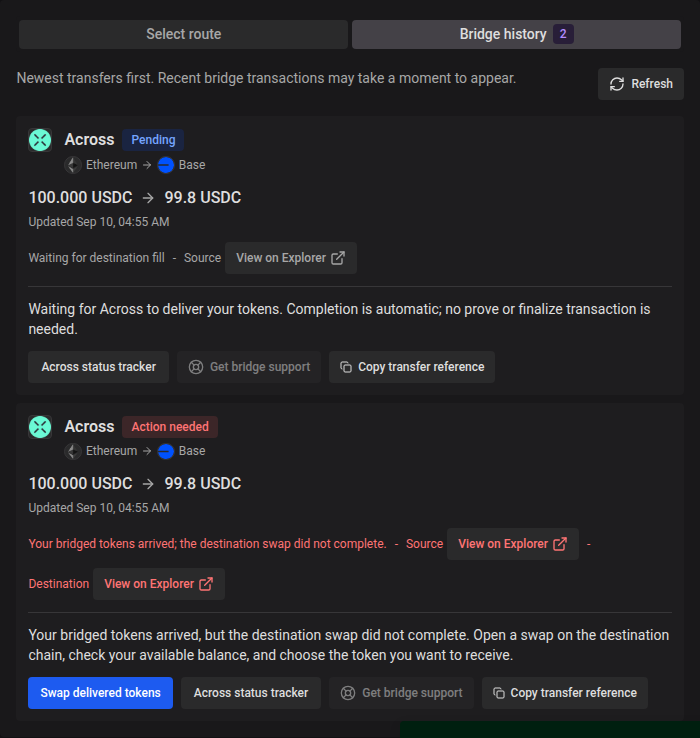
Each transfer shows the source and destination transaction links, its last known status, and the next step. While the Swap page is open, the most recent transfers refresh every 15 seconds when one is still in progress or you have just started a transfer, and every minute otherwise. Select Refresh to update all transfers you have loaded, including older pages, and remove records that the API no longer includes. The count on the Bridge history tab covers the most recent transfers only. If the API is temporarily unavailable, transfers already loaded on this page remain visible with an error message so you can retry. After a reload, reconnect, or wallet change, history must be loaded from the API again.
Across delivery is automatic. A slow fill or expired deposit stays in history while settlement or a refund is pending. Across status tracker and Copy transfer reference help you check progress. A failed destination swap offers Swap delivered tokens, using a fresh quote and your current wallet balance. Across transfers do not require you to prove or finalize a withdrawal.
Get bridge support attaches the transfer reference to a support ticket. Older Across refunds sent to a router require VFAT support.
Wrap and unwrap
Wrapping and unwrapping a chain’s native token (e.g. ETH ↔ WETH) is handled as a distinct, gas-efficient path rather than being routed through an aggregator, since no swap is actually required.
Sharing a swap
The swap page keeps its state (tokens, amount, source and destination networks) in the URL, so you can copy the link to share a specific swap setup with someone else. Shared links retain that setup while network and token data load. They wait for the complete token catalogue before determining whitelist status. If token loading fails, choose Retry loading tokens to continue without reloading the page. This also retries failed token details for shared links, keeping the requested setup until loading succeeds. Tokens resolved from a link’s contract address without catalogue verification show the non-whitelisted warning. When you hide non-whitelisted tokens, these tokens are left unselected so the link respects your preference.